On this page
Overview
For Business Central companies, the Customer Portal shows posted sales invoices with a remaining balance. If your company uses several number series for invoices and you do not want your customers to see (or pay) some of them online, for example internal or intercompany series, you can hide invoices from the portal by their invoice number prefix.
NOTE This feature is currently in beta and is subject to change.
This setting only affects the Customer Portal. Hidden invoices remain visible on your Invoices page in Benji Pays and can still be processed by Auto Processing. To exclude invoices from Auto Processing by prefix, use Skip Invoices by Invoice Number Prefix in Company Settings instead; see Business Central Invoices: Posted vs Unposted, Statuses, and the Invoice Number Prefix Filter.
Hide invoices by prefix
- Sign in to Benji Pays and go to Settings > Portal Settings.
- Turn on Hide invoices from Customer Portal based on their invoice number prefix.
- Choose a Filter mode: Hide invoices whose number starts with the following prefixes, or Only show invoices whose number starts with the following prefixes.
- In Invoice number prefixes (matched when number starts with), type a prefix and press Space to add it as a bubble. Add as many as you need.
- Save your portal settings.
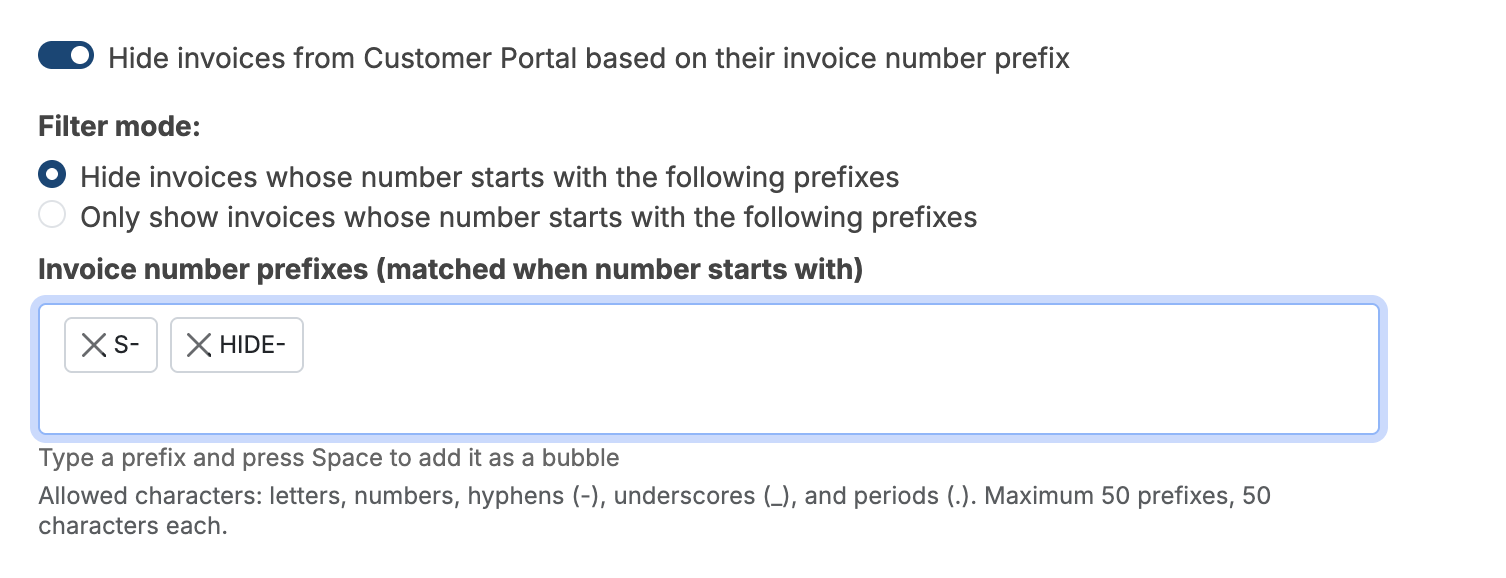
Allowed characters: letters, numbers, hyphens (-), underscores (_), and periods (.). Maximum 50 prefixes, 50 characters each. Matching is starts with on the invoice number shown in Benji Pays (the posted number, for example PS-INV).
Hide the Business Central invoice PDF
If you send your own invoice documents from another system and do not want customers downloading the Business Central PDF from the portal, turn on Hide the Business Central invoice PDF in the Customer Portal on the same Portal Settings page. Customers can still see the invoice amount and pay it.
Related settings
- The portal date settings ("In your Customer Portal, do not show invoices with an Invoice date prior to the date specified below." and "In your Customer Portal, only show invoices with an invoice date on or before the current date.") also apply to Business Central invoices.
- Only posted invoices are ever shown in the portal. Draft, Pending Approval and Released invoices never appear regardless of these settings.
Was this article helpful?
That’s Great!
Thank you for your feedback
Sorry! We couldn't be helpful
Thank you for your feedback
Feedback sent
We appreciate your effort and will try to fix the article