Auto Processing streamlines invoice management by automatically processing customer payments when the required settings and conditions are met.
Before you begin
Before relying on Auto Processing, confirm that the global setting is enabled, the customer is enabled for Auto Processing, the invoice is due, and the customer has an enabled payment profile.
IMPORTANT: Review each customer’s setting before relying on Auto Processing for scheduled invoice payments.
Set up Auto Processing
1. Enable the global Auto Processing setting
The global switch for Auto Processing must be enabled in the settings of Benji Pays.
Navigate to: Settings > Company Settings > scroll down to Auto Processing Settings > toggle on Auto Processing Enabled.

2. Enable Auto Processing at the customer level
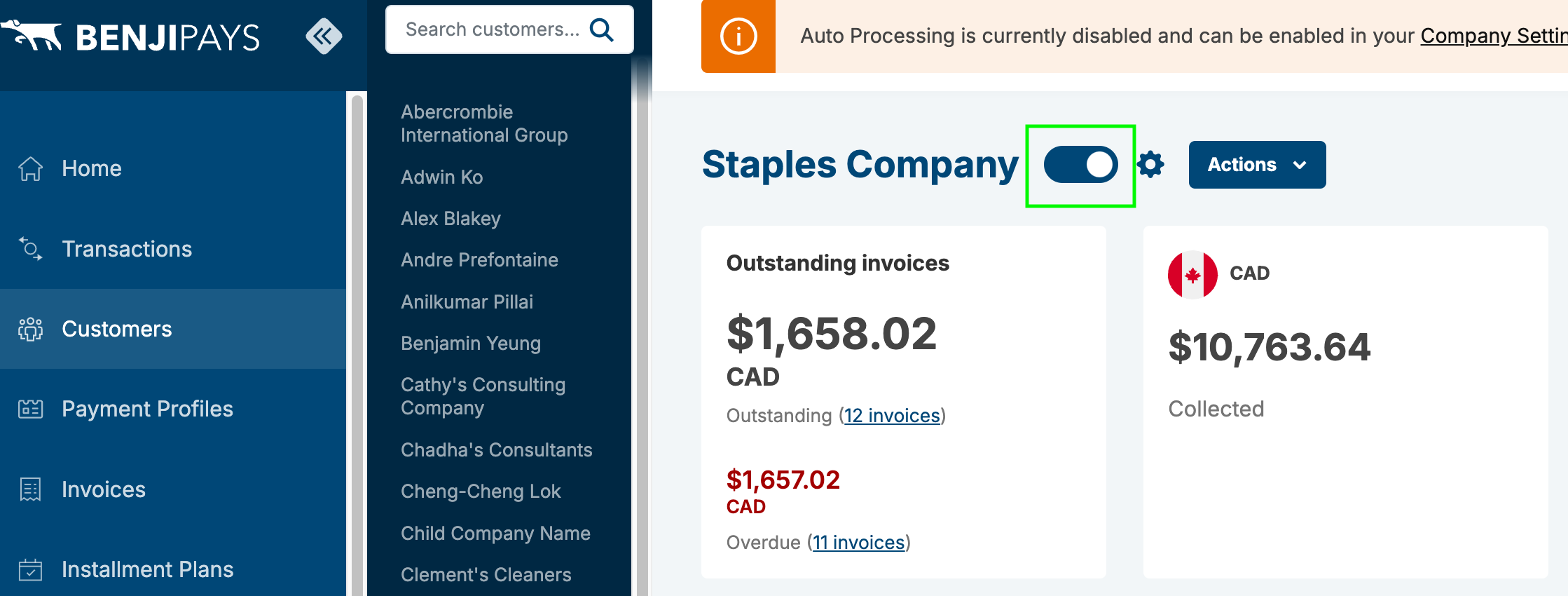
Auto Processing must also be enabled at the customer level. By default, it is set to ON for all customers.
Navigate to: Customers > select a customer > toggle Auto Processing ON or OFF.
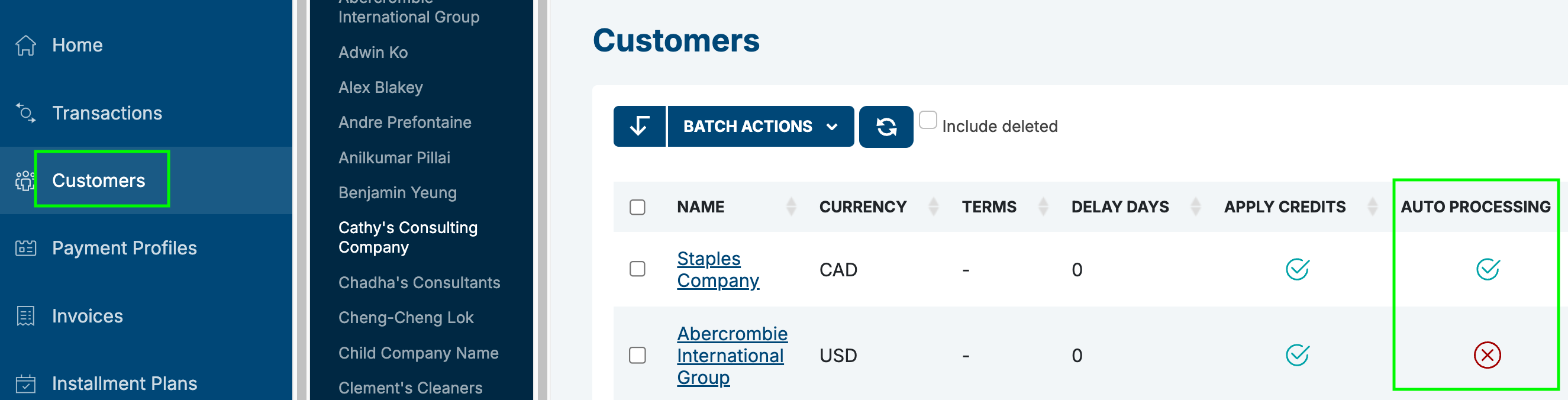
IMPORTANT: In the Customers table, the Auto Processing column shows a checkmark (✔) when it is enabled and an X (❌) when it is disabled.
3. Confirm the invoice due date
For Auto Processing to initiate, the invoice due date must be met. Once the due date arrives, the system processes the payment according to the configured settings.
After Auto Processing runs, review the transaction and invoice status in Benji Pays to confirm the payment outcome.
4. Enable a payment profile
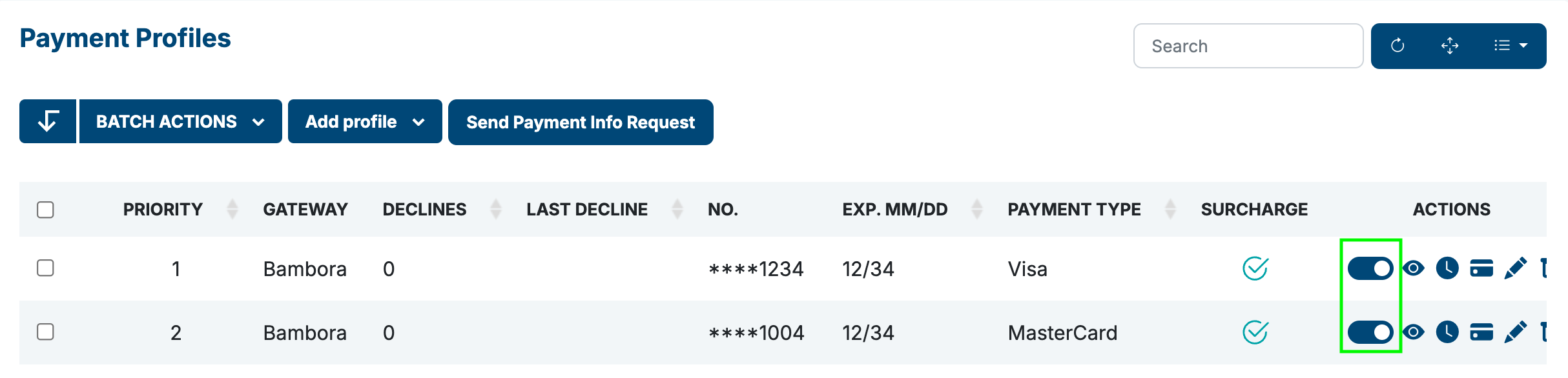
A valid and enabled payment profile must be saved for each customer. This profile includes the customer’s preferred payment method and enables the payment to be processed when the invoice is due.
Navigate to: Customers > select a customer > scroll down to Payment Profile > toggle on Auto Processing.
If Auto Processing does not run
Check the following before contacting support:
- Auto Processing is enabled in Settings > Company Settings.
- Auto Processing is enabled on the customer record.
- The invoice due date has arrived.
- The customer has an enabled payment profile.
- The transaction and invoice status do not show an issue that requires follow-up.
IMPORTANT: The Auto Processing Forecast Report can help you identify invoices expected to Auto Process before their due date.
Related article
To see which invoices are expected to Auto Process, review the Auto Processing Forecast Report.
Was this article helpful?
That’s Great!
Thank you for your feedback
Sorry! We couldn't be helpful
Thank you for your feedback
Feedback sent
We appreciate your effort and will try to fix the article