On this page
Only posted invoices can be paid
Business Central sales invoices go through several stages: Open (a draft you can still edit), Pending Approval, Released, and finally Posted. Only a posted invoice has customer ledger entries, so only a posted invoice can have a payment applied to it.
Benji Pays therefore shows and collects payment only for posted sales invoices with a remaining balance. Draft, Pending Approval (shown as In Review by the API) and Released invoices are not imported, do not appear in the Customer Portal, are not emailed by Invoice Rover and are never auto-processed.
If an invoice you posted does not show in Benji Pays yet, wait a few minutes for the webhook or open the Customers page to trigger a refresh. See How Business Central Data Syncs with Benji Pays.
IMPORTANT If you try to collect payment for an unposted invoice (for example from an older link), Benji Pays stops with: "The following invoice(s) have not been posted in Business Central yet. Please post them before attempting to collect payment: S-INV102609". Post the invoice in Business Central and try again.
Number series: S-INV and PS-INV
Business Central uses two number series for sales invoices. Unposted invoices use Invoice Nos. (default prefix S-INV, for example S-INV100234). When an invoice is posted it receives a new number from Posted Invoice Nos. (default prefix PS-INV, for example PS-INV100234). Your company may use different prefixes; check Sales & Receivables Setup > Number Series.
Benji Pays displays the posted number. If an invoice number changes because it was posted, Benji Pays keeps track of the old number so payment history stays attached to the invoice.
The Status column on the Invoices page
For Business Central companies the Invoices page has a Status column. Hover over the badge for details:
| Badge tooltip | Meaning |
|---|---|
| Open in Business Central | Posted with a remaining balance. Payable. |
| Paid in Business Central | Posted and fully settled. |
| This invoice was cancelled in Business Central | Posted, then cancelled with the Cancel action (a corrective credit memo reversed it). Shown in the All tab for history only; not payable. |
| This is a corrective document in Business Central | Posted, then corrected with the Correct action. The original is shown for history; the replacement draft appears once it is posted. |

Skip Invoices by Invoice Number Prefix (Auto Processing)
Because Business Central uses prefixes to distinguish document types, Benji Pays lets you control which invoices Auto Processing considers by their invoice number prefix. Use it to skip a whole class of invoices (for example a number series used for internal or intercompany invoices) or to process only one series.
- Go to Settings > Company Settings and scroll to Invoice Skip Settings.
- Under Skip Invoices by Invoice Number Prefix, turn on Skip invoices by invoice number prefix during auto-processing.
- Choose a Filter mode: Skip invoices whose number starts with the following prefixes, or Only process invoices whose number starts with the following prefixes.
- In Invoice number prefixes (matched when number starts with), type a prefix and press Space to add it as a bubble. Repeat for each prefix.
- Select Save Invoice Skip Settings.
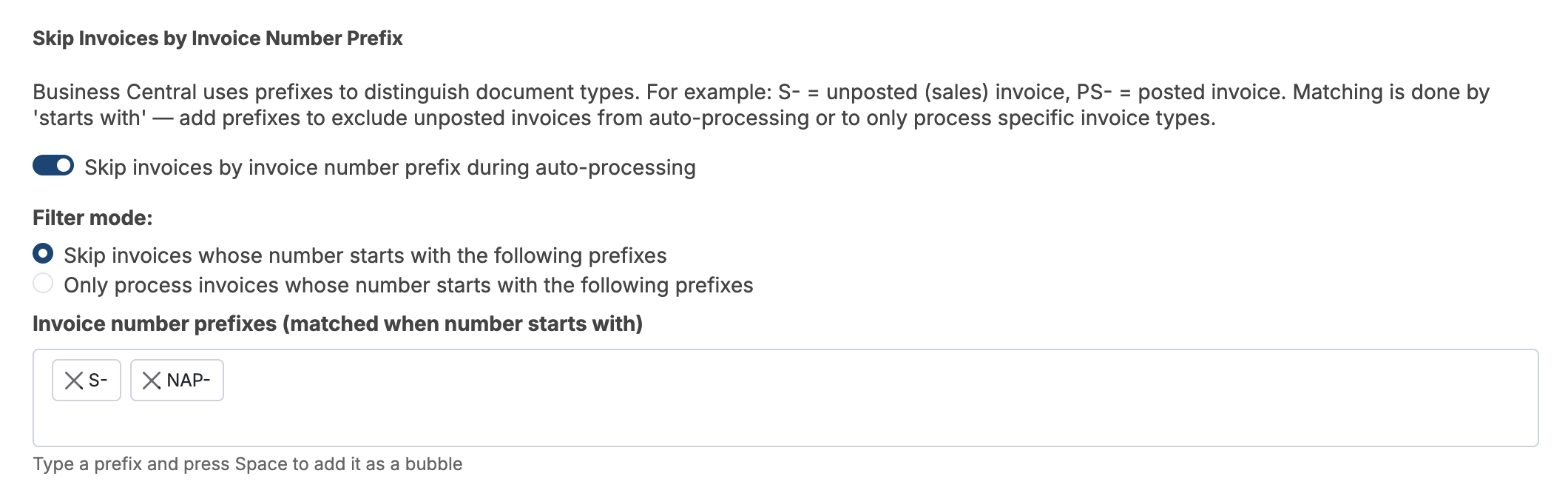
Rules for prefixes: matching is starts with and is applied to the invoice number as shown in Benji Pays; each prefix must be 50 characters or less; you can add up to 50 prefixes; prefixes can only contain letters, numbers, hyphens, underscores, and periods.
NOTE The prefix filter affects Auto Processing only. It does not hide invoices from the Invoices page, Pay Now links or the Customer Portal. To hide invoices from the portal by prefix, see Hide Business Central Invoices in the Customer Portal by Invoice Number Prefix.
When you enable Auto Processing for a Business Central company, Benji Pays shows a warning headed "Action required: review before enabling Auto Processing" reminding you that only posted invoices are processed and pointing you to this setting. Review it before you turn Auto Processing on.
Reference Field Skip
QuickBooks users skip single invoices by putting text in the invoice memo. For Business Central, Benji Pays reads the invoice's Reference field instead (the customer purchase order / external document reference on the sales invoice). In Invoice Skip Settings the section is titled Reference Field Skip.
- Under Reference Field Skip, choose whether to skip invoices when the Reference field Contains the text below or Does NOT contain the text below.
- Enter the text, for example *NAP*. Benji searches the entire Reference field, so pick something that would not normally appear there.
- Select Save Invoice Skip Settings.
- In Business Central, put that text in the Reference field of any invoice you do not want auto-processed, before it is posted.
Payment Terms and invoice date skip
The other Invoice Skip Settings work for Business Central the same way they do for QuickBooks:
- Payment Terms: turn off the switch next to any Business Central payment terms code to skip invoices that use it during Auto Processing. The same include and exclude choices are available on Invoice Rover email reminder rules. An invoice with no payment terms, or the empty terms id, is treated as terms not set.
- Skip invoices with invoice date prior to: skip everything dated before the day you started using Benji Pays.
- Skip Auto Processing by Amount: skip invoices above or below a balance you choose.
Invoice PDFs
Benji Pays retrieves the invoice PDF from Business Central when you view, email or attach an invoice. The PDF uses the report layout selected in Business Central for posted sales invoices, so change your branding there, not in Benji Pays. Document attachments uploaded to the posted invoice in Business Central can also be included in receipt emails: in Settings > Company Settings turn on "Include any uploaded Business Central invoice attachment(s) in your customer's receipt emails."
Was this article helpful?
That’s Great!
Thank you for your feedback
Sorry! We couldn't be helpful
Thank you for your feedback
Feedback sent
We appreciate your effort and will try to fix the article