On this page
Overview
Benji Pays records every payment it collects for a Business Central company as lines in a Cash Receipt Journal (a customer payment journal). Before a payment gateway can be enabled you must tell Benji Pays which journal to use for that gateway, and whether Benji Pays should post the journal to the General Ledger for you.
Both settings live on Settings > Business Central Settings. The journal for each gateway can also be chosen while adding or editing the gateway under Settings > Payment Gateway Settings.
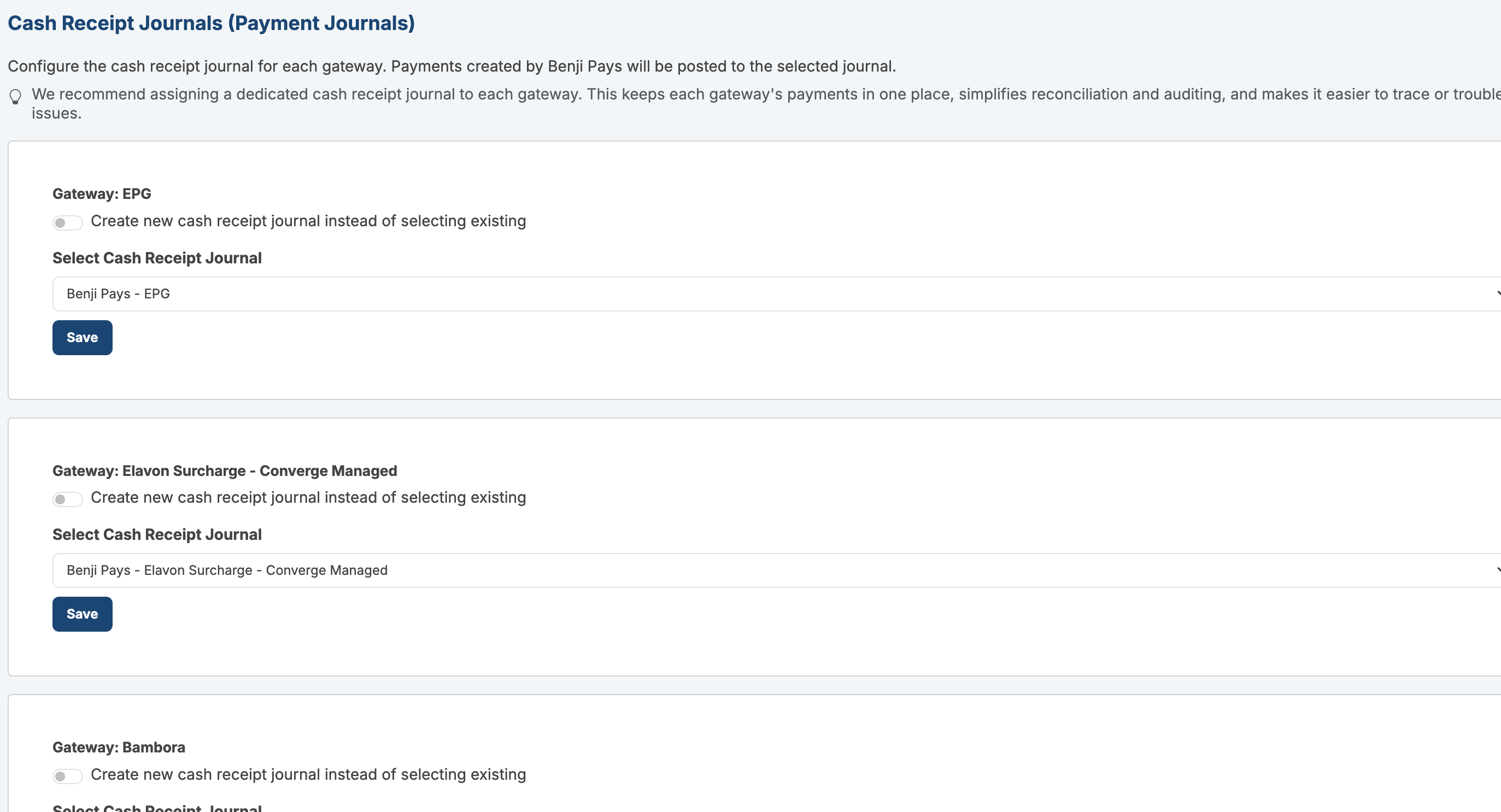
Assign a cash receipt journal to each gateway
Payments created by Benji Pays for a gateway are written to the journal you select for that gateway. We recommend a dedicated journal for each gateway: it keeps each gateway's payments in one place, simplifies reconciliation and auditing, and makes it easier to trace or troubleshoot issues.
Select an existing journal
- Sign in to Benji Pays and go to Settings > Business Central Settings.
- Under Cash Receipt Journals (Payment Journals), find the gateway.
- In Select Cash Receipt Journal, choose a journal batch from your Business Central company. The list is loaded live from Business Central.
- Select Save. You will see "Cash receipt journal saved."
Create a journal from Benji Pays
If you would rather keep Benji Pays payments in a brand-new journal batch, Benji Pays can create it in Business Central for you.
- Make sure the gateway already has a Payment Account selected for at least one currency (in the gateway settings, "Select a Payment Account for [currency] Payments"). The new journal balances to that account; if none is selected you will see "Select the payment account for a currency first. The new cash receipt journal balances to that account."
- Turn on Create new cash receipt journal instead of selecting existing.
- Enter a Cash Receipt Journal Name, for example BENJI-CC. Business Central journal batch names are short codes, so keep it to letters, numbers and hyphens.
- Select Create Benji Pays Cash Receipt Journal. When you see "Cash receipt journal created.", the new batch is assigned to the gateway.
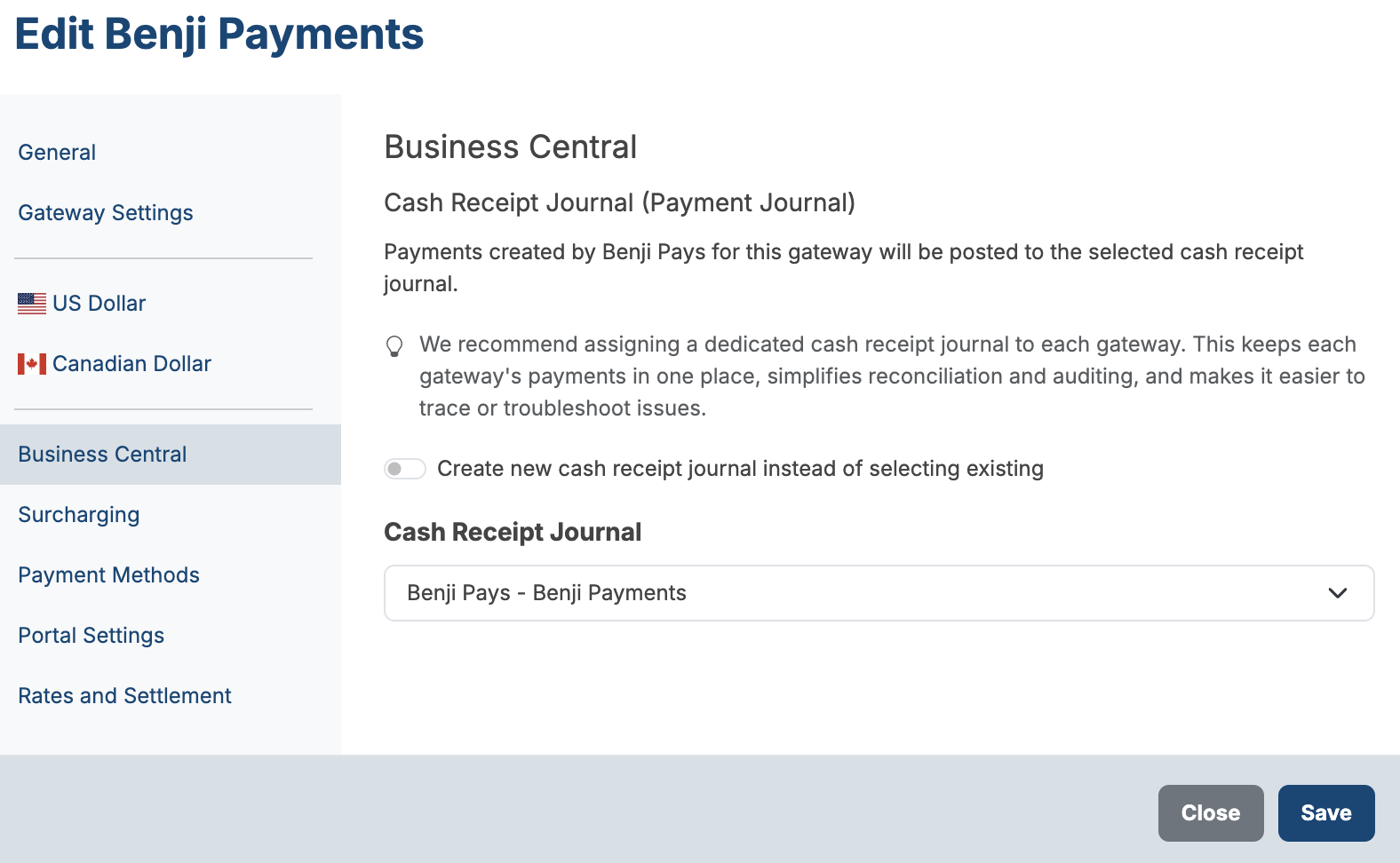
IMPORTANT A gateway cannot be enabled until it has a journal. If you try, Benji Pays shows "A Business Central payment journal must be configured before enabling this gateway. Go to Business Central Settings to set up the journal mapping." Save the gateway first, then assign the journal, then enable the gateway.
Which account the journal balances to
In Business Central a journal batch has a balancing account. When Benji Pays creates a journal for you it sets the balancing account to the gateway's Payment Account for the currency (a G/L account, typically a clearing account such as BPCLR-CAD that Benji Pays can create for you from the gateway settings). Each payment line credits the customer and the balancing account collects the cash side.
If you select an existing journal instead, Benji Pays uses whatever balancing account that batch already has. Check the batch in Business Central under Cash Receipt Journals > Edit Journal to confirm the Bal. Account Type and Bal. Account No. are the account you want payments to land in.
The Settlement Deposit Bank Account fields are shown only when the gateway is Benji Payments. They list your Business Central Bank Accounts (not G/L accounts), the account must be active, and they are used for recording processor deposits, not for the payment lines themselves. Other processors on Business Central do not show these fields.
Automatically post cash receipt journals to General Ledger
Under General Settings on the Business Central Settings page you will find the toggle Automatically post cash receipt journals to General Ledger. It is on by default.
When the toggle is on
Cash receipt journals are posted to the General Ledger immediately after payments are created. The invoice's remaining amount in Business Central drops right away, and the payment appears in Customer Ledger Entries. The transaction in Benji Pays shows a message such as "Cash Receipt Journal "BENJI-CC" auto-posted to General Ledger. Document number: 4F2A9C1D."
When the toggle is off
Payment lines are created in the journal but not posted. You will need to open Business Central, go to Cash Receipt Journals, and post the journal manually. Each transaction includes a message indicating whether it was posted automatically or requires manual posting, for example "Cash Receipt Journal "BENJI-CC" was not posted automatically but was created in Business Central (document number 4F2A9C1D). To post, open Business Central, go to Cash Receipt Journals, and post the journal manually."
IMPORTANT While lines sit unposted, the invoice still shows its full balance in Business Central, and Benji Pays shows the invoice as paid based on the payment it collected. Post the journal daily to keep the two systems aligned, and do not add unrelated manual lines to a journal that Benji Pays uses.
Occasionally Benji Pays cannot obtain its internal lock on a busy journal and will leave the lines unposted even with the toggle on. The transaction message reads "...was not posted automatically because journal locking is unavailable...". Post that journal manually in Business Central.
If a journal is deleted in Business Central
Benji Pays listens for journal changes in Business Central. If someone deletes a journal batch that a gateway uses, Benji Pays disables that gateway so payments cannot be recorded into a missing journal. Company administrators receive an email titled "Action Required: Payment Journal Deleted in Business Central" and an in-app notification naming the affected gateways.
To recover, go to Settings > Business Central Settings, select or create a new journal for each affected gateway, then re-enable the gateway in Payment Gateway Settings.
Tips
- Give each gateway (and each currency, if you run separate gateways per currency) its own journal batch.
- Do not use a journal batch that your accounting team also uses for manual receipts. Benji Pays checks that only its own lines are in the batch before posting; unexpected lines cause the post to be skipped.
- If you see "Unable to load cash receipt journals from Business Central.", select Retry. If it keeps failing, the connection may need to be re-authorized; see Troubleshooting Business Central Connection and Payment Errors.
Was this article helpful?
That’s Great!
Thank you for your feedback
Sorry! We couldn't be helpful
Thank you for your feedback
Feedback sent
We appreciate your effort and will try to fix the article