On this page
What this connection does
Connect your Benji Pays account to your Microsoft Dynamics 365 Business Central company so Benji Pays can read your customers and posted sales invoices, collect payments, and record those payments back in Business Central as cash receipt journal lines.
NOTE This feature is currently in beta and is subject to change. You will see a BETA badge on Business Central screens in Benji Pays.
After you connect, Benji Pays imports your Business Central customers (including contact email addresses), your open posted sales invoices and your open credit memos. It also registers webhooks so changes you make in Business Central appear in Benji Pays within a few minutes.
Before you begin
IMPORTANT Each Benji Pays account can connect to only one Business Central company in one environment. After you connect a company you cannot switch it to a different company. To process payments for several Business Central companies, create a separate Benji Pays account for each company.
- Business Central is available on the Benji Pays Elite plan. When you choose a plan after connecting, only Elite will be offered.
- Sign in with a Microsoft work account that has a Business Central licence and access to the company you want to connect. The permissions that account needs are listed in Business Central Permissions and Prerequisites.
- Ask your Business Central administrator to install the API Reports - Finance extension and enable Allow HttpClient Requests for it. Benji Pays needs it to check whether a payment has been applied before it can void or refund the payment.
- Know which Business Central environment you want to connect. Environments are listed with their type, for example Production or Sandbox. Connect a Sandbox first if you want to test.
- If your Microsoft tenant requires an administrator to approve new applications, ask your Microsoft 365 administrator to grant admin consent to Benji Pays before you connect. Otherwise the Microsoft sign-in page shows "Approval required".
Connect Business Central
- Sign up for a Benji Pays account, or sign in and go to Settings > Company Settings if you already have one.
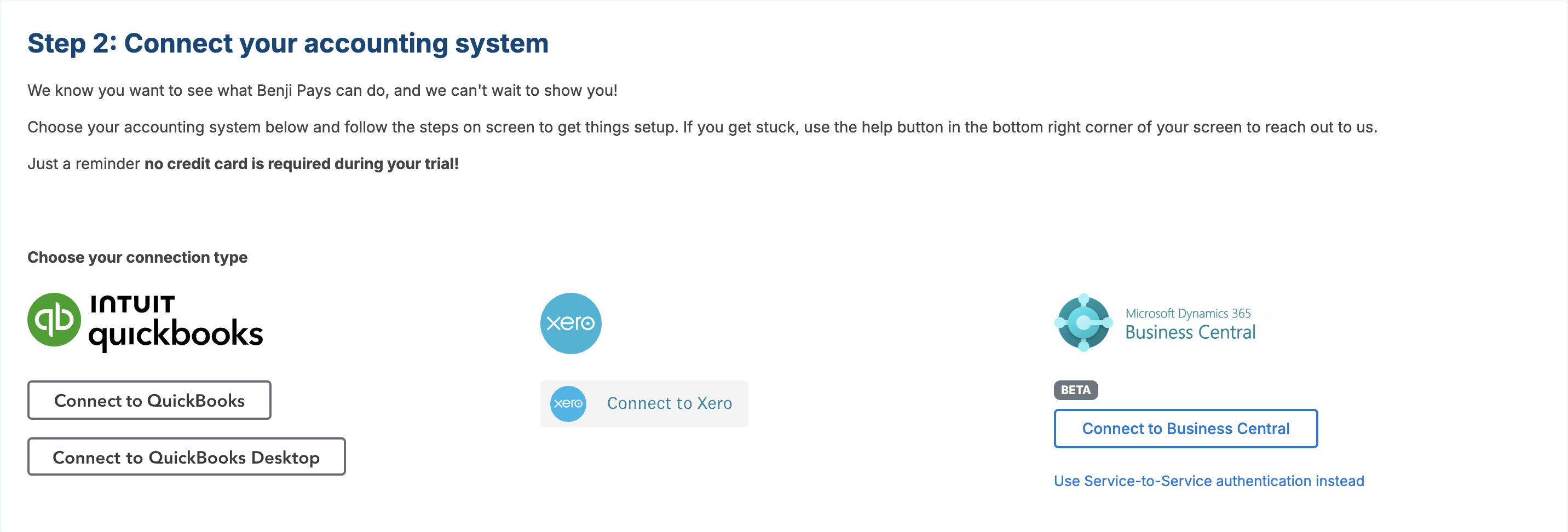
- On the accounting system page, find the Microsoft Dynamics 365 Business Central column and select Connect to Business Central.
- Read the notice "Business Central is in beta" and select Continue.
- Sign in with your Microsoft work account and accept the requested permissions. Benji Pays asks for Financials.ReadWrite.All (access Dynamics 365 Business Central as the signed-in user) and offline access so it can keep the connection alive.
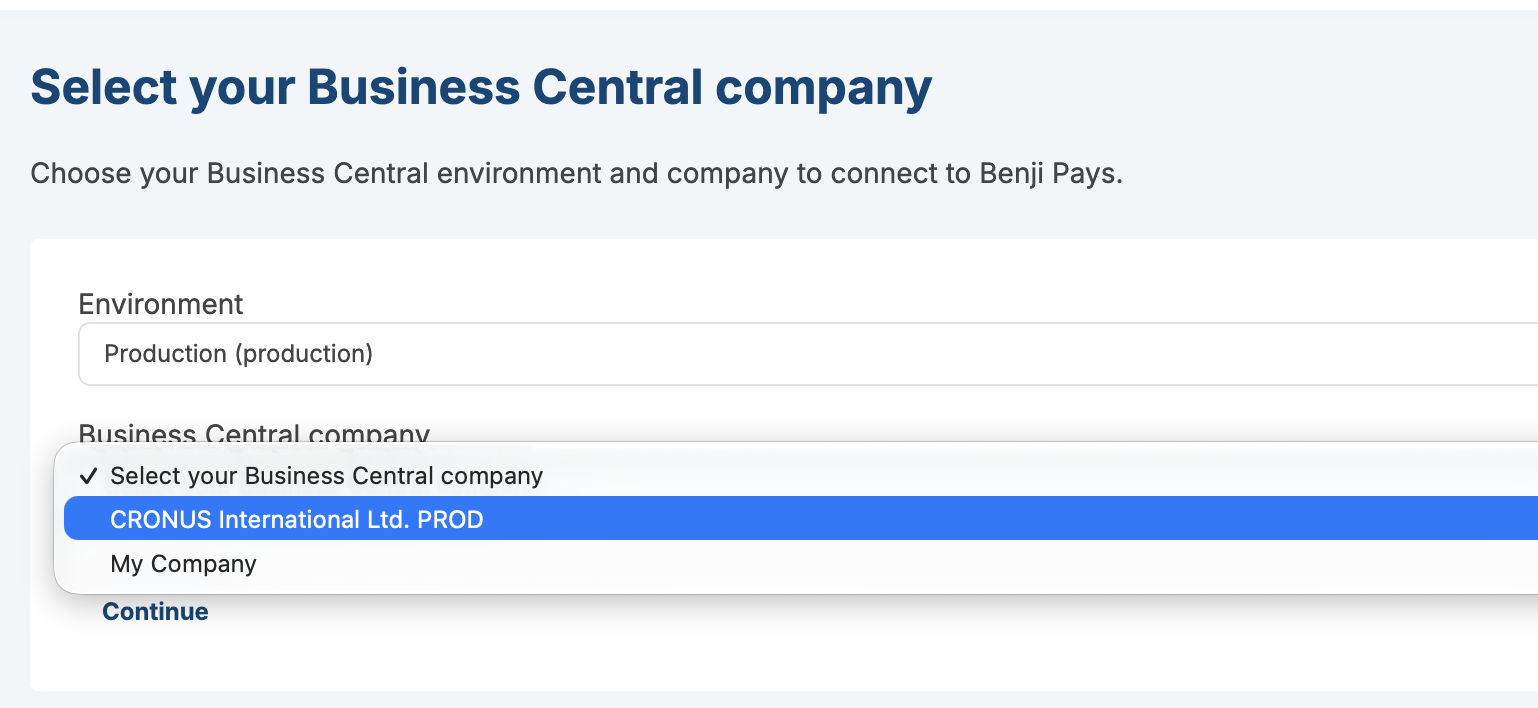
- On Select your Business Central company, choose an Environment. The list of companies in that environment loads automatically.
- Choose the Business Central company and select Continue.
When the connection succeeds you will see "Business Central successfully connected to [company name]. Please go to the settings page to confirm your profile is complete and enable payment processing." Benji Pays then starts the first import of your customers, open invoices and credit memos. This can take a few minutes for large companies. No emails, payments or other automations will occur at this time.
NOTE If a company is already connected to a different Benji Pays account it will not appear in the company list. If you see "No companies found in this environment.", check that your Microsoft account has access to a company in that environment, or choose another environment.
After you connect
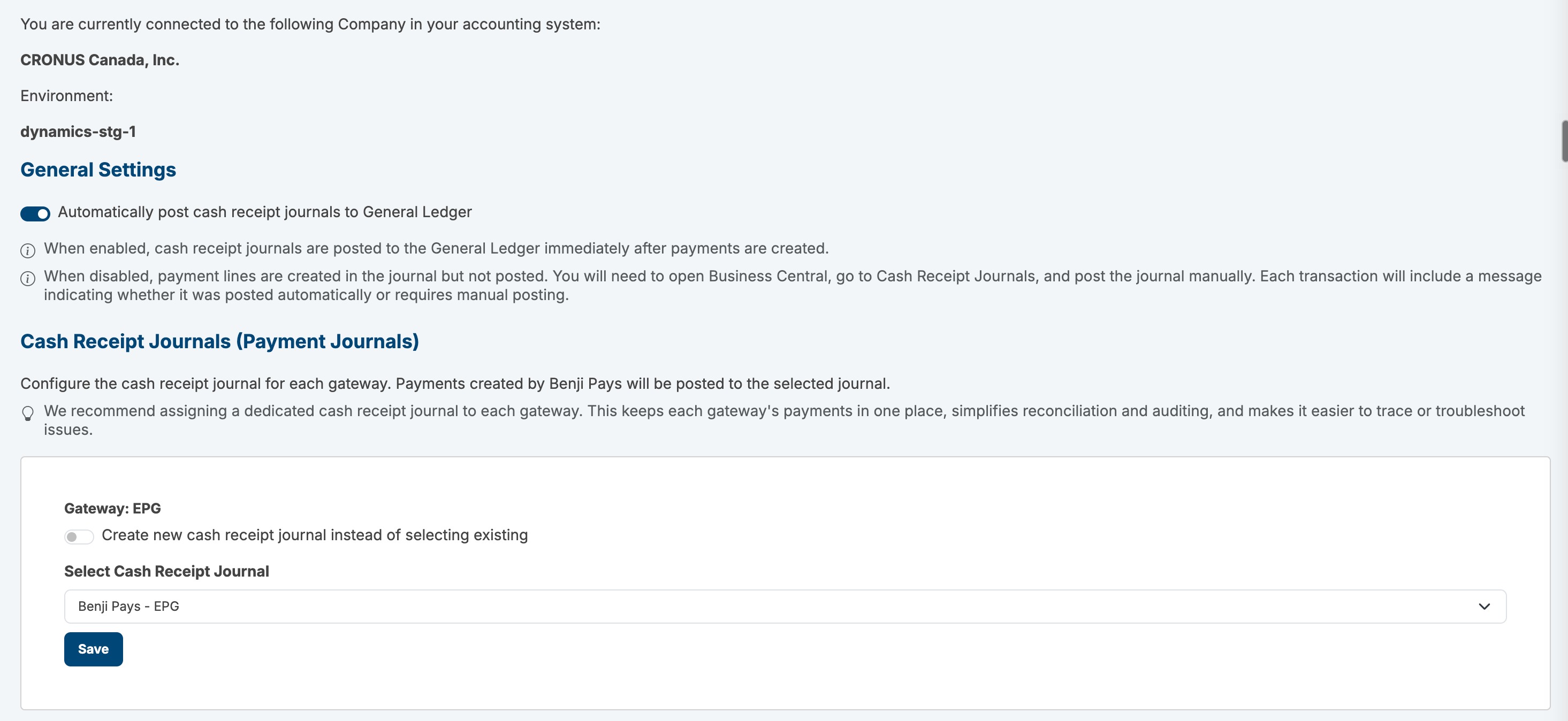
Once you have your merchant account setup and before Benji Pays can collect a payment for a Business Central company, each payment gateway needs a Cash Receipt Journal. Go to Settings > Business Central Settings and select or create a journal for each gateway. See Business Central Settings: Cash Receipt Journals and Auto-Posting.
Review the Invoice Skip Settings in Company Settings before you enable Auto Processing. Business Central uses separate number series for unposted and posted invoices (for example S- and PS-), and only posted invoices are processed. See Business Central Invoices: Posted vs Unposted, Statuses, and the Invoice Number Prefix Filter.
Reconnect Business Central
If Benji Pays loses access to Business Central, for example because the Microsoft account password changed or the connecting user left your organisation, you will see a red banner on the Company Settings page: "We are unable to connect to your accounting system. Please click the button below to re-authorize BENJI PAYS to connect to your accounting system."
- Sign in to Benji Pays and go to Settings > Company Settings.
- In the Business Central Connection card, select Setup Business Central connection.
- Sign in with a Microsoft account that has access to the same Business Central company and environment you originally connected.
- When you see "Successfully reconnected to Business Central", close the window.
IMPORTANT You must choose the same company you originally authorized. Choosing a different company is not supported.
Disconnect Business Central
Disconnecting removes Benji Pays' access to Business Central and unregisters the webhooks. Benji Pays keeps your historical transactions, but it cannot see new invoices or record payments until you reconnect.
- Go to Settings > Company Settings and scroll to the Business Central Connection card.
- Select Disconnect Business Central and confirm.
To connect again later, use the Setup Business Central connection button and choose the same company.
Alternative: service-to-service connection
If your organisation does not want the connection tied to a named Microsoft user, an administrator can register an application in Microsoft Entra ID and connect with its Tenant ID, Client ID and Client Secret instead. On the accounting system page select Use Service-to-Service authentication instead. The setup steps for that option are in Business Central Permissions and Prerequisites.
Was this article helpful?
That’s Great!
Thank you for your feedback
Sorry! We couldn't be helpful
Thank you for your feedback
Feedback sent
We appreciate your effort and will try to fix the article