On this page
What this connection does
Connect your Benji Pays account to your QuickBooks Online company so Benji Pays can process payments for your QuickBooks invoices.
Before you begin
IMPORTANT If you connect a new company, your customer profiles will be deleted and you will need to remap your QuickBooks customers to their credit cards.
Connect QuickBooks Online
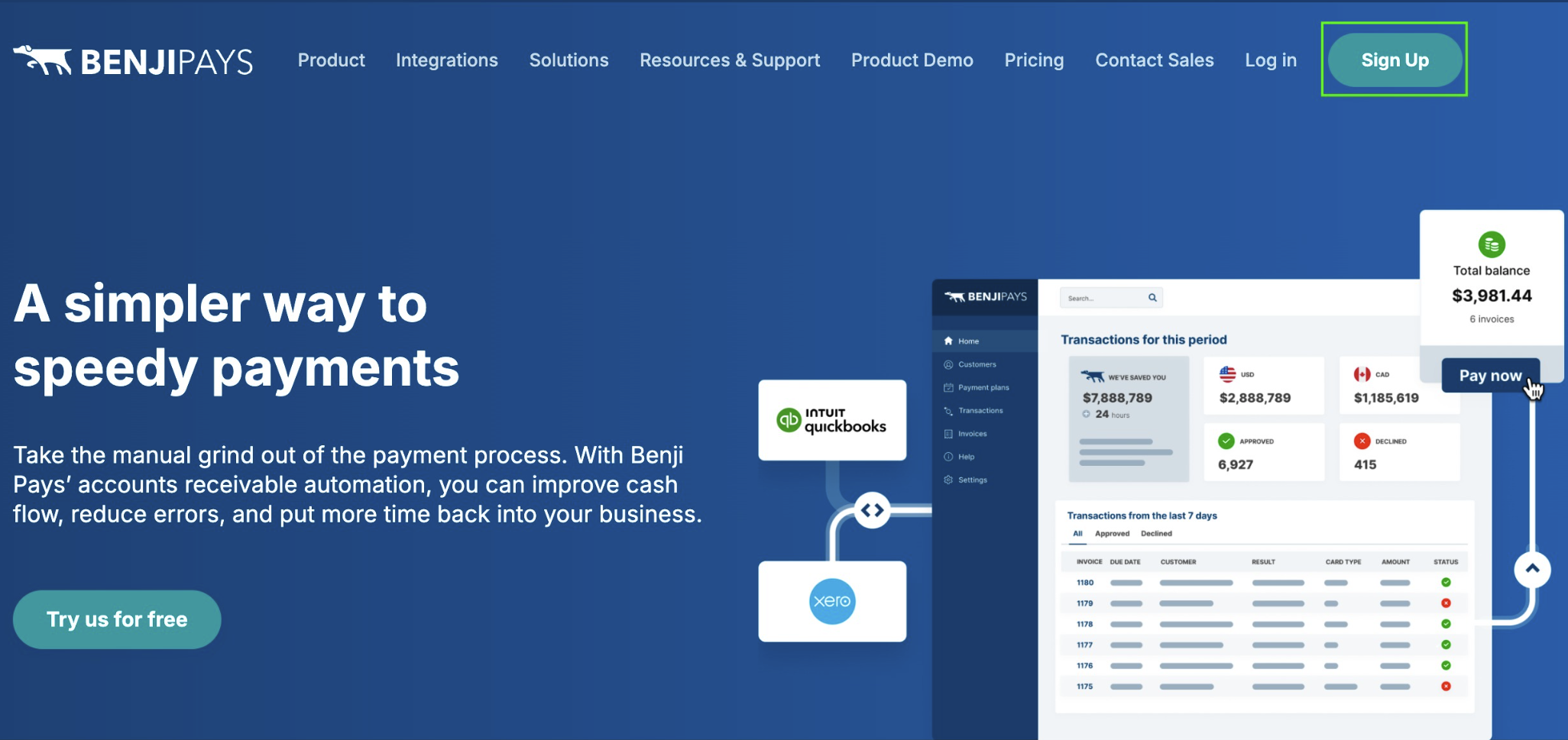
- Sign up for a Benji Pays account at benjipays.com, then select Sign Up.
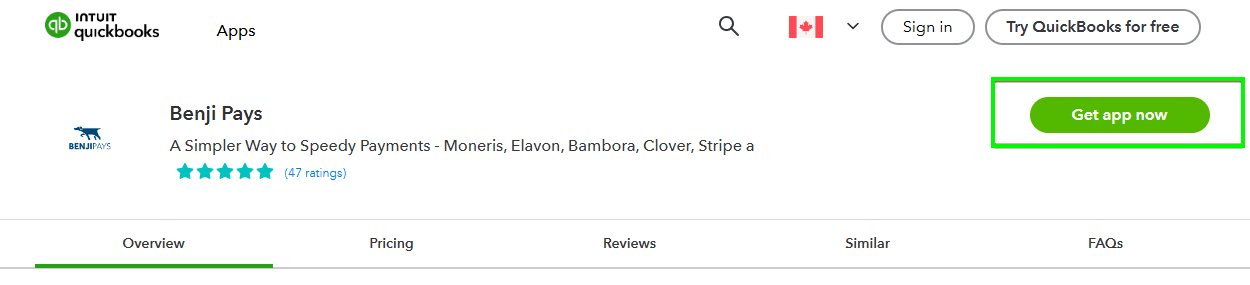
- In the QuickBooks App Store, search for Benji Pays, select Get App Now, and follow the prompts to connect your QuickBooks and Benji Pays accounts.
Start by creating or signing in to your Benji Pays account.
In the QuickBooks App Store, select Get App Now to begin the connection.
Reconnect QuickBooks Online
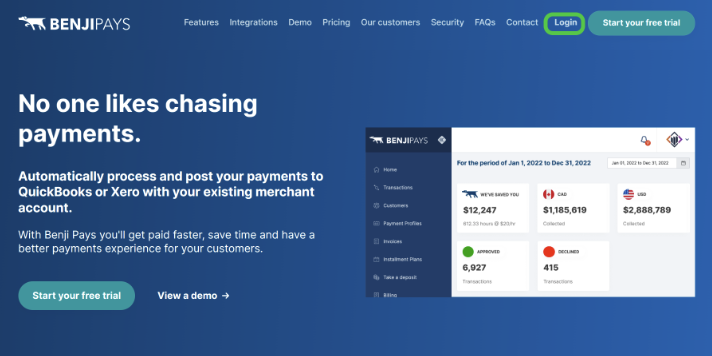
- Log in to Benji Pays.
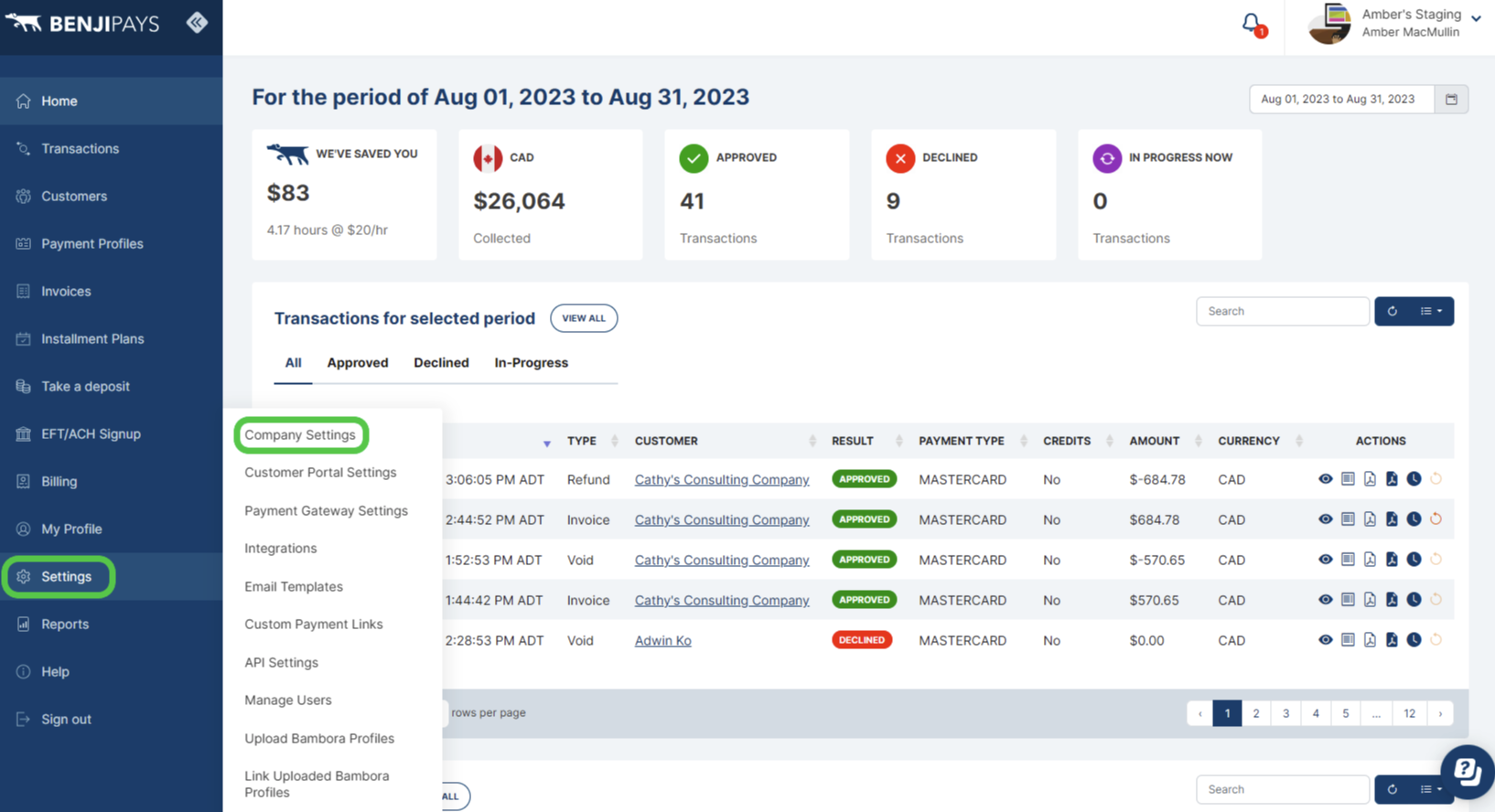
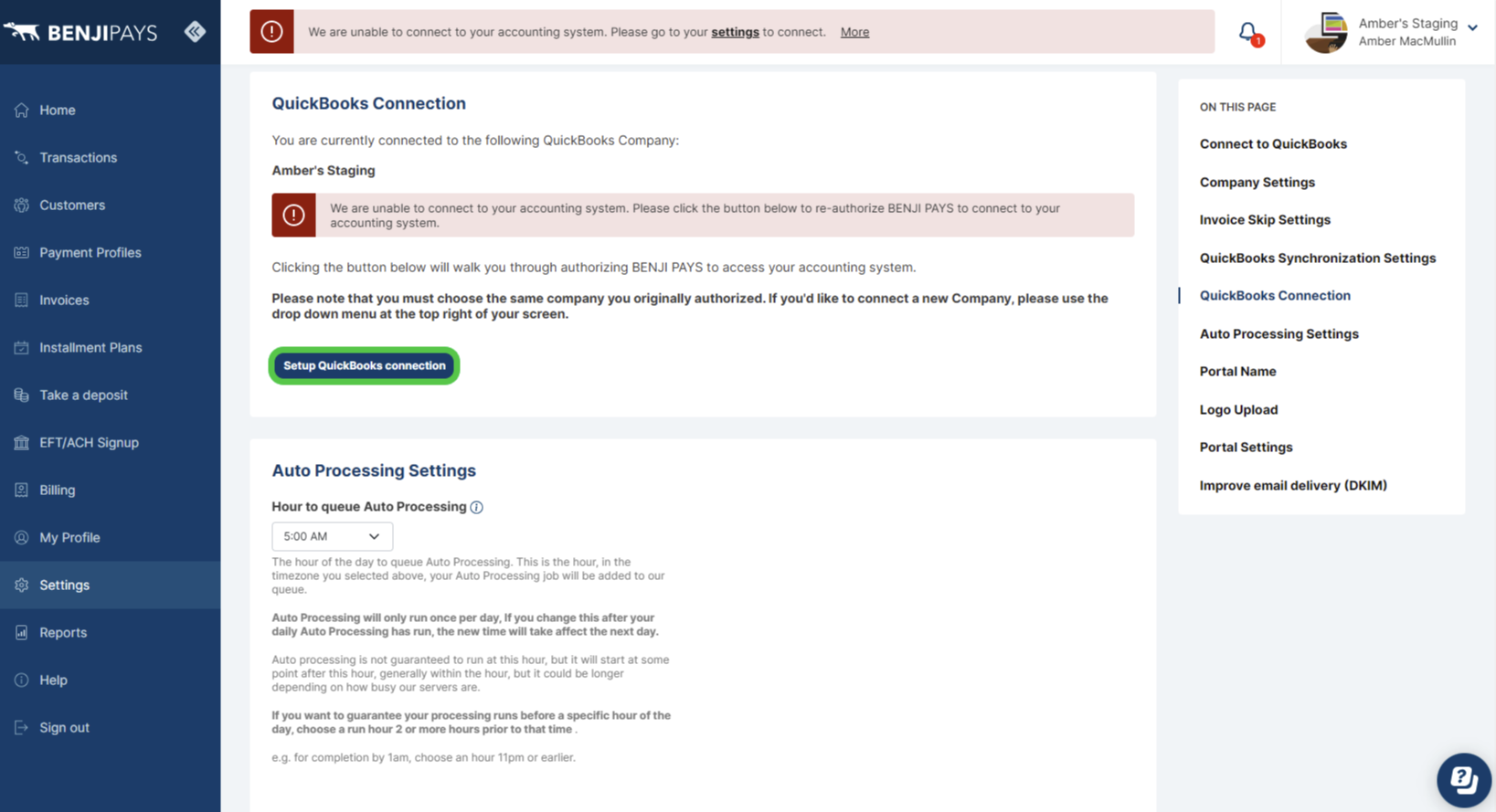
2. In the blue menu on the left, select Settings, then select Company Settings.
3. Select Setup QuickBooks connection.
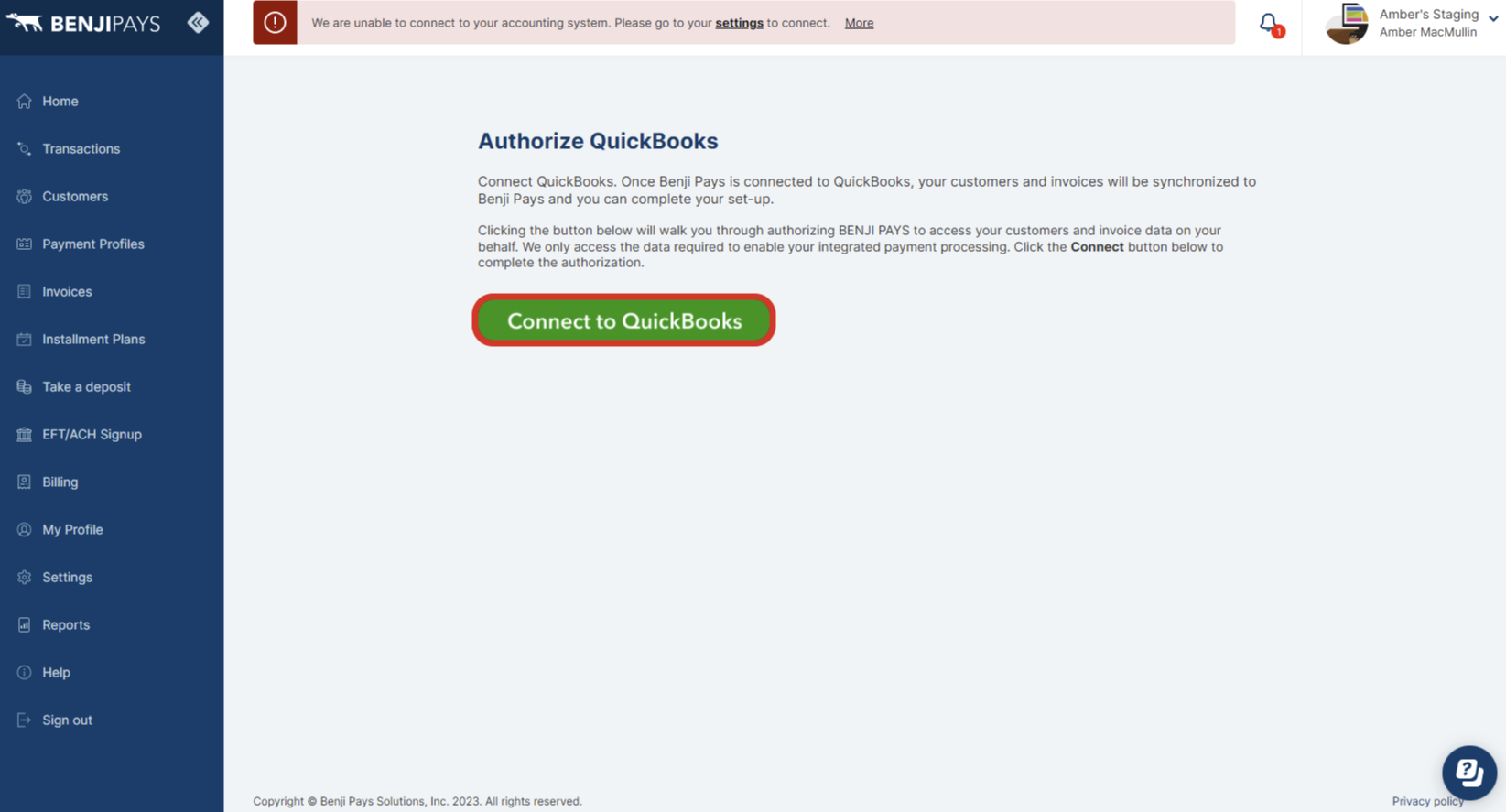
4. Select Connect to QuickBooks.
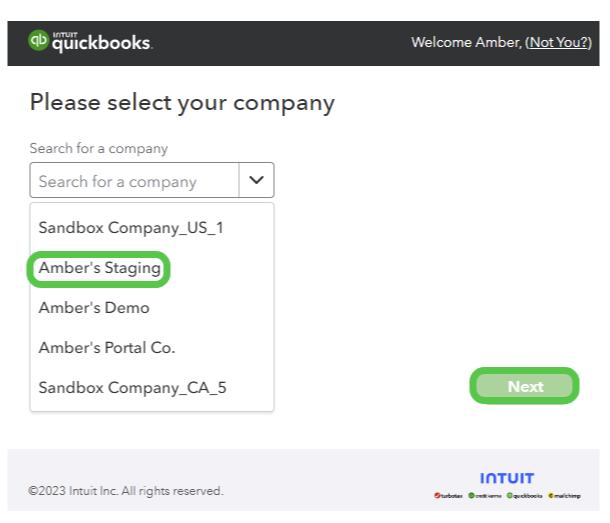
5. From the drop-down list, select the QuickBooks Online company you want to connect to Benji Pays, then select Next.
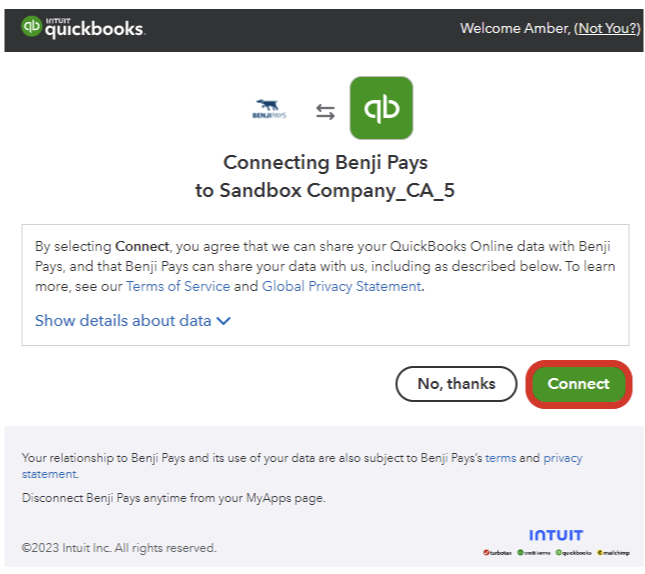
6. Select Connect.
Was this article helpful?
That’s Great!
Thank you for your feedback
Sorry! We couldn't be helpful
Thank you for your feedback
Feedback sent
We appreciate your effort and will try to fix the article