Integrate your Benji Pays “Pay Now” link into HaloPSA Quotes
Use this guide to add a “Pay Now” button to your HaloPSA quotation PDF template. When your customer clicks it, they’ll be taken to your Benji Pays payment page with key fields pre-filled.
Before you start
- You’ll need access to Custom Payment Links in Benji Pays and permission to edit HaloPSA quotation PDF templates.
- You’ll be copying a custom payment link and adding HaloPSA variables to it.
Step 1: Build your Benji Pays custom payment link
1.1 Copy your Custom Payment Link
- Log in to Benji Pays.
- Go to Settings > Custom Payment Links.
- Copy the appropriate link for your currency (for example: CAD).
- Paste the link into a text editor temporarily so it’s easy to modify.
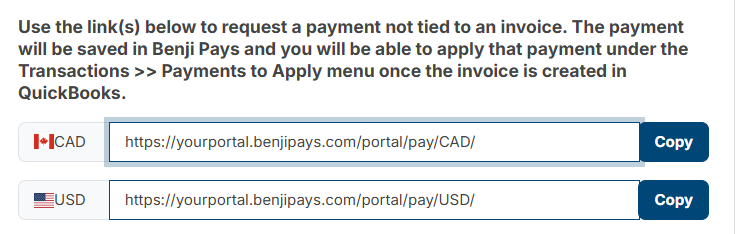
1.2 Add HaloPSA variables to the end of the link
Add this query string to the end of your custom payment link:
?customerName=$AREA&invoiceNumber=$QUOTEREF&transactionAmount=$QUOTETOTALExample
1.3 What the variables do
HaloPSA will replace these variables when it generates the quote PDF:
| HaloPSA variable | Populates this field |
|---|---|
$AREA | Customer name |
$QUOTEREF | Quote reference |
$QUOTETOTAL | Total quote amount (including tax) |
Tip: You can view a full list of HaloPSA variables at yourHaloPSA/variables.
Step 2: Add a “Pay Now” button to your HaloPSA quotation PDF template
2.1 Open your quotation PDF templates
- Log in to HaloPSA.
- Navigate to Configuration > Quotations > General Settings.
- Click Edit Quote PDF Templates.
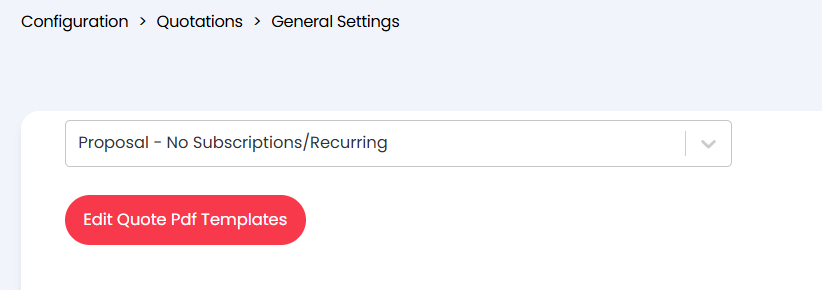
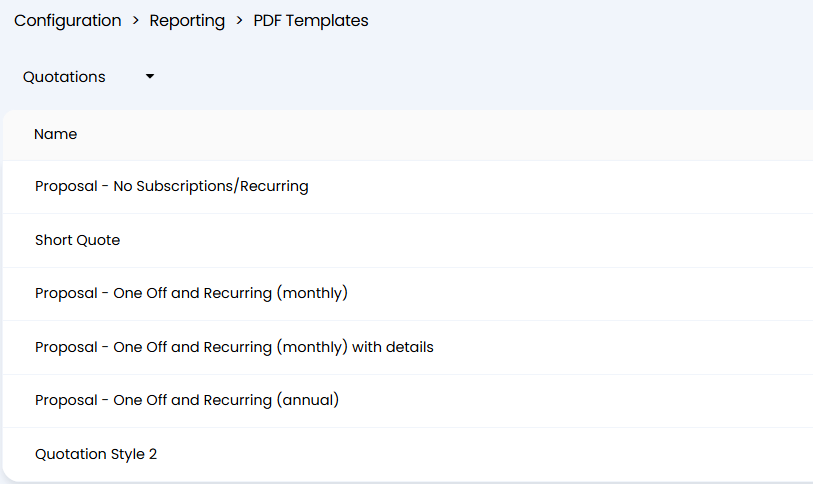
2.2 Select the template you want to edit
- Choose the quotation template you’d like to update.
2.3 Edit the Quote Details section
- Click Edit.
- Go to the Pages section.
- Next to Quote Details, click the pencil icon.
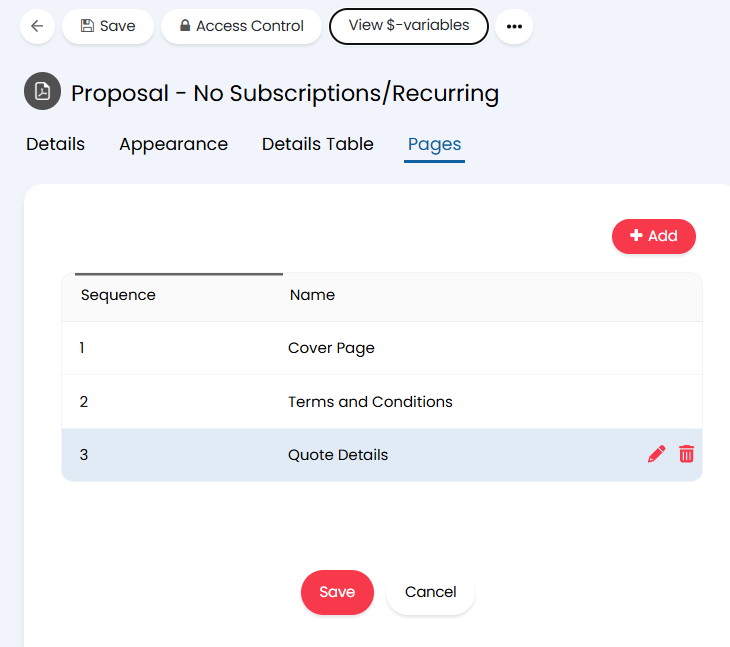
2.4 Paste the button HTML
Copy the HTML below into an appropriate spot in your template. Replace the URL in bold with your modified custom payment link from Step 1.
<div style="text-align:right; margin-top:20px;">
  <a
    href="https://yourportal.benjipays.com/portal/pay/CAD/?customerName=$AREA&invoiceNumber=$QUOTEREF&transactionAmount=$QUOTETOTAL"
    target="_blank"
    rel="noopener noreferrer"
    style="
      display:inline-block;
      background-color:#e30613;
      color:#ffffff;
      text-decoration:none;
      font-family:Calibri, Arial, Helvetica, sans-serif;
      font-size:18px;
      font-weight:bold;
      padding:12px 24px;
      border-radius:6px;
      border:1px solid #e30613;
    "
  >
    Pay Now
  </a>
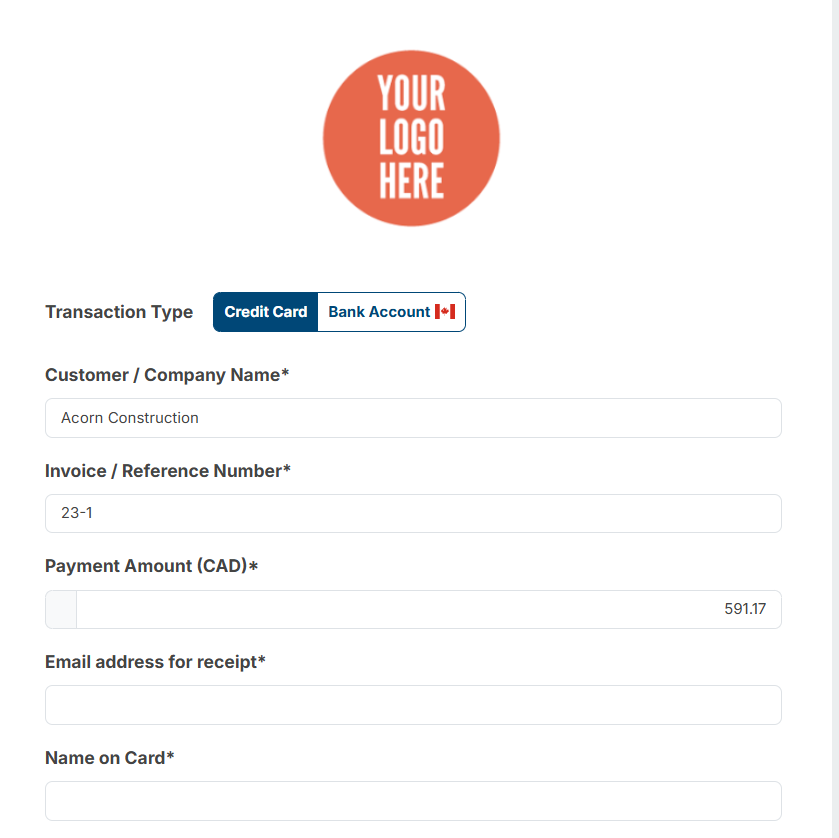
</div>- They are taken to your Benji Pays payment page.
- Customer name, quote reference, and total amount are automatically pre-filled.
2.5 Confirm it’s working
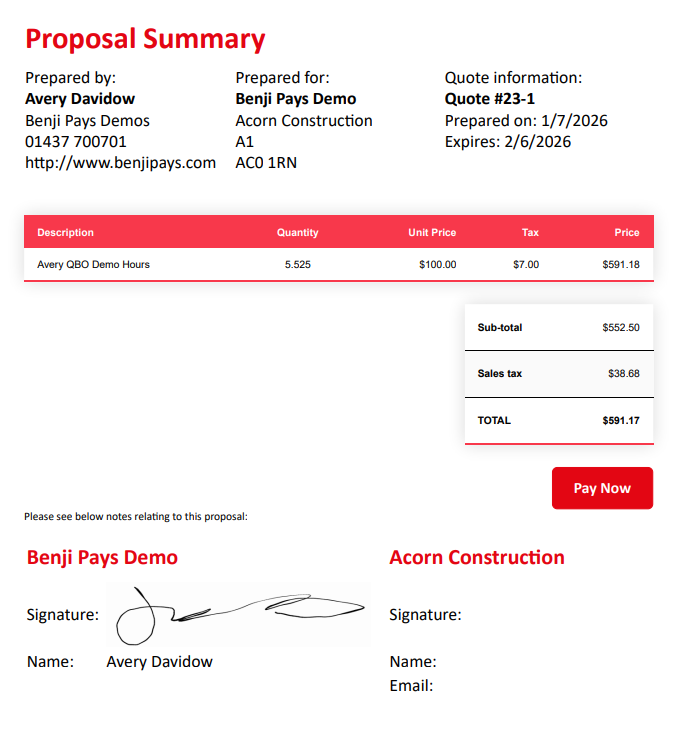
Quote template example
Benji Pays payment page (pre-populated) example
What happens after your customer pays
Once the quote has been paid, you will receive an email from Benji Pays with step-by-step instructions to post the payment against the invoice after the invoice has been created.
You can also enable Save payment method on file during quote payment so you can auto process future invoices.
Was this article helpful?
That’s Great!
Thank you for your feedback
Sorry! We couldn't be helpful
Thank you for your feedback
Feedback sent
We appreciate your effort and will try to fix the article