This is your guide on how to integrate your Benji Pays Pay Now link seamlessly into your HaloPSA Quotes.
1. Retrieve your Benji Pays Custom Payment Link
- Log into your Benji Pays account and navigate to Settings > Custom Payment Links
- Copy the currency appropriate custom payment link from the Custom Payment Link section as per below and paste the link into a text editor:
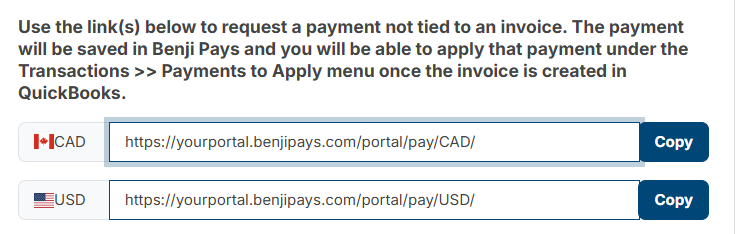
- add the following string to the end of your Custom Payment Link:
?customerName=$AREA&invoiceNumber=$QUOTEREF&transactionAmount=$QUOTETOTAL
The link should will look like this:
https://yourportal.benjipays.com/portal/pay/CAD/?customerName=$AREA&invoiceNumber=$QUOTEREF&transactionAmount=$QUOTETOTAL
The HaloPSA variables that are being passed to your Custom Payment Link to automatically populate the fields are:
$AREA = Customer Name
$QUOTEREF = Quote reference
$QUOTETOTAL = Total price of the quote, including tax
*tip* To see a full list of HaloPSA variables you can navigate to yourHaloPSA/variables
2. Edit your HaloPSA Quotation PDF Templates
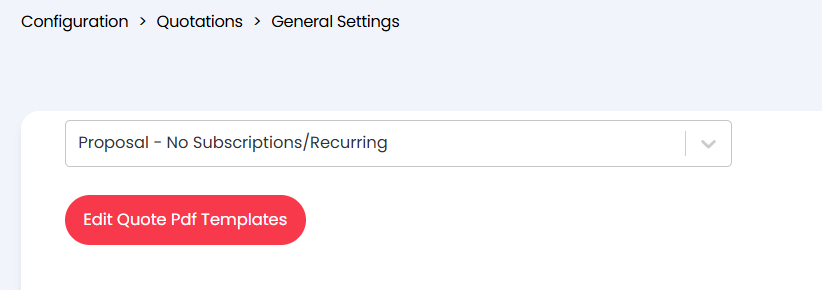
- Log into HaloPSA and navigate to Configuration > Quotations > General Settings
- click on "Edit Quote Pdf Templates"
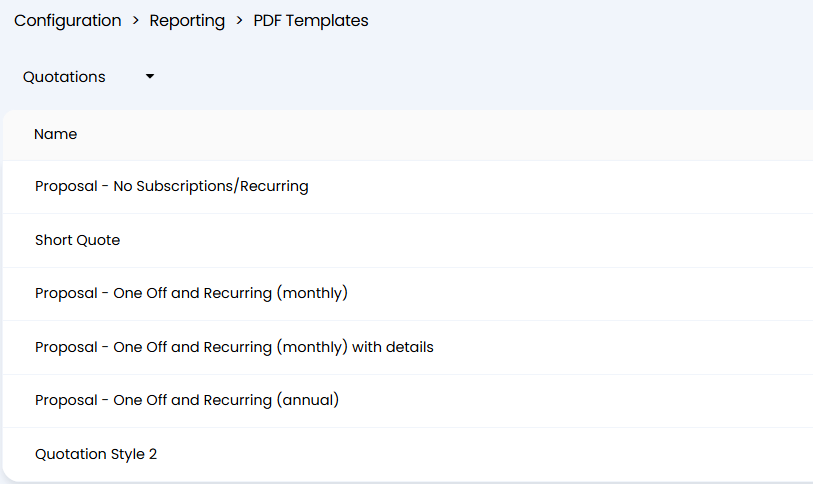
- Select the Quotation template you'd like to add the Pay Now link to:
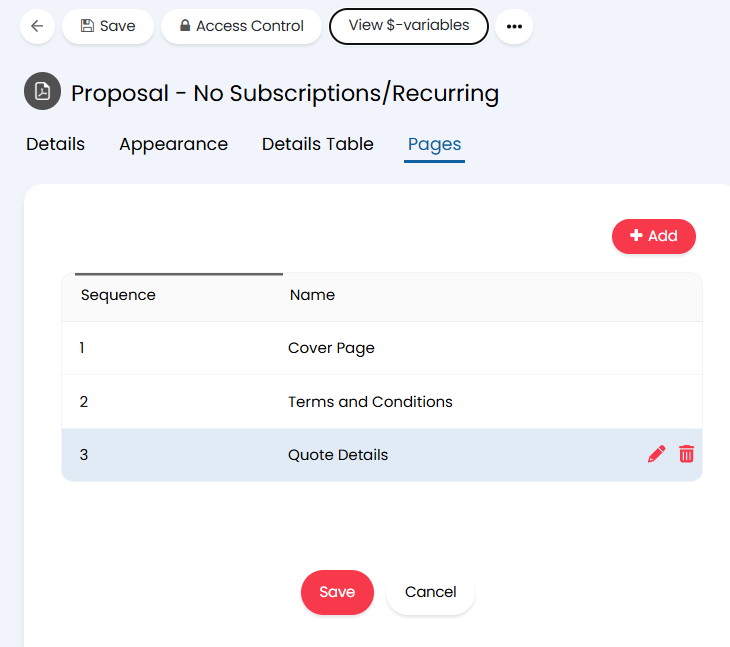
- Click Edit, navigate to the Pages section and click on the edit pencil icon next to the Quote Details section
- Paste a block of HTML into your template to add a Pay Now button. You will use your custom payment link from step 1 above. Replace the bold section in the code block below with your own link and then paste the code block into an appropriate spot in your PDF template.
<div style="text-align:right; margin-top:20px;">
<a href="https://yourportal.benjipays.com/portal/pay/CAD/?customerName=$AREA&invoiceNumber=$QUOTEREF&transactionAmount=$QUOTETOTAL"
target="_blank"
style="
display:inline-block;
background-color:#e30613;
color:#ffffff;
text-decoration:none;
font-family:Calibri, Arial, Helvetica, sans-serif;
font-size:18px;
font-weight:bold;
padding:12px 24px;
border-radius:6px;
border:1px solid #e30613;
">
Pay Now
</a>
</div>
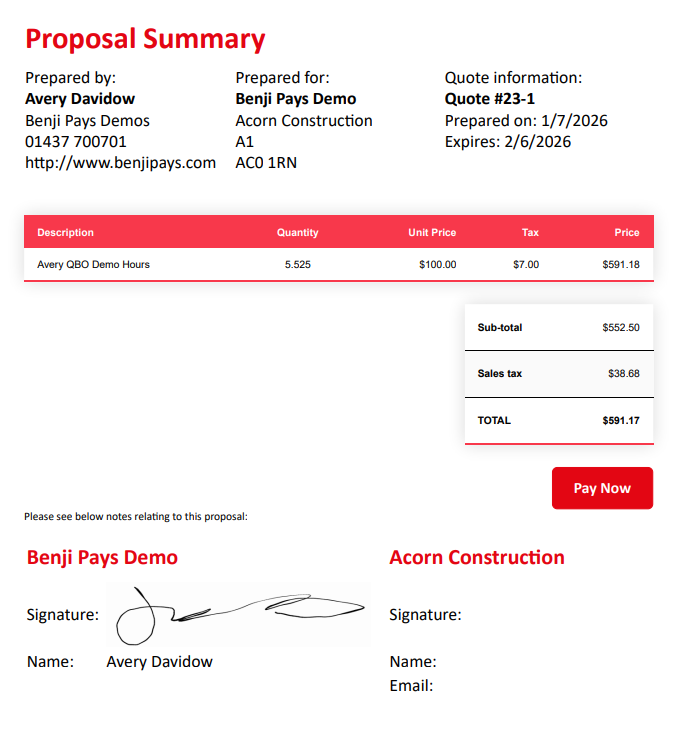
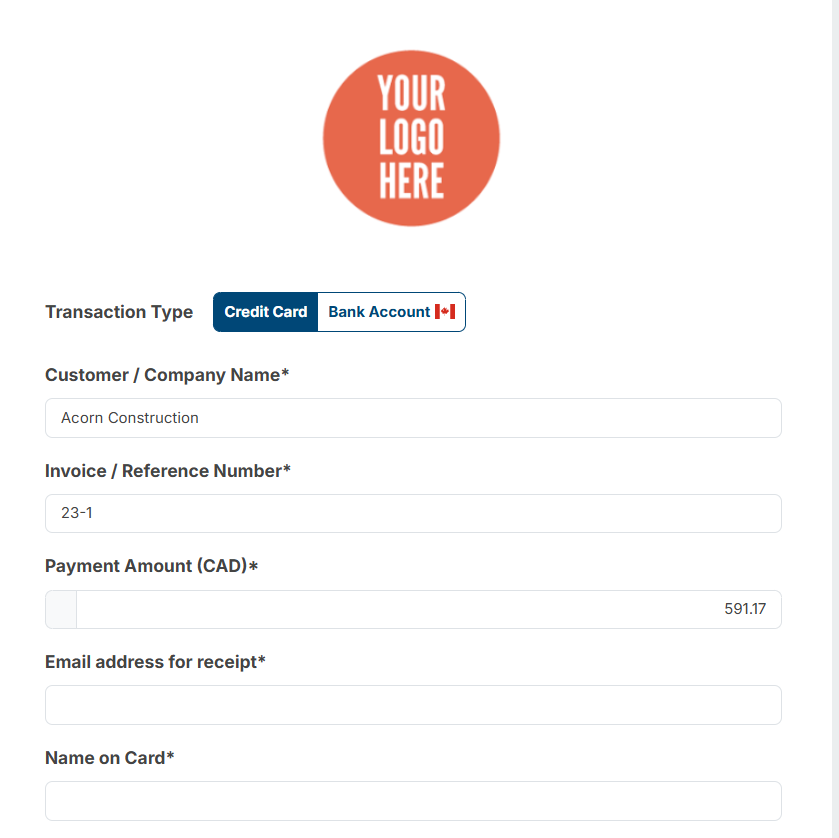
- You will now have a very nice looking Pay Now button added to your Quote Template. When your customer clicks the Pay Now button, they will be redirected to your Benji Pays payment page and their company name, quote number and amount will automatically be populated into the payment form.
Quote template:
Example of a payment link with prepopulated data
Was this article helpful?
That’s Great!
Thank you for your feedback
Sorry! We couldn't be helpful
Thank you for your feedback
Feedback sent
We appreciate your effort and will try to fix the article