On this page
Before you begin
This page is required to review and configure before you can begin using the Benji Pays platform.
IMPORTANT If you make any changes, be sure to save the settings in each section you’ve updated.
Company information
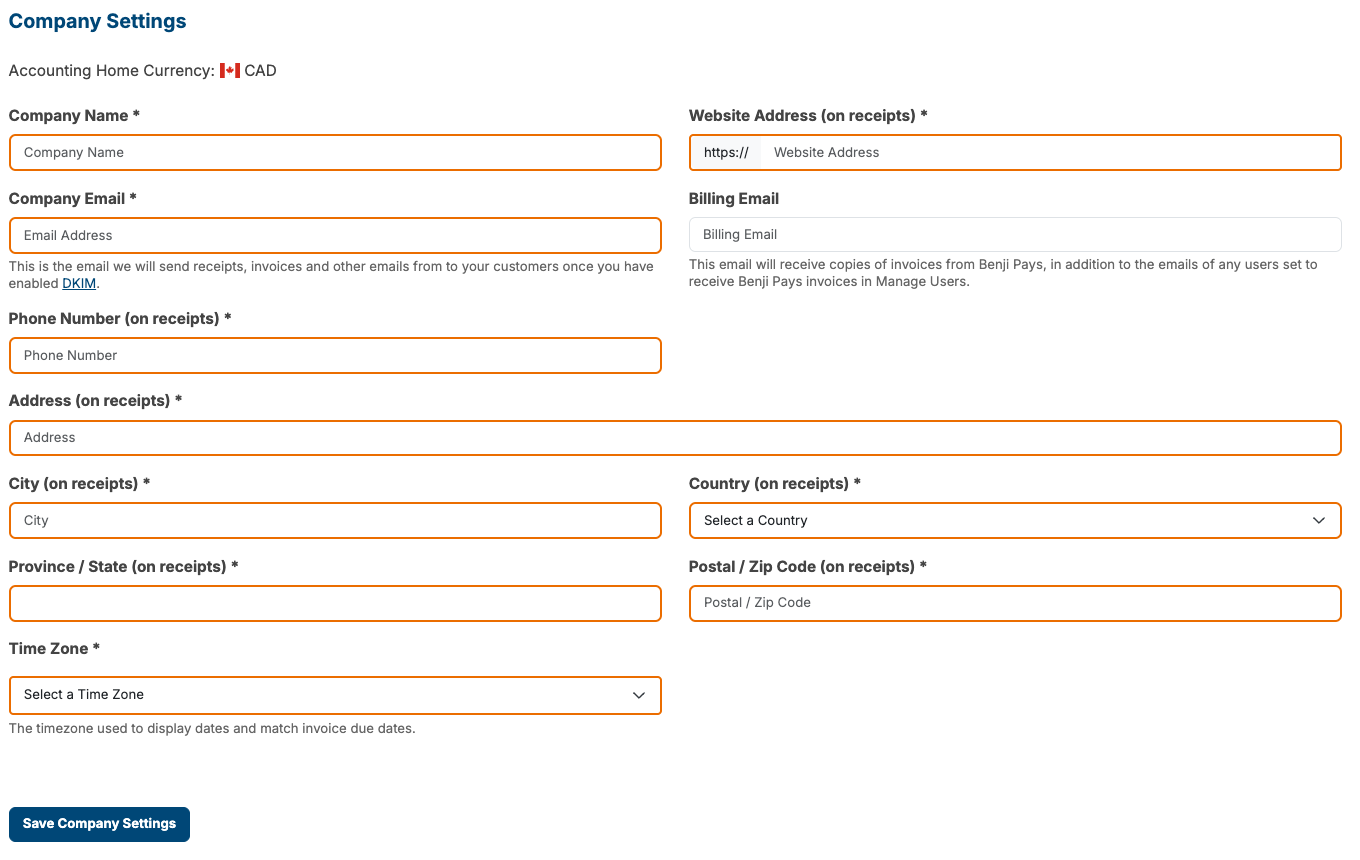
Sign in to Benji Pays > Click Settings > and choose Company Settings
Fill in the company information as shown below:
Auto Processing controls
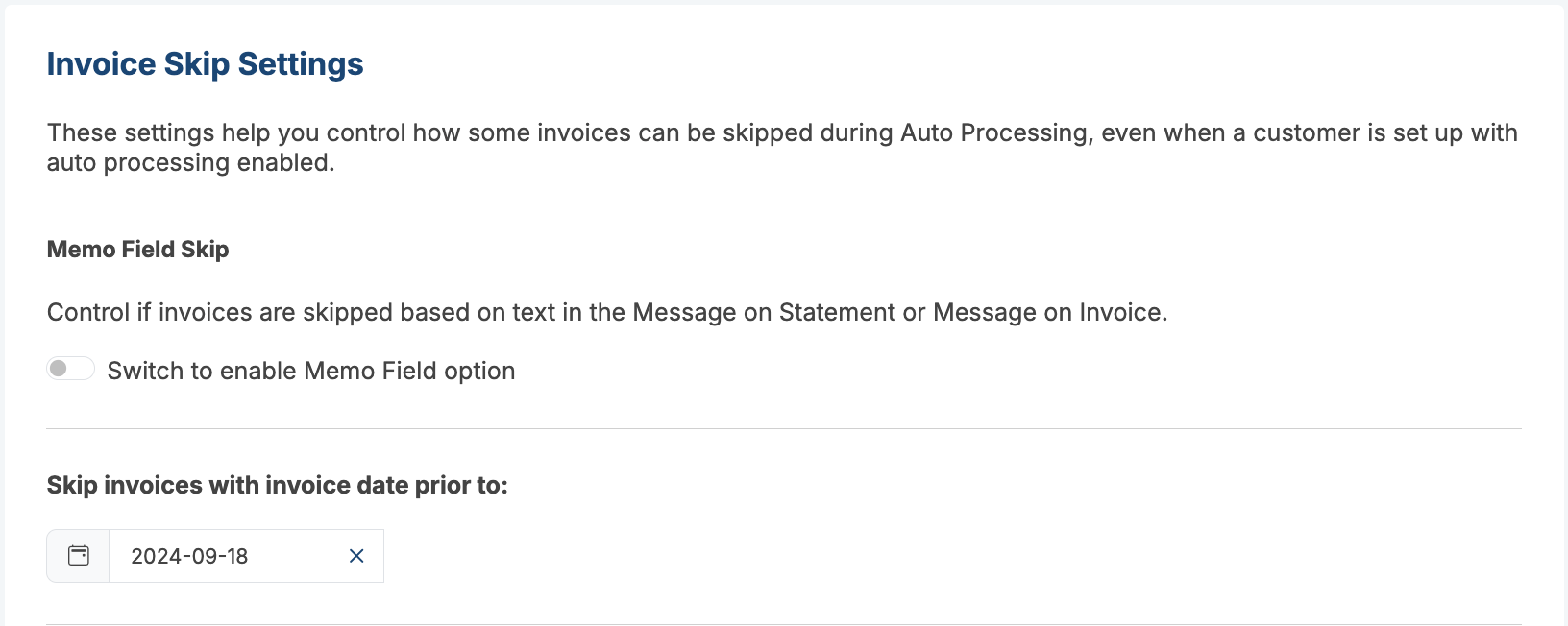
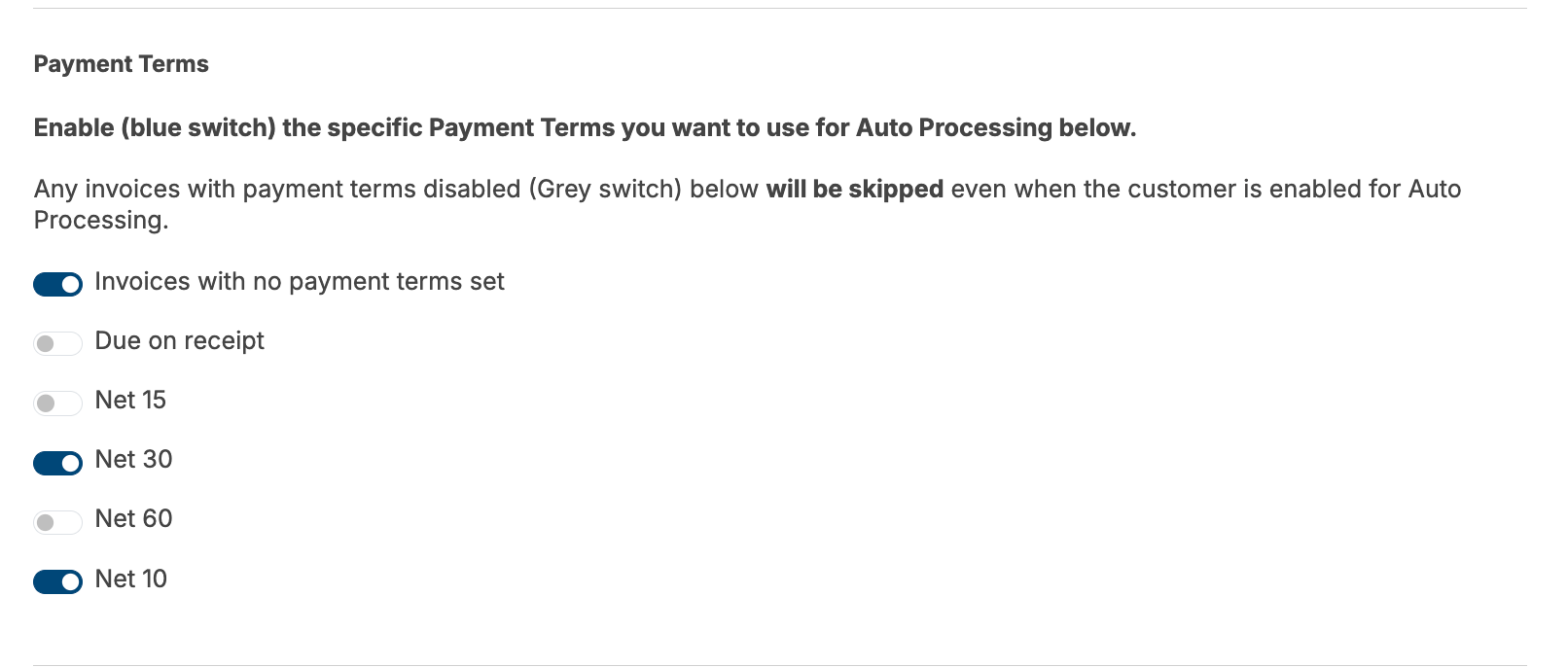
If you plan to use Auto Processing, there are two ways to exclude specific invoices by using either the Memo Field (QuickBooks) or Reference field (Xero and Business Central), Payment Terms (Branding Theme in Xero), or, for Business Central, the invoice number prefix to prevent them from being auto-processed. You can also select the date from which auto-processing will begin automating payments for invoices based on their invoice date.
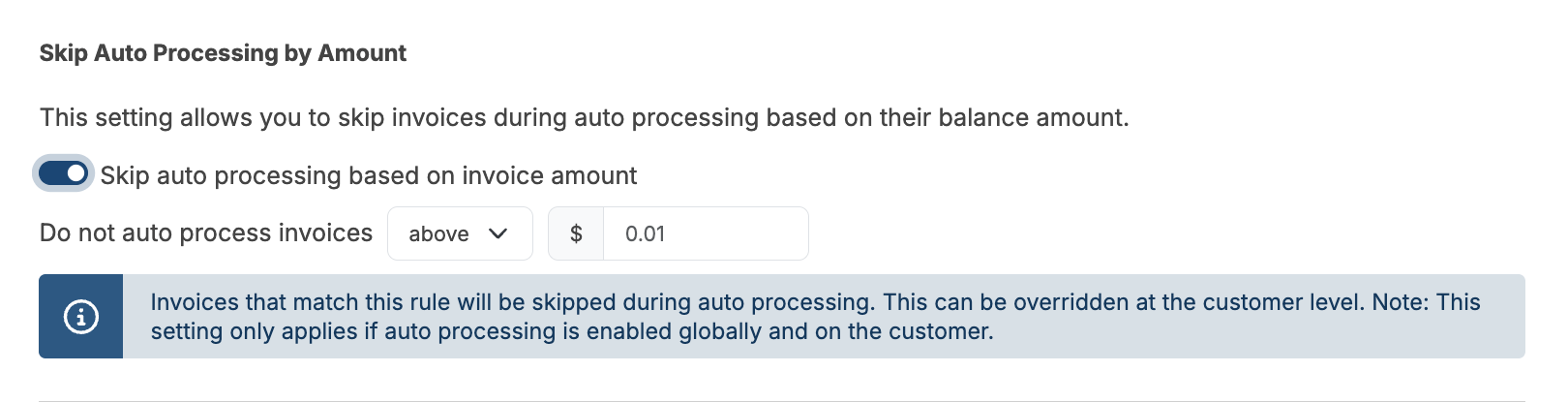
Benji Pays offers to skip auto-processing based on the amount, as shown below.
This setting is optional and allows you to choose whether to skip applying a surcharge based on the transaction amount.
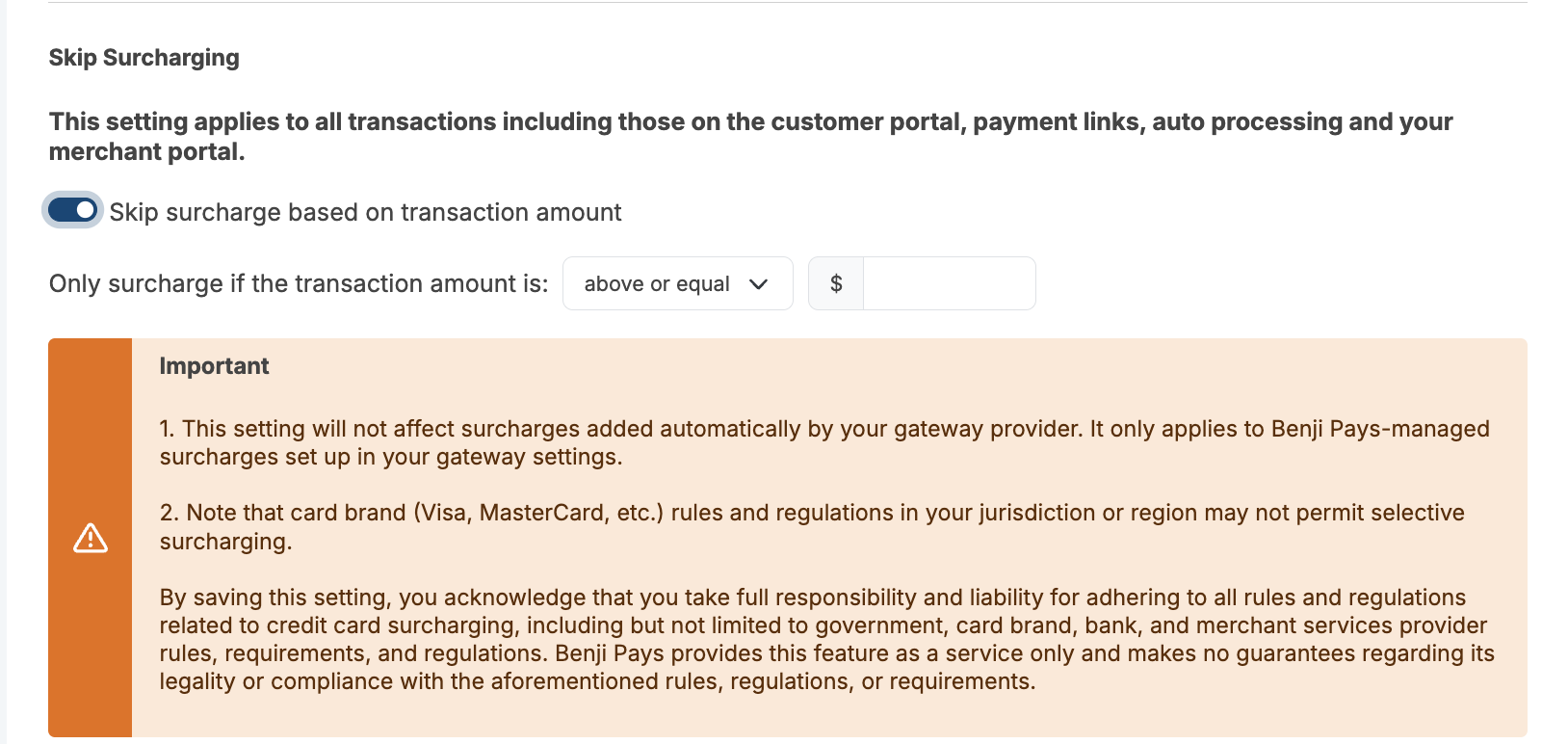
Business Central companies have two extra places to configure: Skip Invoices by Invoice Number Prefix in this Invoice Skip Settings section (to keep unposted or internal number series out of Auto Processing), and Settings > Business Central Settings, where you assign a Cash Receipt Journal to each gateway and choose whether Benji Pays posts journals automatically. See Business Central Settings: Cash Receipt Journals and Auto-Posting.
Email and notification settings
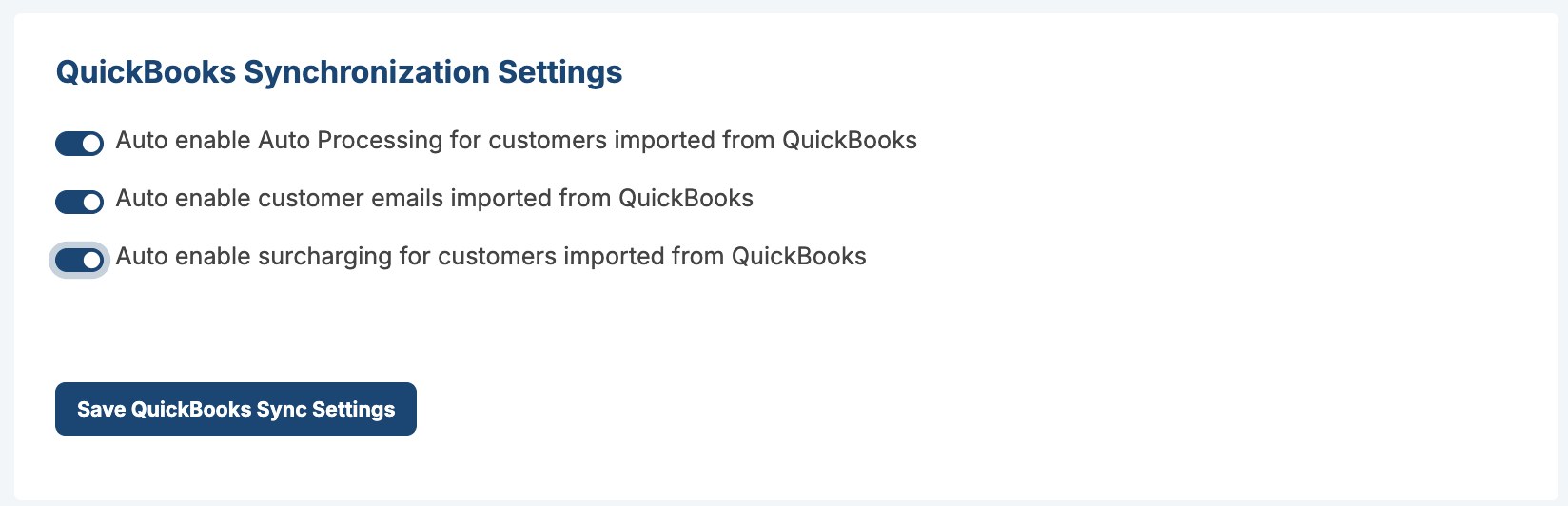
We recommend having all three settings enabled by default. These settings ensure that when you create a new customer in your accounting system, their data syncs with Benji Pays. This includes enabling customer-level auto-processing, importing their email address, and allowing them to be subject to surcharges on future invoices.
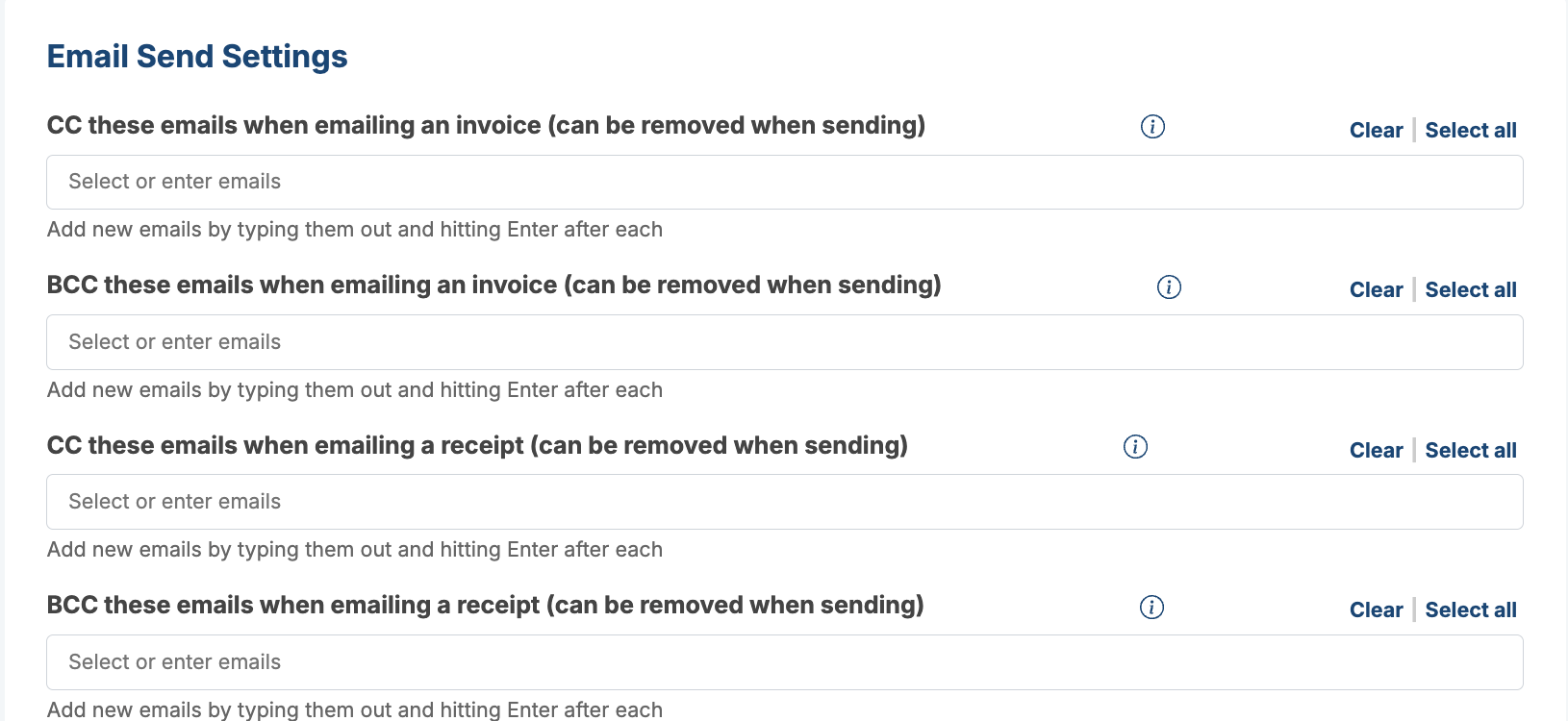
This section allows you to set default CC and BCC recipients for invoices and receipts sent from Benji Pays. Any email addresses added here will automatically be included when sending, but can be removed before the email is sent.
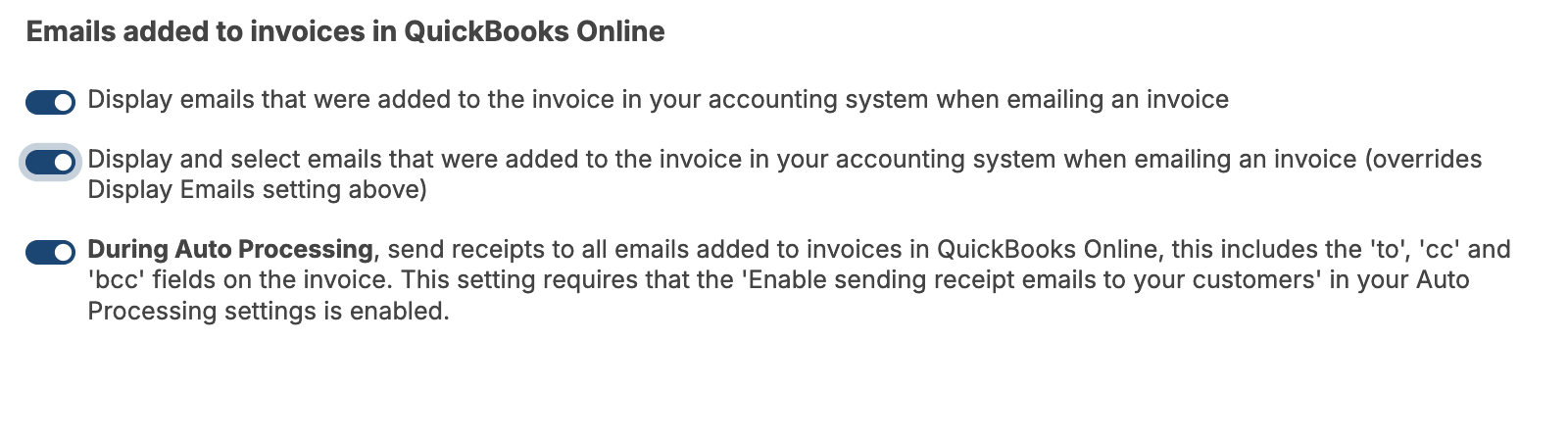
These settings control whether email addresses entered on invoices in QuickBooks Online (including To, CC, and BCC) are shown, selectable, and used when sending invoices or receipts from Benji Pays. They also determine whether those same QuickBooks invoice email addresses receive receipt emails automatically during Auto Processing.
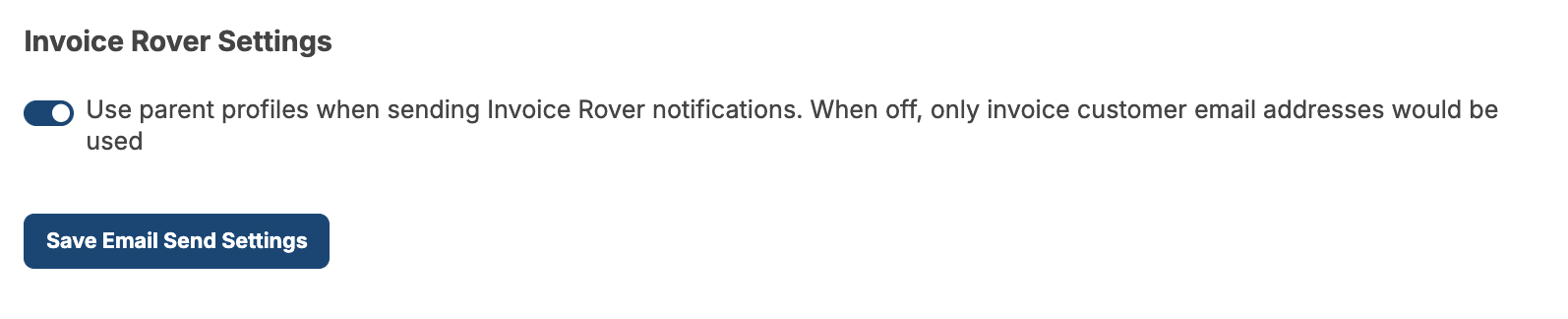
Invoice Rover is Benji Pays’ automated invoice reminder system inside Benji Pays. When enabled, notifications will be sent to the email addresses listed on the parent profile in addition to the invoice customer. When disabled, notifications will only be sent to the email address(es) on the individual invoice customer.
The default language setting is English.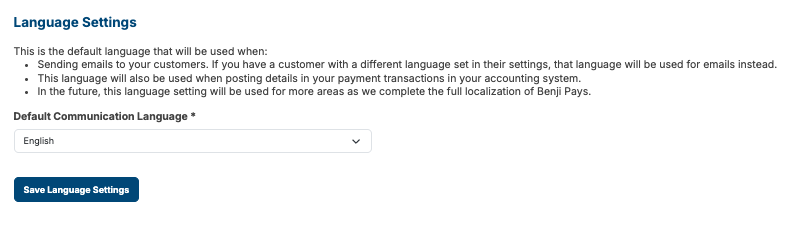
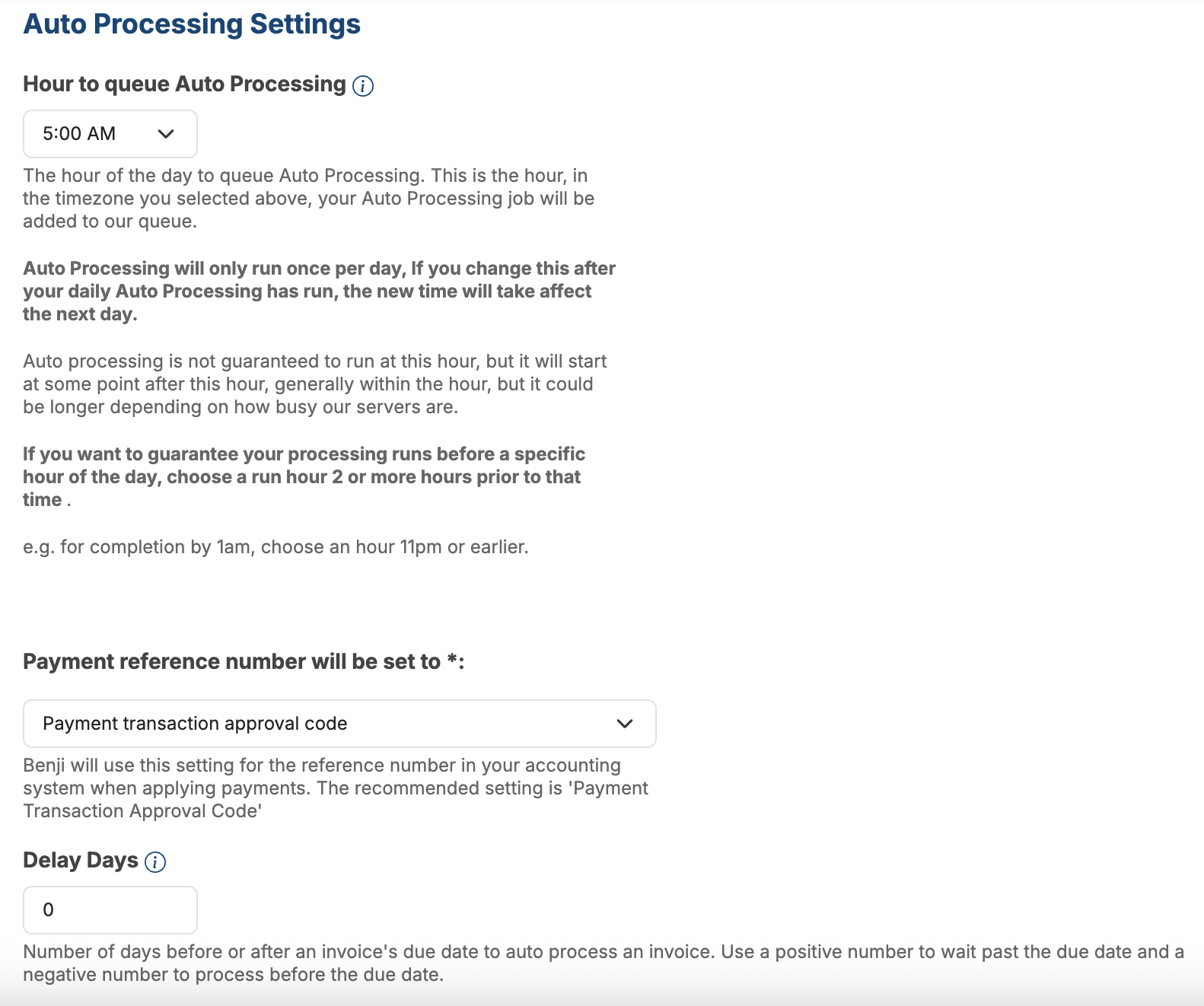
If you plan to use our Auto Processing feature, we recommend carefully reviewing all the information shown in the screenshot below. For step-by-step instructions on how to set it up, please click the link.
The system provides the option to modify the scheduled time for auto-processing.
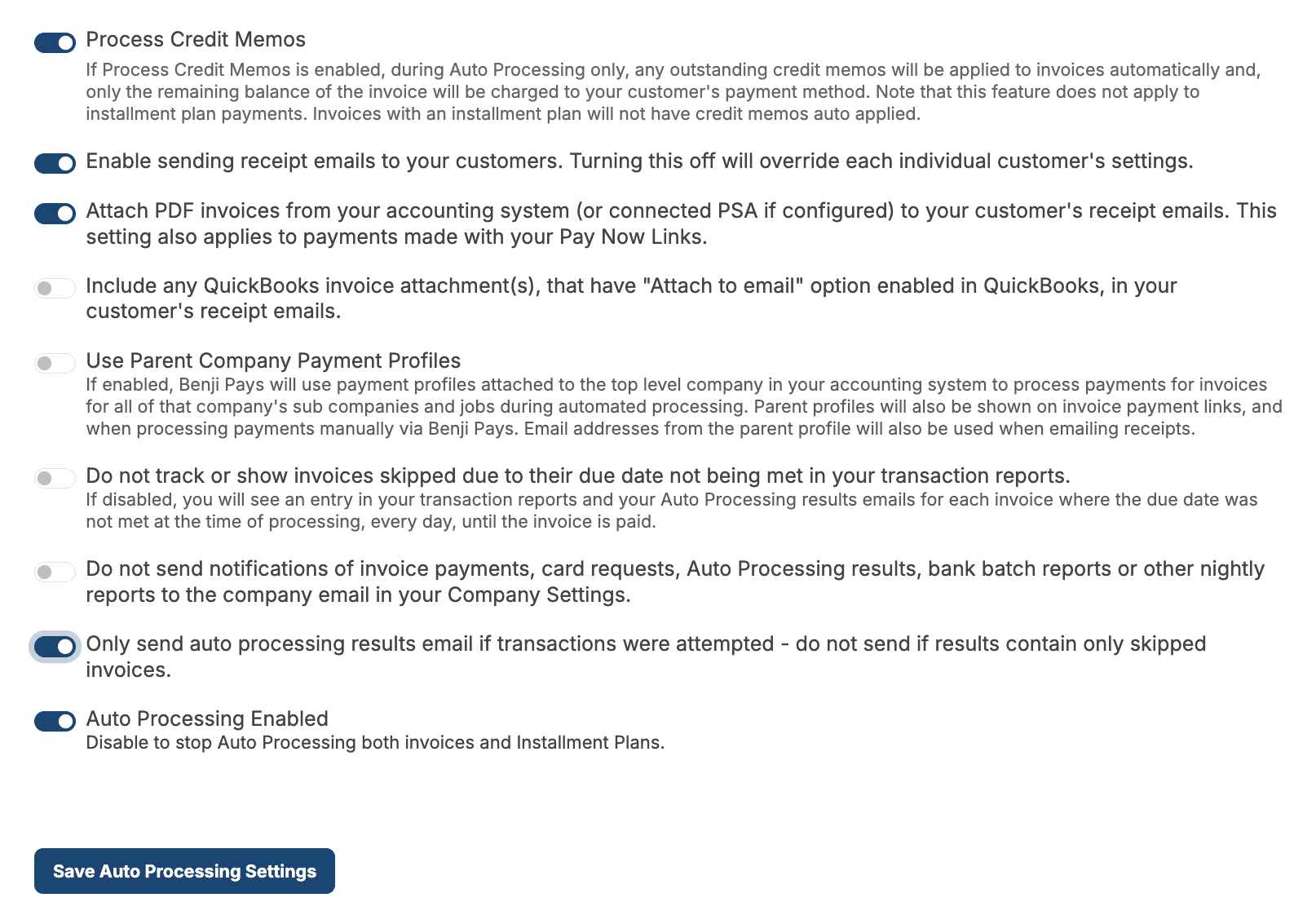
Please review the following settings and enable or disable them based on your company's specific requirements.
Sending and authentication
If you prefer to send emails through your own email provider instead of Benji’s default AWS service, enter your SMTP server details by clicking Configure your SMTP settings. Add your SMTP server URL, port, username, and password provided by your email host, enable SMTP, then send a test email to confirm it’s working before saving.

If you are not using your own SMTP service, you will need to add the required DNS records to your domain to enable email authentication. Generate the records shown on the page, add them to your domain’s DNS settings with your domain provider, and allow up to 72 hours for them to propagate. This ensures emails sent from Benji Pays on your behalf are properly authenticated and less likely to be marked as spam.
There are 5 DNS records that need to be added to your domain provider, and here's why each is important:
Why these DNS records matter
Was this article helpful?
That’s Great!
Thank you for your feedback
Sorry! We couldn't be helpful
Thank you for your feedback
Feedback sent
We appreciate your effort and will try to fix the article