On this page
When to use a deposit
Use Take a Deposit when you need to charge a customer's card or bank account before there is a posted sales invoice in Business Central to apply the payment to. Typical cases are collecting a deposit ahead of work or shipping, or holding funds on the customer account until an invoice is posted.
NOTE This feature is currently in beta and is subject to change.
IMPORTANT A Benji Pays deposit is not a Business Central prepayment invoice. If your process requires a prepayment invoice tied to a sales order, create it in Business Central and post it; Benji Pays will then treat it like any other posted invoice.
Take a deposit
- Sign in to Benji Pays and select Take a Deposit in the left menu.
- Select Create Customer Deposit.
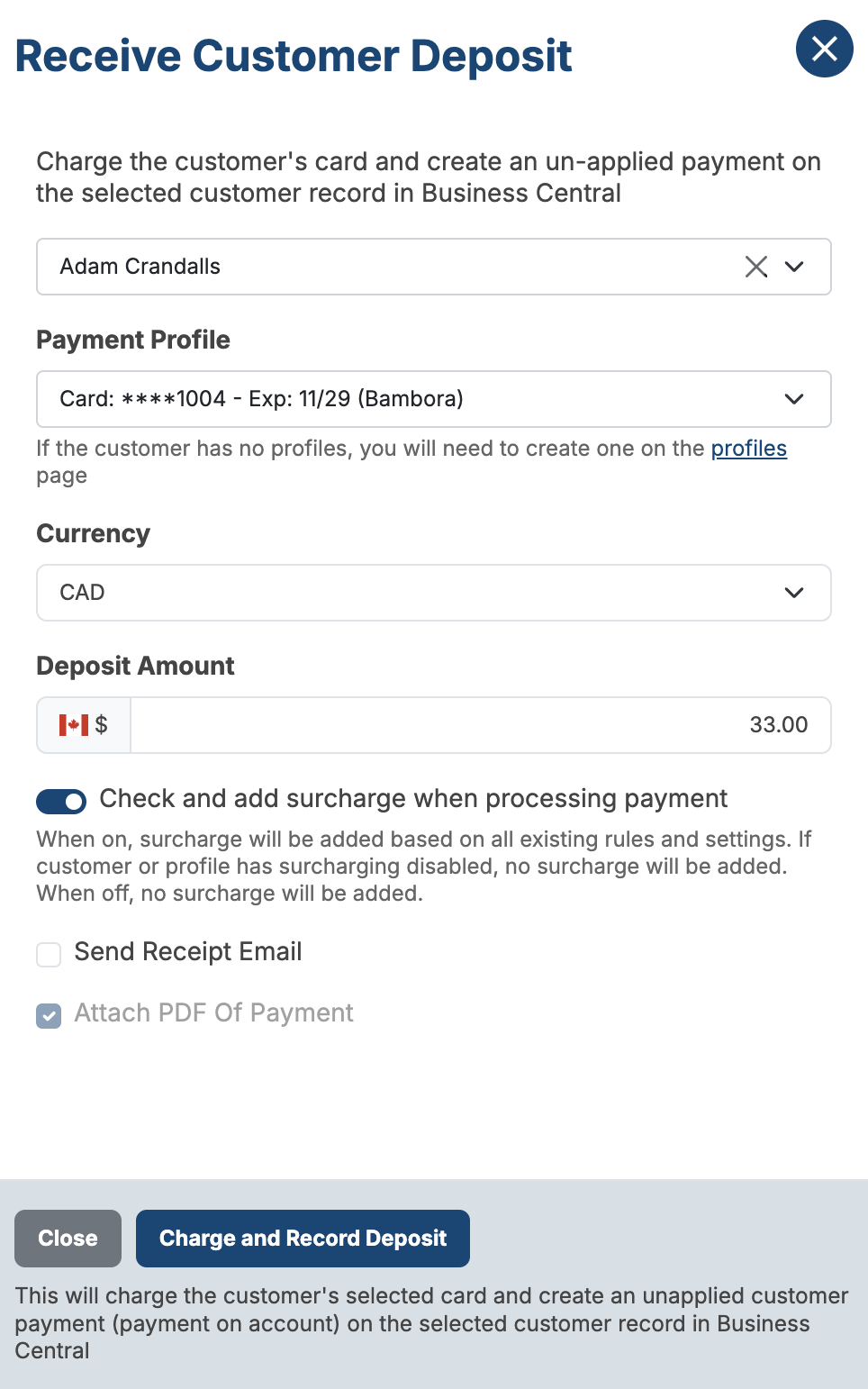
- On Receive Customer Deposit, choose the customer, the payment method and the amount. Tick Send Receipt Email if you want the customer to receive a receipt.
- Select Charge and Record Deposit.
The modal explains what will happen for Business Central: "This will charge the customer's selected card and create an unapplied customer payment (payment on account) on the selected customer record in Business Central".
What appears in Business Central
Benji Pays creates a customer payment line in the Cash Receipt Journal assigned to the gateway, with no Applies-to Doc. No.. The Document No. and External Document No. are the payment reference from your processor, and the description follows the usual reference | card brand | Benji Pays Payment pattern. If auto-posting is enabled the journal is posted and the payment shows as an open Payment entry in the customer's ledger; otherwise post the Cash Receipt Journal in Business Central.
The deposit is not a finance charge and is not applied to any invoice at this point.
Apply the deposit to a posted invoice later
- In Business Central, open the customer (Customer Card or Customer Ledger Entries).
- Find the open Payment entry that matches the Benji Pays deposit. Check the External Document No., amount and posting date against the transaction in Benji Pays.
- Select the payment entry and choose Apply Entries.
- Select the posted sales invoice(s) to apply the payment to and post the application. The invoice remaining amount and the open payment amount are both reduced.
IMPORTANT Benji Pays does not apply the deposit for you after the fact. Once you apply it in Business Central, the next invoice sync updates the invoice balance in Benji Pays.
If the deposit included a surcharge
For Benji Pays-managed surcharges on gateways other than Benji Payments, the customer payment line is for the deposit principal only, and Benji Pays creates a separate G/L surcharge line in the same journal (see How Benji Pays Records Payments in Business Central). When you apply the deposit later, apply only the principal customer payment.
For Benji Payments, no surcharge line is created in Business Central.
Voiding or refunding a deposit
A deposit that is still unapplied can be voided or refunded from Benji Pays like any other transaction. If the deposit has already been applied to an invoice in Business Central, you must unapply it in Business Central first, then run the void or refund in Benji Pays. See Voiding and Refunding Payments with Business Central.
Was this article helpful?
That’s Great!
Thank you for your feedback
Sorry! We couldn't be helpful
Thank you for your feedback
Feedback sent
We appreciate your effort and will try to fix the article