On this page
Customer notes let your team leave internal staff notes on a customer record. Use them to track collections, credit holds, payment-method issues, and other follow-up that should stay with the customer.
IMPORTANT Notes are not visible to the customer. They do not appear on invoices, Pay Now links, or the customer portal.
What you can do
- Add a note with a type and status
- Pin one note as a customer alert at the top of the customer page
- Reply in a conversation thread
- Resolve a note when the work is done
- Delete a note or a reply, subject to the rules below
Before you begin
ACCESS Anyone on your team who can sign in to the merchant app can add notes. Benji support users need write access.
Where to find customer notes
Open the customer in Benji Pays.
- A customer alert appears at the top of the customer page when one is set.
- A Customer notes summary appears on the Overview tab.
- The full list is available on the Customer notes tab.
- Use View all notes from the summary to open the Customer notes tab.
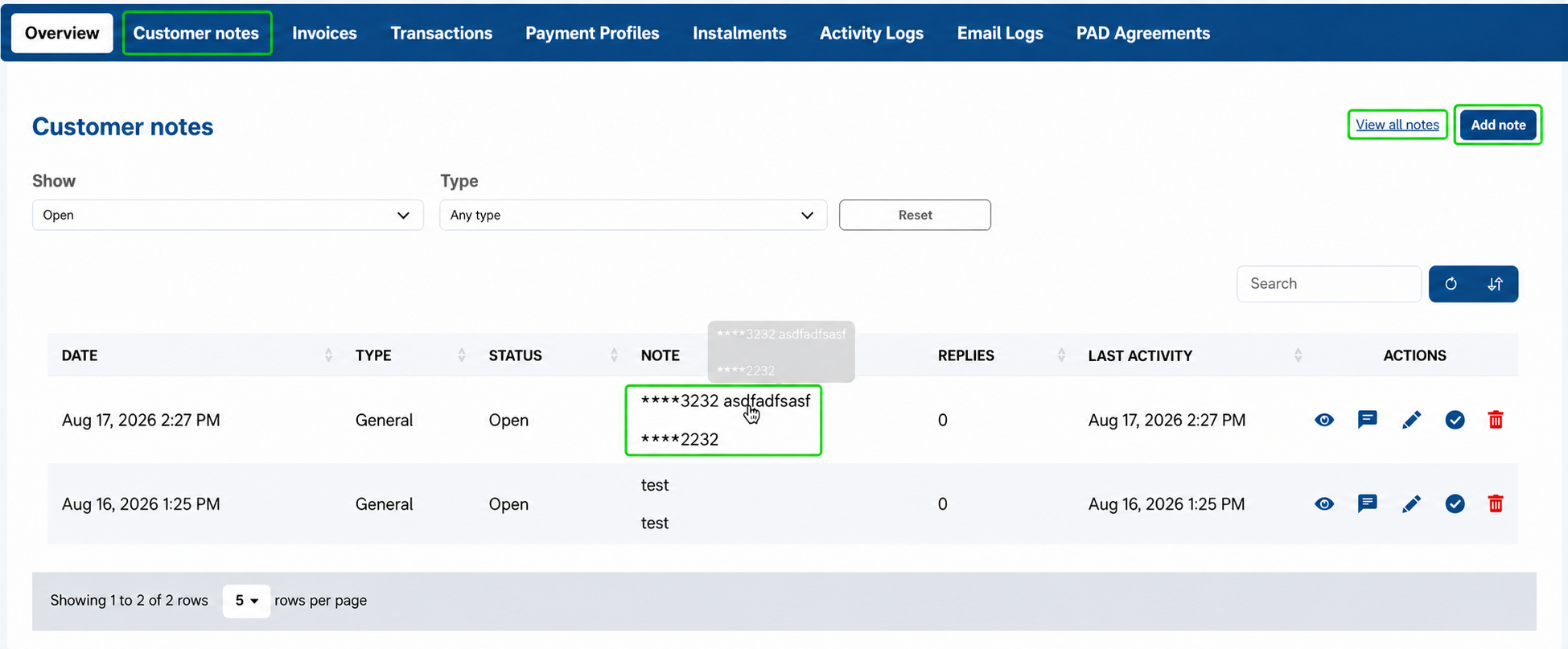
Customer Notes summary and filters on the customer record
TIP Use search and column filters on the Customer notes tab when a customer has a long history.
Add a customer note
- Open the customer.
- Select Add note.
- Choose a Type, such as General, Collection, Credit hold, Auto processing, or Payment method.
- Choose a Status: Open, Closed, or Resolved. New notes usually start as Open.
- Write the note, up to 1,000 characters.
- Optionally select Show as customer alert if the note should stay visible at the top of the customer page.
- Select Add note.
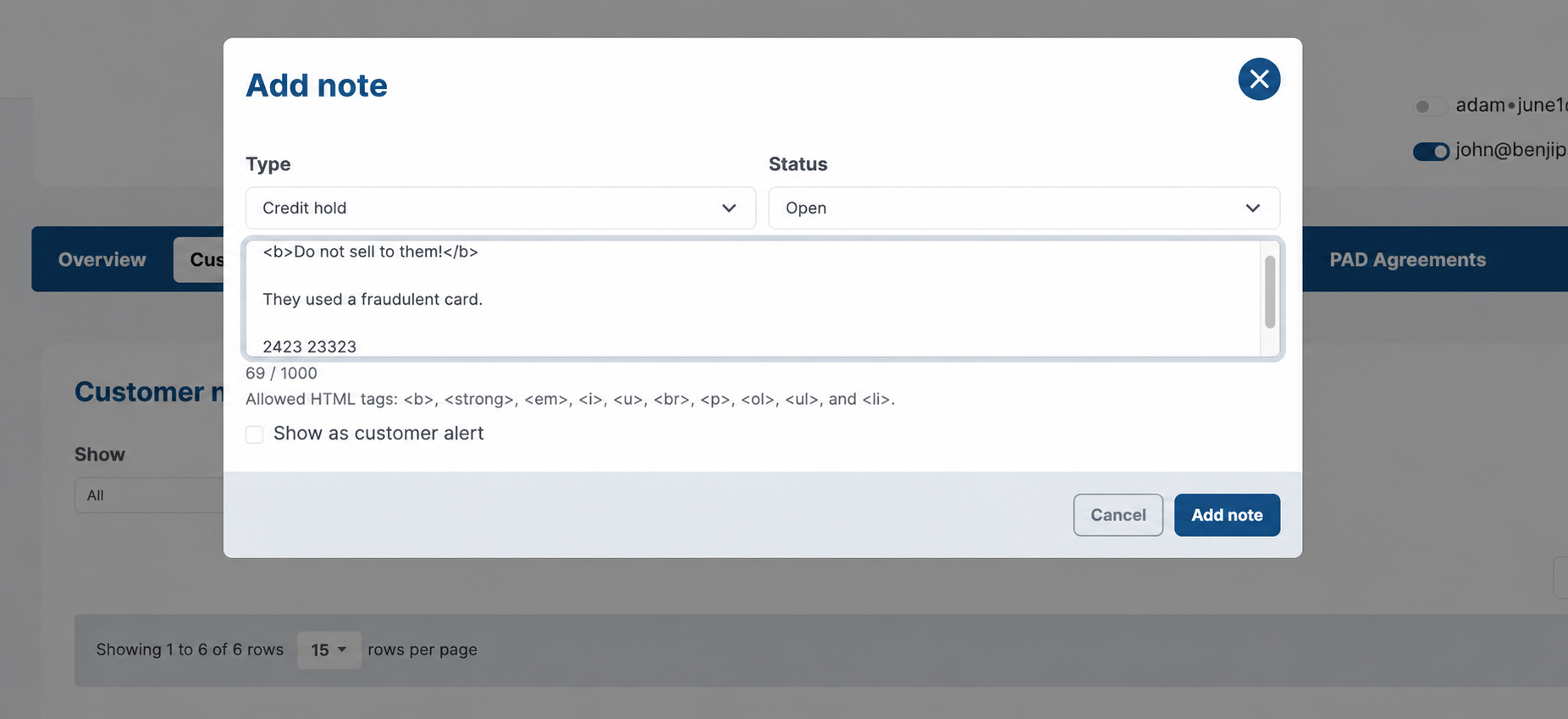
Add a note and optionally display it as a customer alert
Formatting and payment information
A short set of HTML is allowed: bold, italic, underline, lists, paragraphs, and line breaks. Other markup is stripped.
SECURITY If a card or account number is pasted into a note, Benji masks it automatically, for example ****1111. Do not rely on notes as a place to store full payment details.
Use customer alerts
A customer alert is a standing banner on that customer, so the next person who opens the record sees the important note first.
- A customer can have only one alert at a time.
- Turning on Show as customer alert for another note replaces the previous alert. The older note stays in the list.
- Remove alert takes the banner down without deleting the note.
- Resolving the note removes the alert automatically and keeps the note in the list as Resolved.
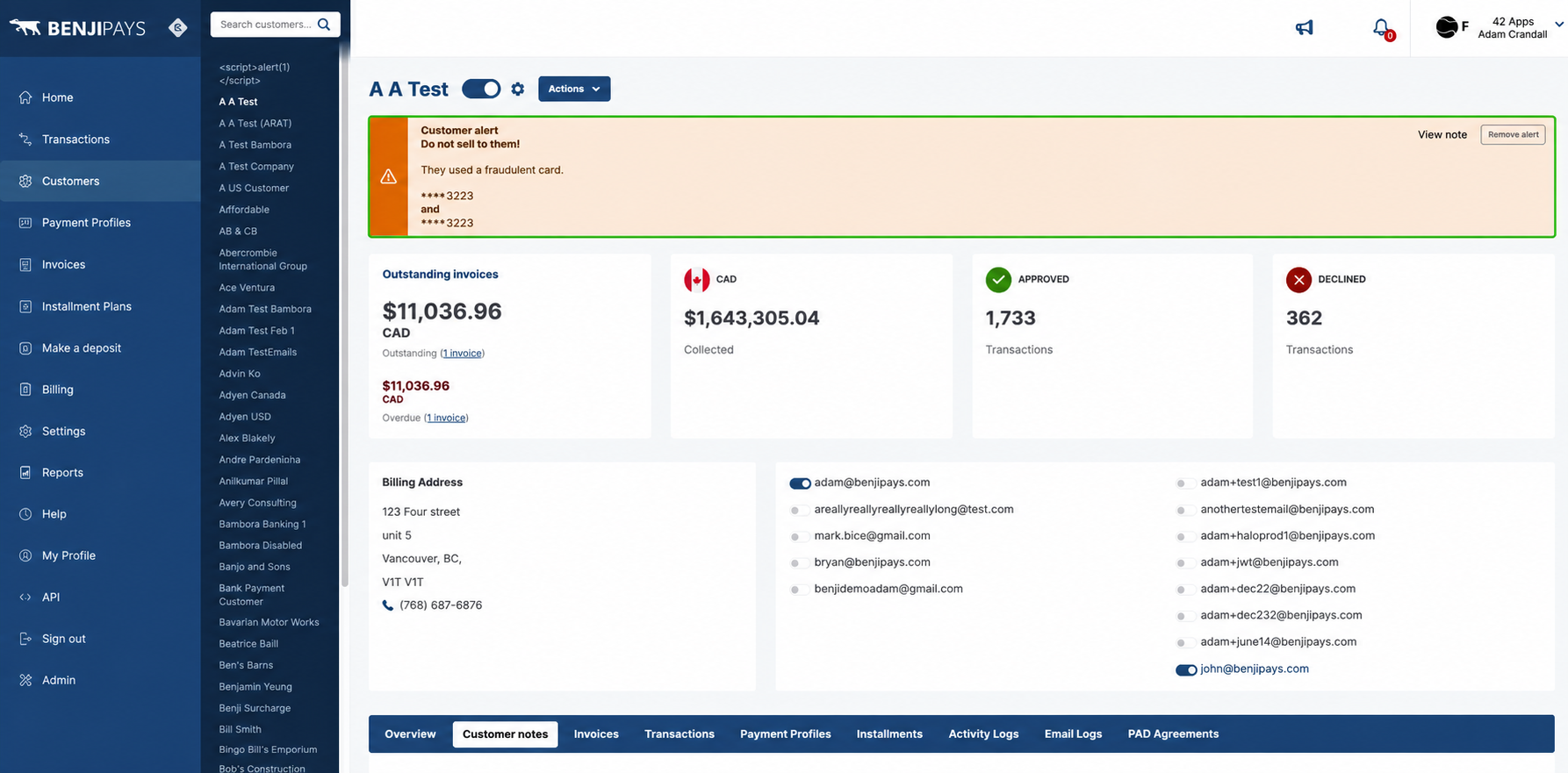
Customer alert displayed at the top of the customer record
TIP Use Show as customer alert for items the next teammate must see immediately, such as a credit hold, do-not-process instruction, or collections warning.
Manage conversations
View and reply to a note
- Select the note preview, the view icon, or Reply.
- Review the chat-style conversation. Your replies appear on one side, teammates’ notes appear on the other, and the original note is marked Original.
- Type a reply at the bottom and select Reply.
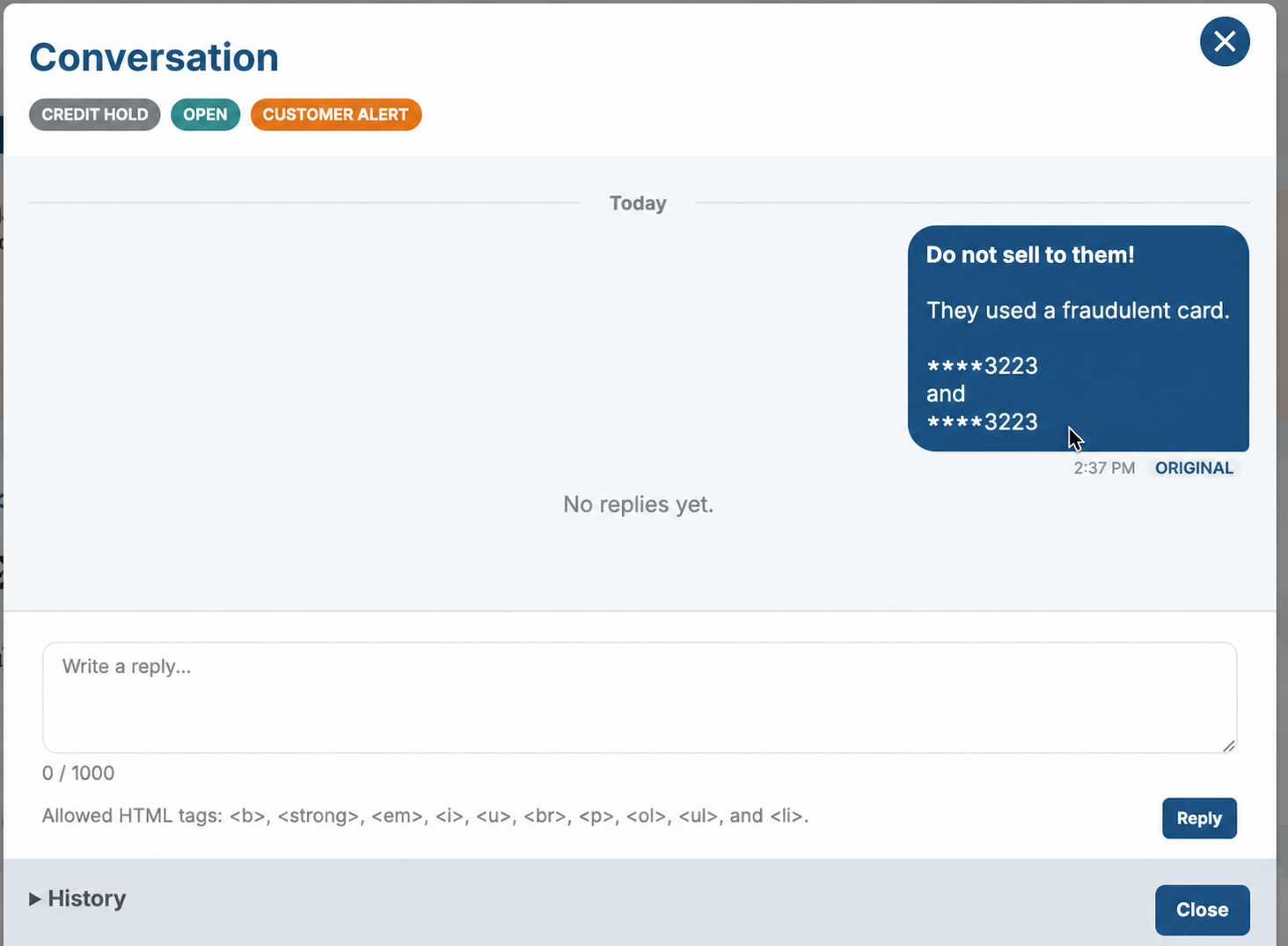
Conversation thread with masked payment information and note history
NOTE Replies can only be added to the original note, not to another reply. There is one level of conversation.
Edit a note or reply
- Original note: Use Edit in the notes table. You can change the text, type, status, and whether it is the customer alert.
- Reply: Open the conversation and use the pencil on that reply.
- History: Edits remain available in the note’s History.
Resolve or delete notes
Statuses and resolving
| Status | Typical use |
|---|---|
| Open | Work is still in progress. |
| Closed | The item is no longer active but is not treated as resolved. |
| Resolved | The follow-up is done. |
To mark a note resolved from the list, use the check-mark Resolve action. You can also change its status when you edit the note.
Use the Show filter (All, Open, Closed, or Resolved), together with the Type and Status filters, to find notes. The Overview summary defaults to Open notes.
TIP Resolve the note when the issue is complete so it drops out of the Open filter and, if it was an alert, the banner disappears.
Delete notes and replies
IMPORTANT Deletes are soft deletes: the item leaves the active list, but the action stays in History. Confirm before deleting.
Delete a reply
You can delete a reply only when both conditions are true:
- You wrote the reply, or you are a company admin or Benji admin.
- Nobody has posted a later reply in the same conversation.
If someone replied after you, the trash icon is hidden and deletion is blocked—even if that later reply was itself deleted. Delete replies from newest to oldest. Other teammates cannot delete your reply unless they are a company admin.
Delete the original note
You can delete the original note only when it has no remaining replies. Delete all replies first, from newest to oldest. After every reply is deleted, any teammate who can add notes can delete the original note; they do not need to be the original author.
Quick reference
| What you want to delete | Allowed when |
|---|---|
| A reply you wrote | It is the latest reply in the thread. Nothing was posted after it, including a deleted later reply. |
| Someone else’s reply | You are a company admin, and it is the latest reply. |
| The original note | Every reply has been deleted. |
If deletion is not allowed
Benji shows a message such as:
- “This comment cannot be deleted because someone has replied after it.”
- “This note cannot be deleted because it has comments.”
- “Only the original author or a full admin can delete this comment.”
Review and verify
Review note history
Open a note’s conversation and expand History to see who created, edited, replied, deleted, changed status, or turned the customer alert on or off. Replacing one alert with another is also recorded.
Confirm the result
- The new note appears in the Customer notes summary and on the Customer notes tab.
- If selected, the customer alert appears at the top of the customer record.
- Replies appear inside the conversation, and actions are recorded in History.
- Resolved notes leave the Open view, and resolved alerts are removed from the top of the customer record.
Was this article helpful?
That’s Great!
Thank you for your feedback
Sorry! We couldn't be helpful
Thank you for your feedback
Feedback sent
We appreciate your effort and will try to fix the article