If you already have credit cards saved in Elavon Converge, you can securely transfer your payment tokens directly to Benji Pays; therefore, no need to re-enter your card details.
Step 1. Upload Elavon Tokens
Path: Benji Pays Dashboard > Settings > Upload Elavon Converge Profiles
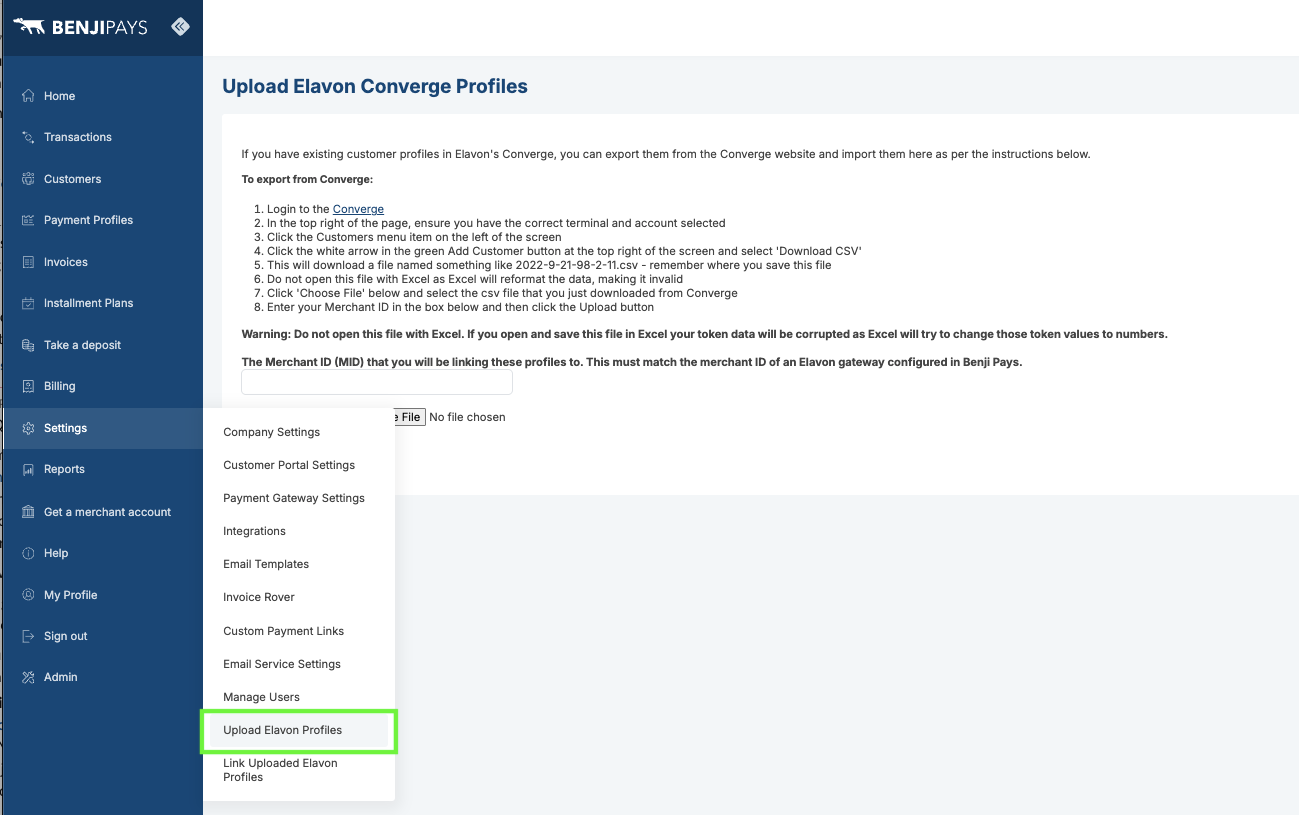
To export from your Elavon Converge vault:
If you have existing customer profiles in Elavon's Converge, you can export them from the Converge website and import them here as per the instructions below
Login to the Converge
In the top right of the page, ensure you have the correct terminal and account selected
Click the Customers menu item on the left of the screen
Click the white arrow in the green Add Customer button at the top right of the screen and select 'Download CSV'
This will download a file named something like 2022-9-21-98-2-11.csv - remember where you save this file
Do not open this file with Excel as Excel will reformat the data, making it invalid
Click 'Choose File' below and select the csv file that you just downloaded from Converge
Enter your Merchant ID in the box below and then click the Upload button
Warning: Do not open this file with Excel. If you open and save this file in Excel your token data will be corrupted as Excel will try to change those token values to numbers.The Merchant ID (MID) that you will be linking these profiles to. This must match the merchant ID of an Elavon gateway configured in Benji Pays.

Step 2: Link Uploaded Elavon Profiles
Path: Benji Pays Dashboard > Settings > Link Uploaded Elavon Profiles
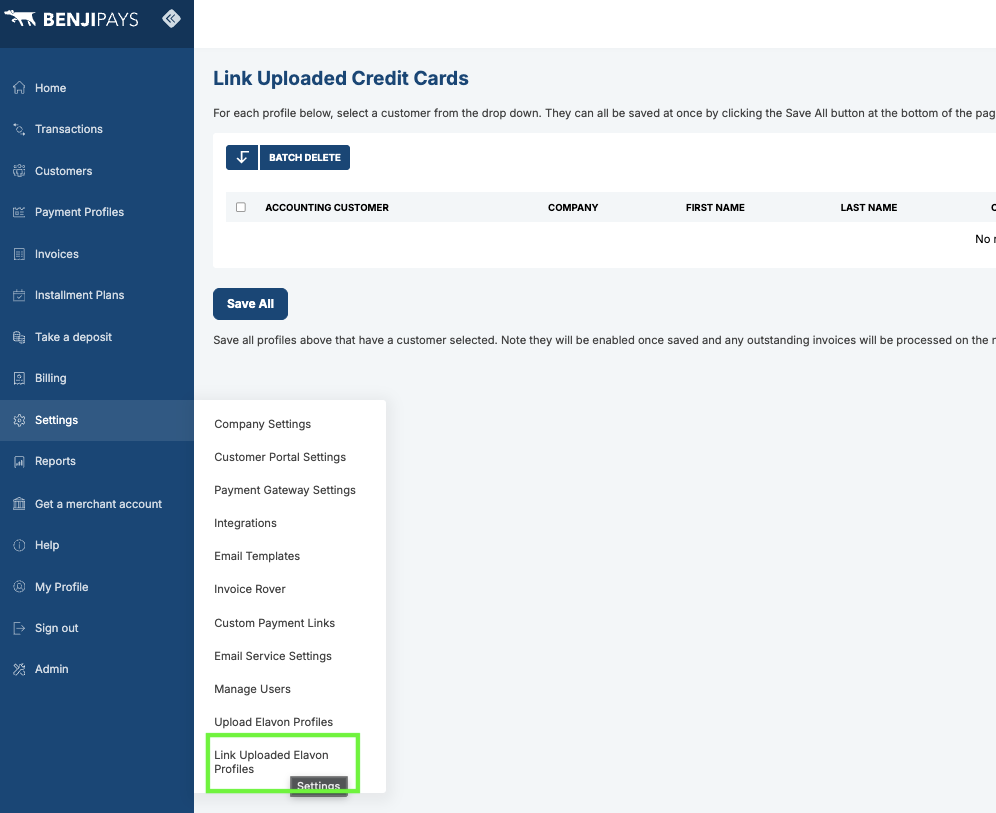
For each profile, select a customer from the drop-down. They can all be saved at once by clicking the "Save All" button at the bottom of the page, only profiles that have a selected customer will be saved.
Once all profiles are linked, you can verify by going to the Customers list in Benji Pays, selecting a customer, scrolling down, and checking the payment profile to confirm that the credit card has been saved correctly.
Was this article helpful?
That’s Great!
Thank you for your feedback
Sorry! We couldn't be helpful
Thank you for your feedback
Feedback sent
We appreciate your effort and will try to fix the article