Whitelisting Your Benji Pays Domains in Helcim
If you are using Helcim with Benji Pays, you need to whitelist your Benji Pays domains in your Helcim.js configuration. This allows payment forms to load correctly from Benji Pays and your customer portal.
Domains to Whitelist
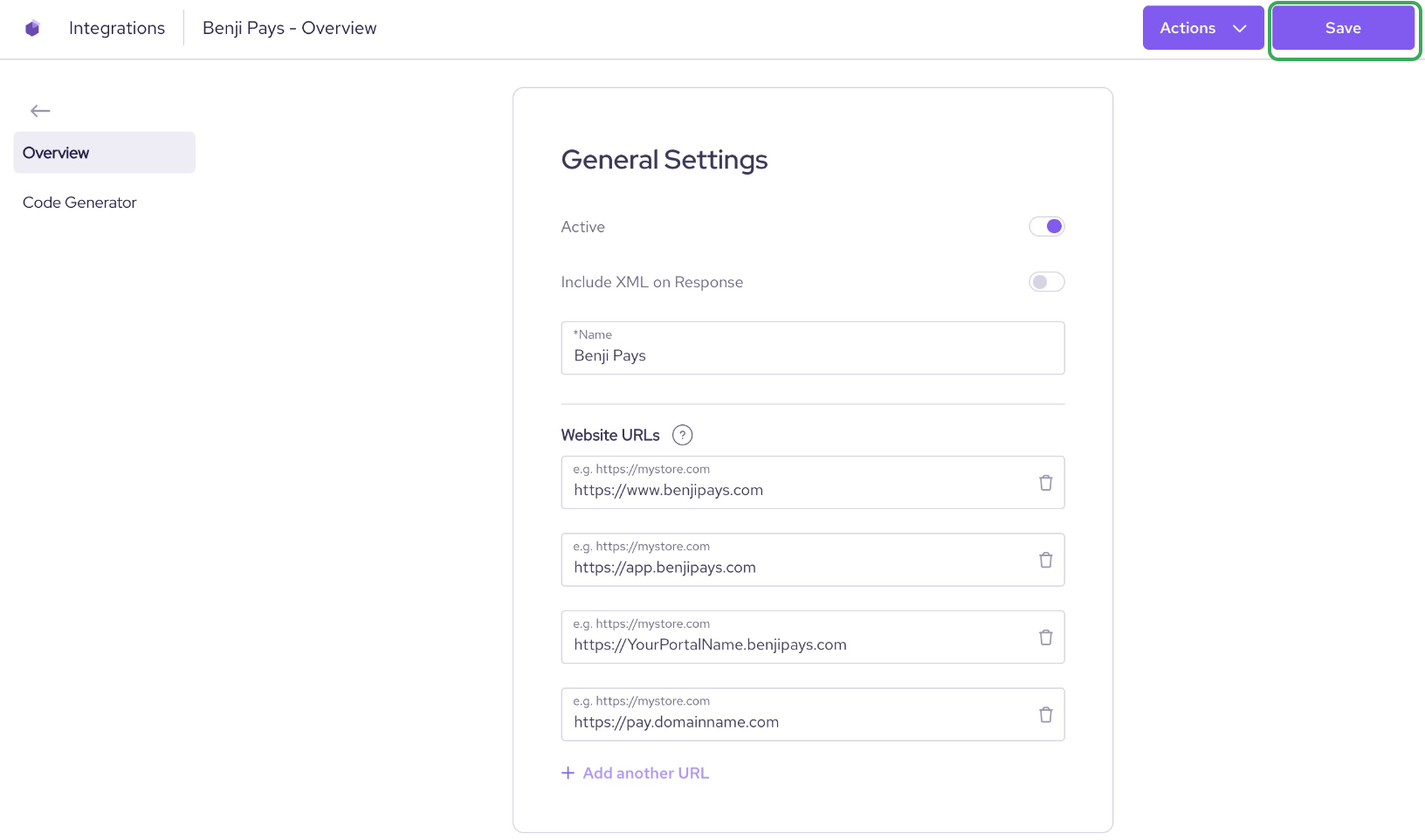
Ensure the following URLs are added to the Website URLs list in your Helcim.js configuration.
All applicable URLs must be added:
Your custom customer portal domain, if applicable
Replace YourPortalName with your actual Benji Pays Portal Name. This can be found in Benji Pays by going to Settings > Customer Portal Settings.
If you are using a custom customer portal domain, add that full URL as well. For example, this may look like:
You can confirm your customer portal URL in Benji Pays by going to Settings > Customer Portal Settings and looking for Your Customer Portal link is:. Add the full URL shown there.
How to Whitelist the Domains in Helcim
Go to the Helcim Dashboard:
Log in to your Helcim account.
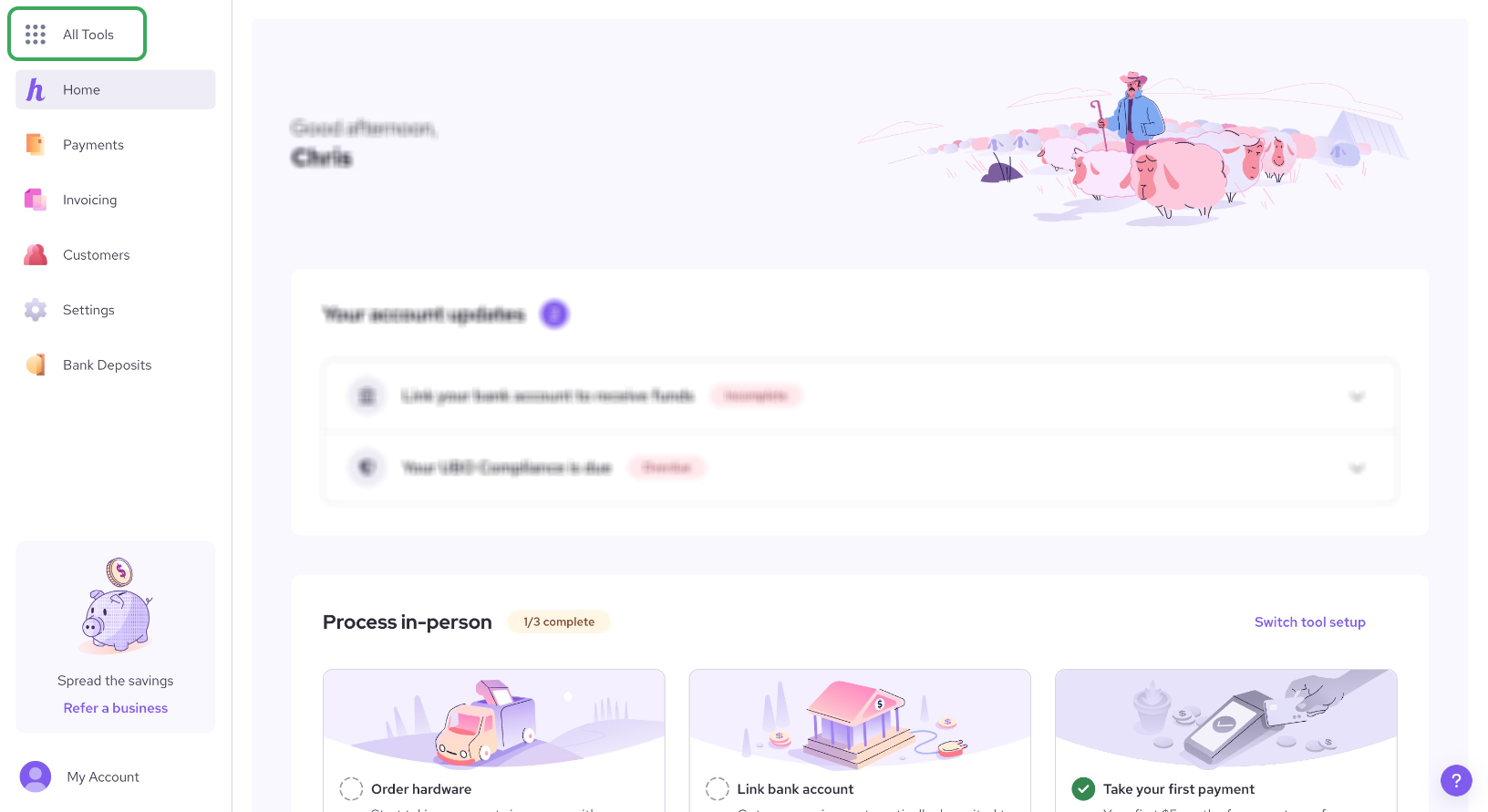
In the top-left corner, click All Tools.
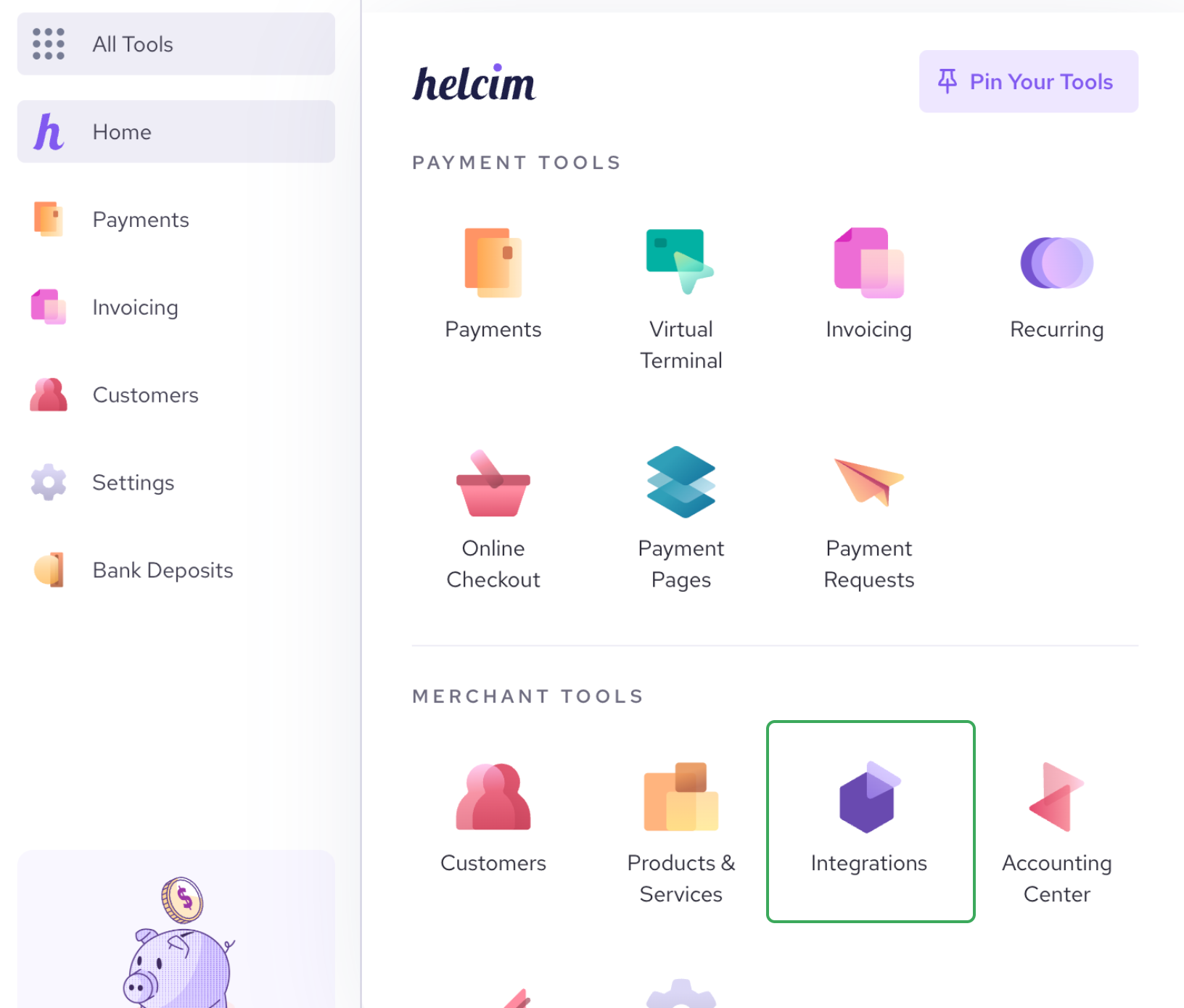
Under Merchant Tools, click Integrations.
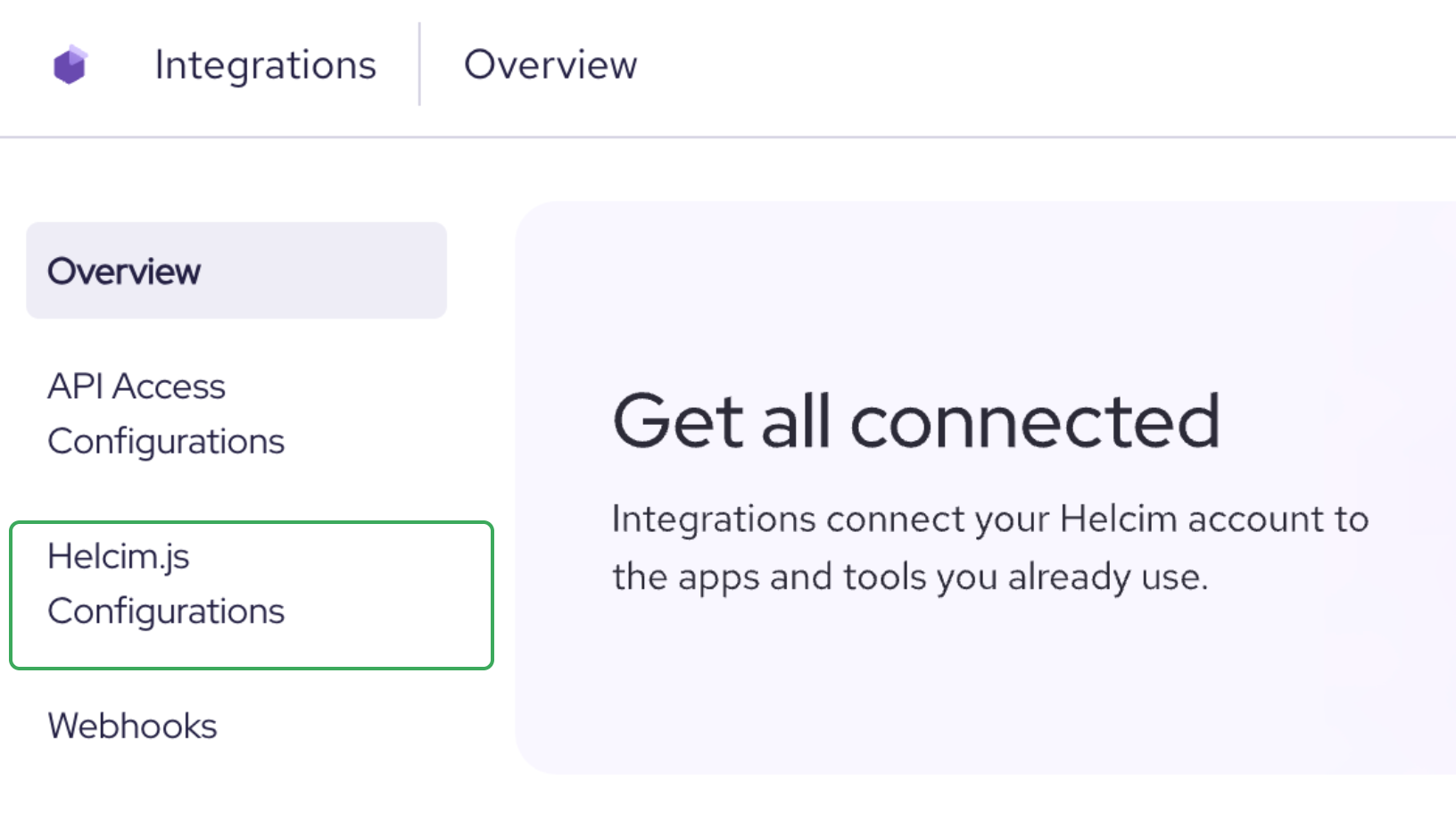
Find the Helcim.js Configurations section.
Click the Benji Pays configuration entry.

In General Settings, find the Website URLs section.
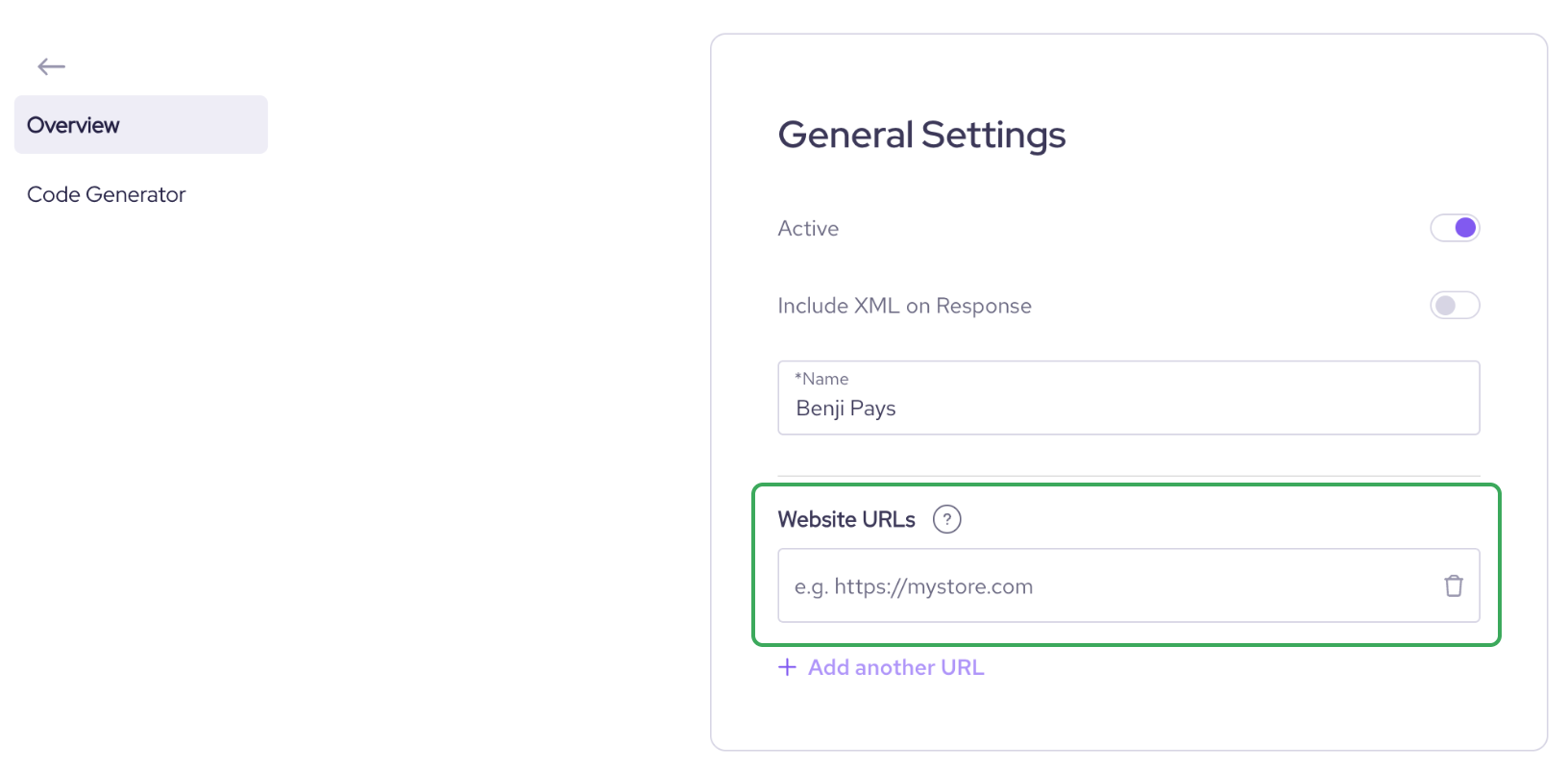
Add the required domains:
Click Save.
After Saving
Once the domains have been added and saved, your Helcim.js configuration should allow Benji Pays and your customer portal to load and process payments correctly.
Was this article helpful?
That’s Great!
Thank you for your feedback
Sorry! We couldn't be helpful
Thank you for your feedback
Feedback sent
We appreciate your effort and will try to fix the article