Email: support.na@worldline.com
Phone: 1-833-226-2672
Validation greater than maximum amount
The merchant has a per-transaction limit set on their Bambora gateway account. To modify this limit, you'll need to contact Bambora directly by email or phone.
Updating the Credit Card that expired — Error 43
This issue occurs when you add a credit card that is already saved in your Bambora profile.
To resolve this, delete the existing profile first, then add the new card.
DECLINED – Please try a different payment method or contact your vendor. Try a different credit card.
Refund Declined
Refund transaction failed. The requested refund is likely over your merchant account's maximum refund limit, or if there have been previous refunds on this transaction, the refund amount may be more than the remaining balance that can be refunded for the original transaction. Please contact your merchant account provider to have them increase your refund limit and authorize this refund.
CALL HELP DESK
To avoid this error, you will need to disable this section in your Account Settings > Order Settings.

unexpected token '<', "<"…. Is not valid JSON – Please try again.
To prevent this in the future, we recommend refreshing the payment page if it has been open for an extended period before submitting the payment form.
Maximum number of credit cards is reached
Step 1: Make sure your Maximum cards shown setting in Bambora is set to 5 (this is the highest it can be set to).
In Bambora, go to Configuration >> Payment Profile Configuration:
- Uncheck "Require unique order numbers"
- Uncheck "Do not allow profile to be created with billing information duplicated from an existing profile"
- Uncheck "Do not allow profile to be created with card data duplicated from an existing profile"
- Change the "Maximum number of cards shown" to 5
Step 2: Delete any old, unused or expired cards for each customer that is experiencing this error message, either in Benji Pays, or if the profiles are not in Benji Pays, then directly in Bambora.
Customer information failed data validation
- Log into your Bambora Account
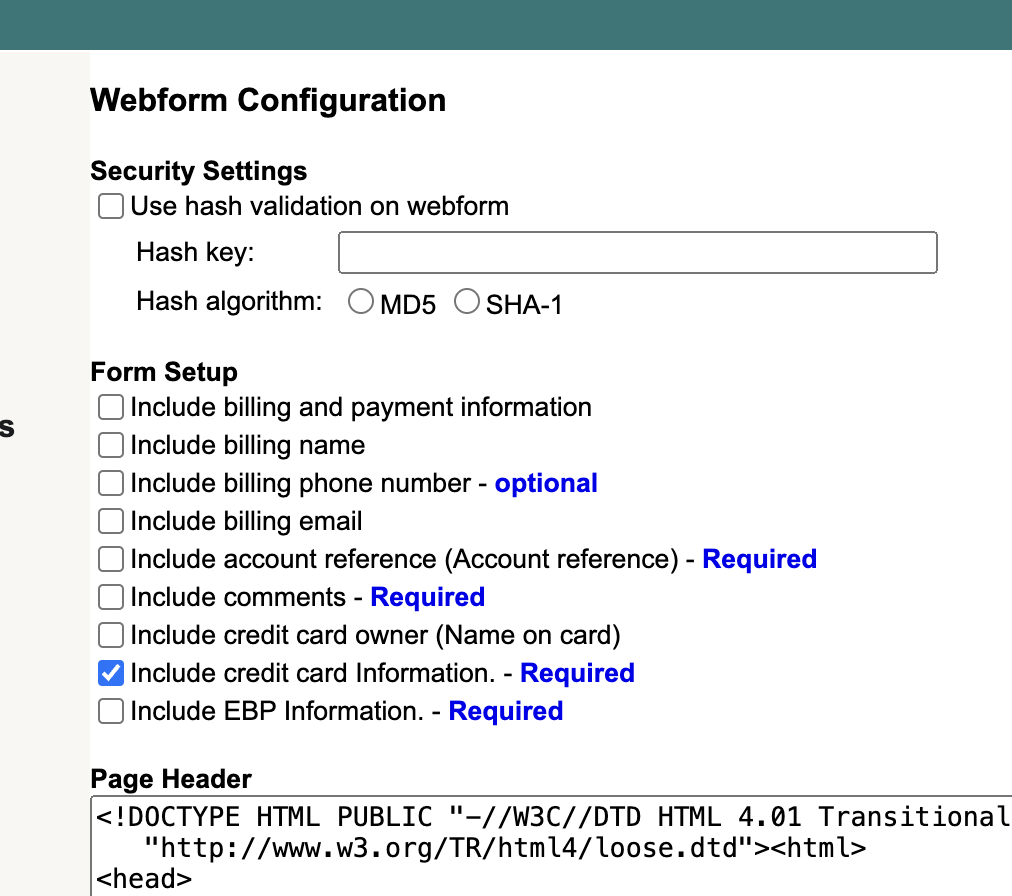
- Go to Configuration >> Payment profile Webform
- Ensure the first check box next to "Include billing and payment information" is NOT checked, uncheck it if needed
- Click "Update" at the bottom of that page
Now try submitting the card details in Benji Pays again.
The settings should look like this:
Declined payment due to Bank Account Issues
In Bambora:
- Log into your Bambora Account
- Navigate to the "Processing" section and select "Batch Processing"
- Find the batch associated with the declined transaction
- Within the batch, look for any transactions marked with a red X under the status row
Hover over the red X to access additional details explaining why the transaction failed.
These steps will help you gain insights into the specific reasons for the payment decline. Understanding the root cause is crucial for taking the necessary corrective actions.
In Benji Pays:
- Log in to Benji Pays
- Locate the declined transaction and click on the red "Declined" pill. You will see the Batch ID number in the Transaction details
- Alternatively, go to the "Transactions" section and select "ACH Transactions"
- In the report, the Batch ID will be visible in the first column

Was this article helpful?
That’s Great!
Thank you for your feedback
Sorry! We couldn't be helpful
Thank you for your feedback
Feedback sent
We appreciate your effort and will try to fix the article