Connecting Elavon Payment Gateway (EPG) to Benji Pays
Before you begin
Before starting the setup in Benji Pays, request your merchant alias from Elavon.
Contact your Elavon account manager and ask them to create a merchant alias for one of the following, depending on your accounting platform:
- Benji Pays Solutions - QuickBooks
- Benji Pays Solutions - Xero
If you are not sure who your account manager is, call Elavon support at 800-377-3962, choose option 2, then option 2 again. Support is available 24/7 and can provide your account manager’s contact information.
Elavon will create the alias and send it to you securely by email. Once you have this, you will be able to complete the following steps at once.
Please reach out to support@benjipays.com if you are experiencing any troubles with these instructions.
Section 1: Start the Setup in Benji Pays
- Log into Benji Pays.
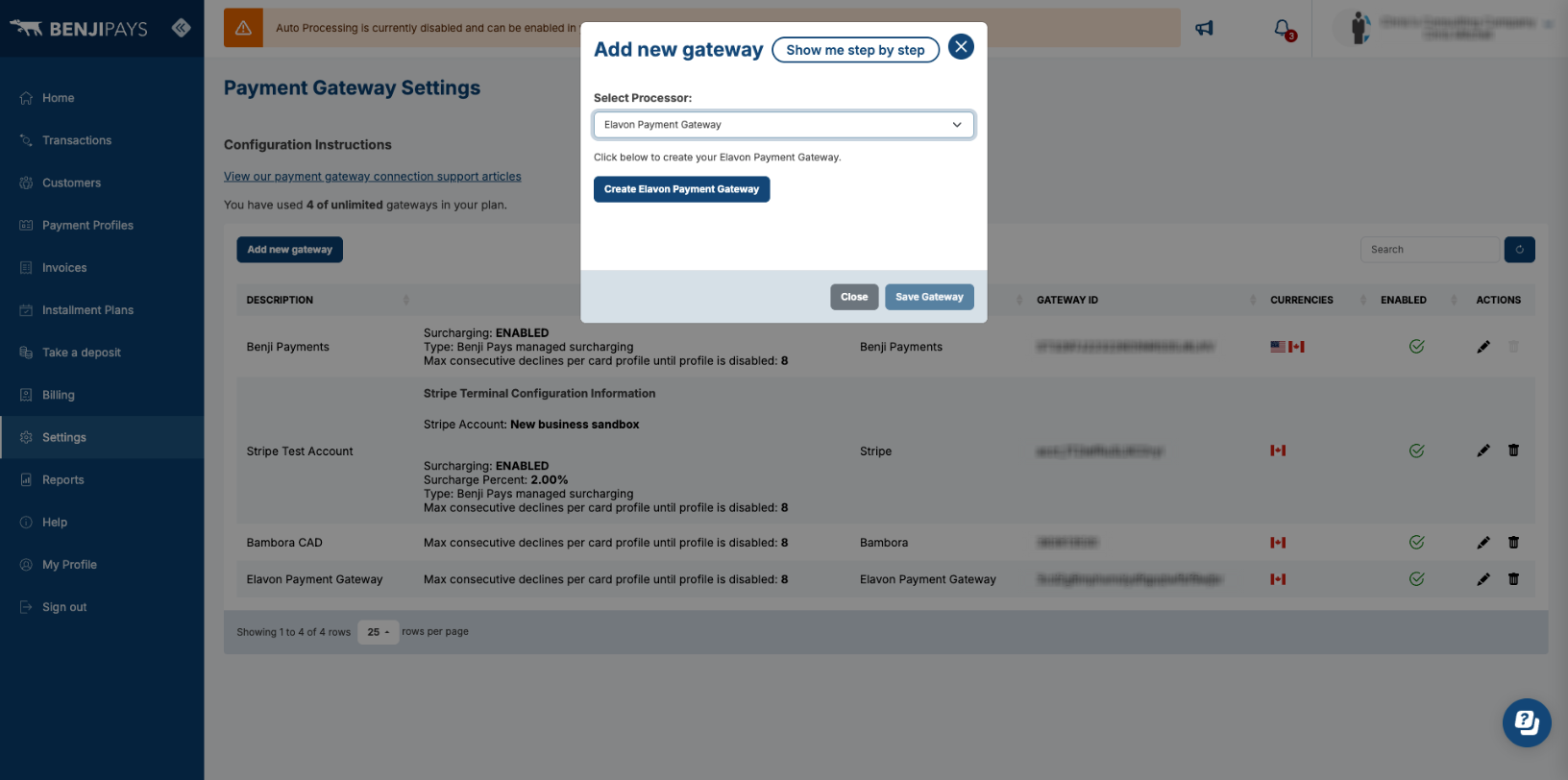
- Go to Settings > Payment Gateway Settings.
- Click Add new gateway.
- Select Elavon Payment Gateway as the processor.
- Click Create Elavon Payment Gateway.
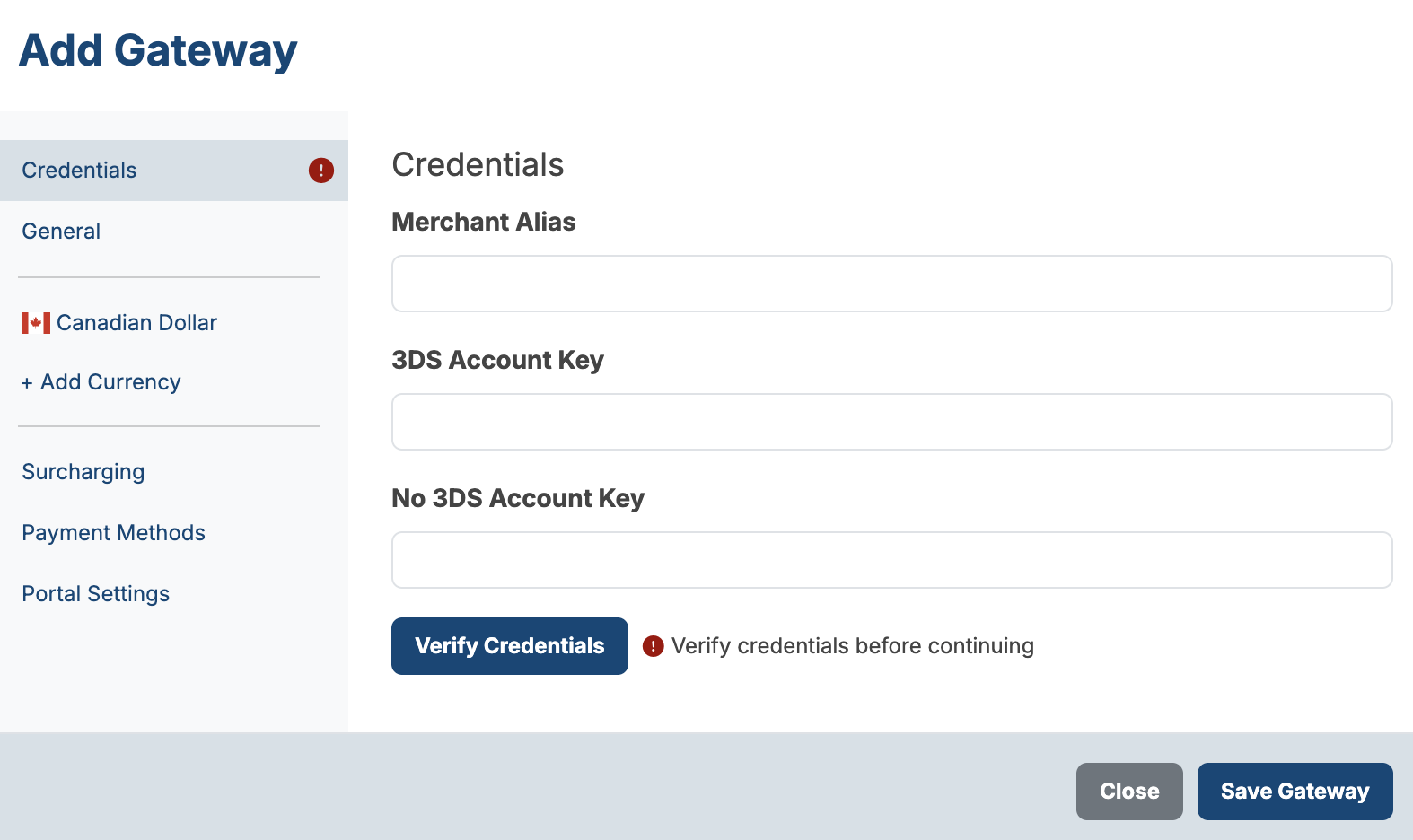
This opens a menu prompting you for three values: Merchant Alias, 3DS Account Key, and No 3DS Account Key. Leave this tab open. You will fill these in as you go.
Section 2: Open the Elavon Portal
In a new tab, log into your Elavon Payment Gateway portal at https://portal.na.elavonpayments.com.
Section 3: Enter Your Merchant Alias
Your Merchant Alias was provided to you by Elavon. Enter it into the Merchant Alias field in Benji Pays now.
The remaining two keys (3DS Account Key and No 3DS Account Key) are covered in the next section.
Section 4: Get Your Account Keys
The steps to get your Account Keys depend on whether your Elavon merchant ID is set up for 3D Secure 2.
If you are unsure whether your Elavon merchant ID is set up for 3D Secure 2, contact Elavon. Reach out to your sales representative or relationship manager, or call Elavon software support at 1-800-377-3962. Choose your language, then select Internet Support, then Software Support.
Follow either:
Section 4A If your account IS set up for 3D Secure 2
or
Section 4B If your account is NOT set up for 3D Secure 2
After you finish, continue to Section 5.
Section 4A: If your account IS set up for 3D Secure 2
You will create a fraud rule set, create a non-ecommerce account, and copy two Account IDs into Benji Pays.
4A.1: Create a Fraud Rule Set
To process non-ecommerce payments, you need a fraud rule set with 3D Secure 2 disabled.
- In the Elavon portal, click Main Menu below the Elavon logo in the top left.
- Click Accounts.
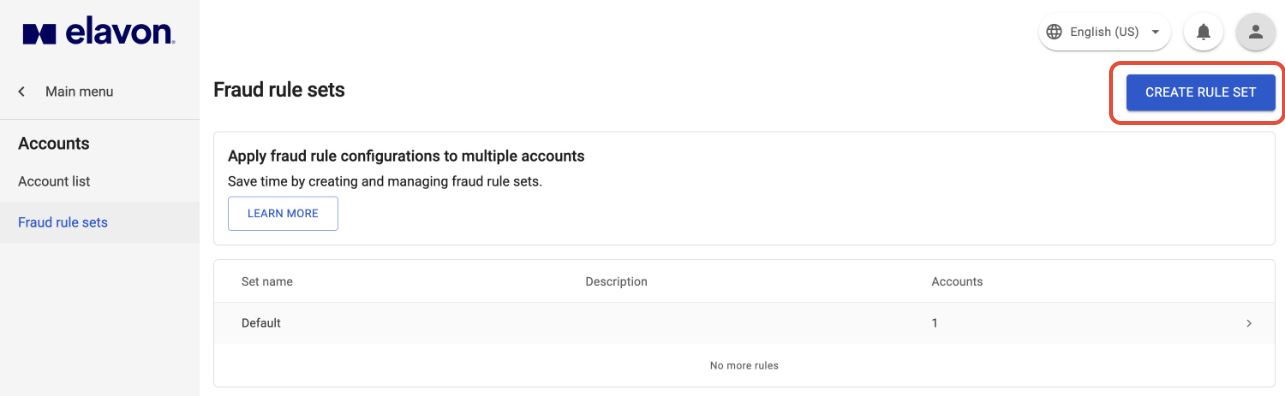
- Click Fraud rule sets.
- Click CREATE RULE SET in the top right.
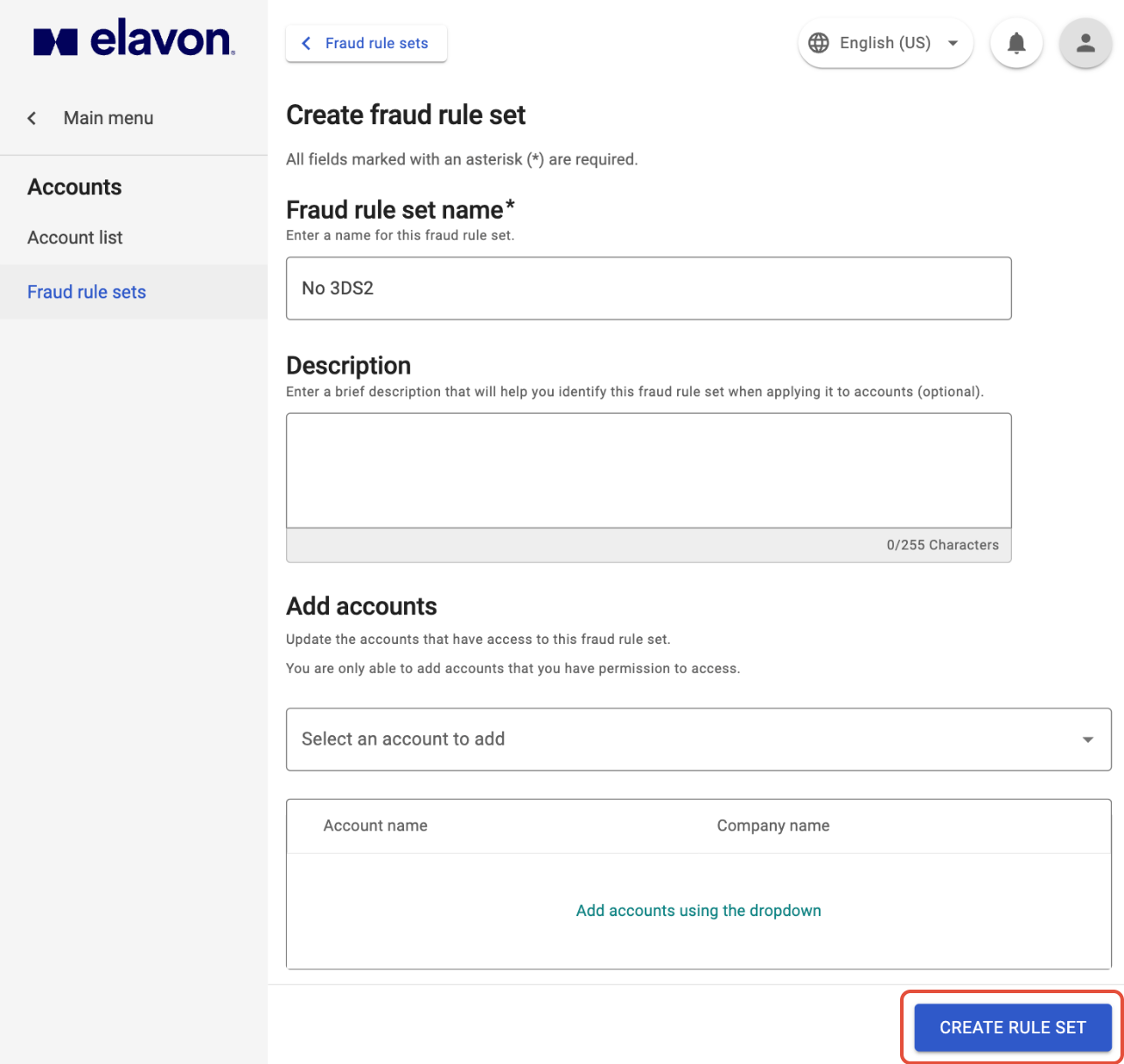
- Enter a name in the Fraud rule set name field. The name does not matter. For example, you could use "No 3DS2"
- Click CREATE RULE SET.
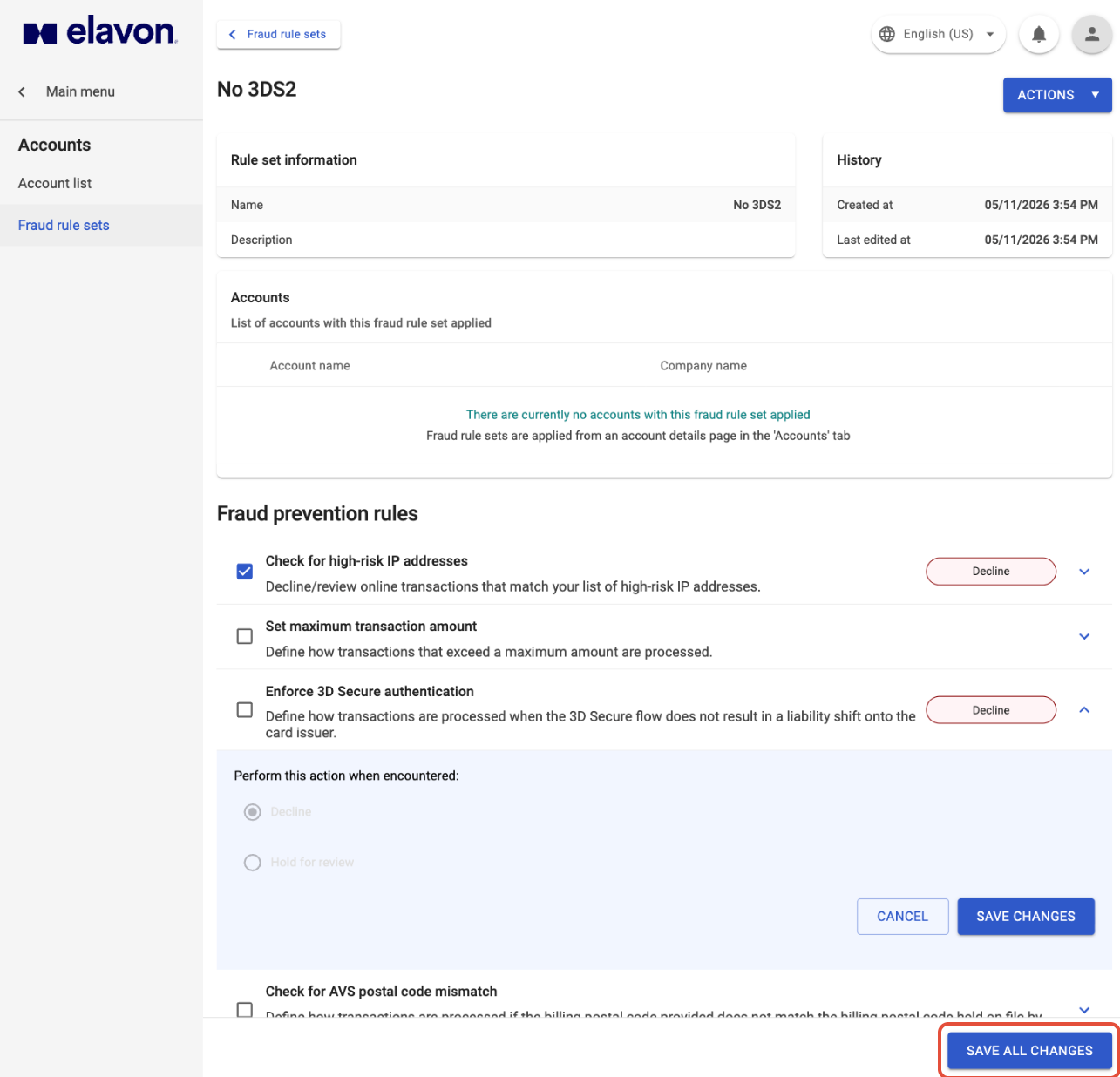
- Uncheck Enforce 3D Secure authentication.
- Click SAVE ALL CHANGES.
4A.2: Create a Non-Ecommerce Account
Create a new account and assign it the fraud rule set from step 4A.1.
- Click Main Menu below the Elavon logo in the top left.
- Click Accounts.
- Click Account list.
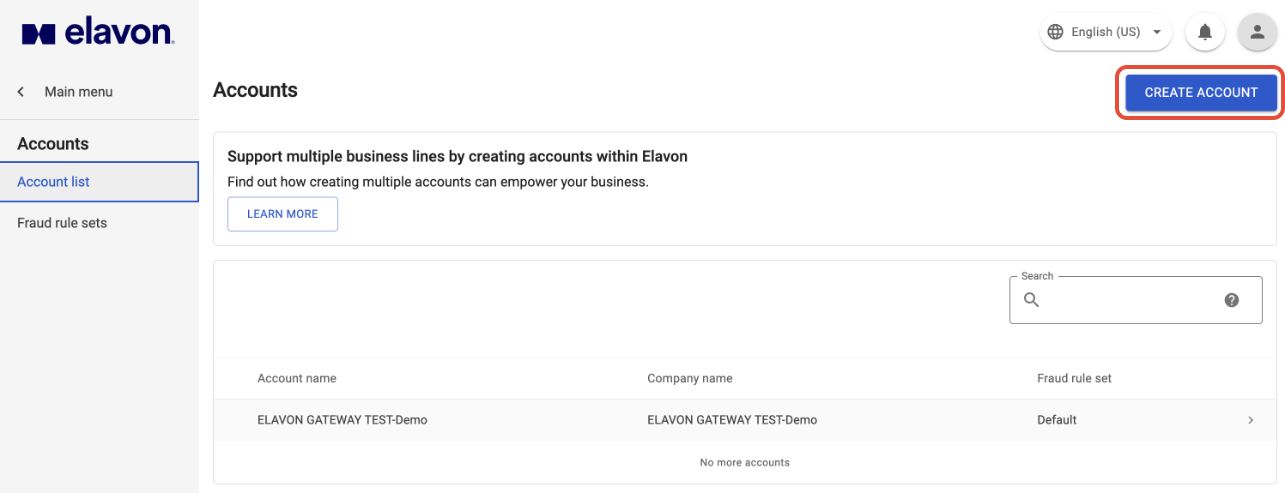
- Click Create Account.
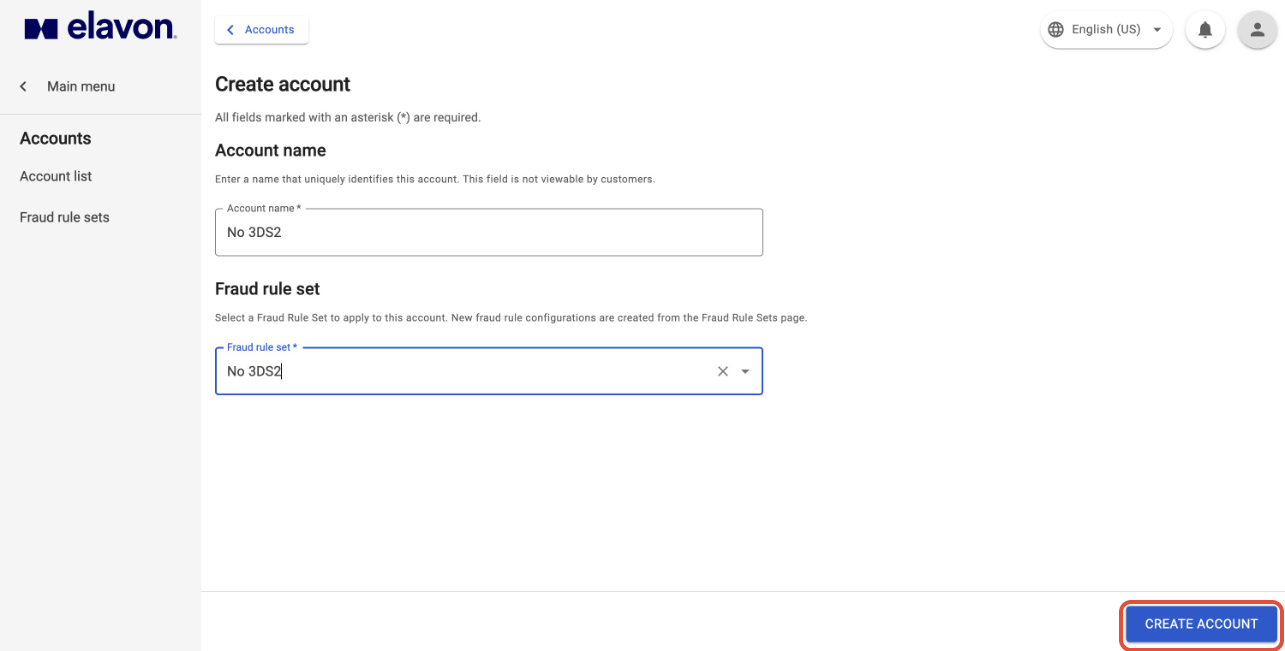
- Enter an account name. The name does not matter. For example, you could use "No 3DS2".
- If the Select processor account dropdown is enabled, select the Elavon merchant ID you want to process on. If the dropdown is greyed out, skip this step.
- Select the fraud rule set you created in step 4A.1.
- Click CREATE ACCOUNT in the bottom right.
If you are unsure which Elavon merchant ID to use, contact Elavon at the support number above.
4A.3: Copy the 3DS2 (not the account just created) Account ID into Benji Pays
- Click Main Menu below the Elavon logo in the top left.
- Click Accounts.
- Click Account list.
- Click on the account you want to process ecommerce transactions on.
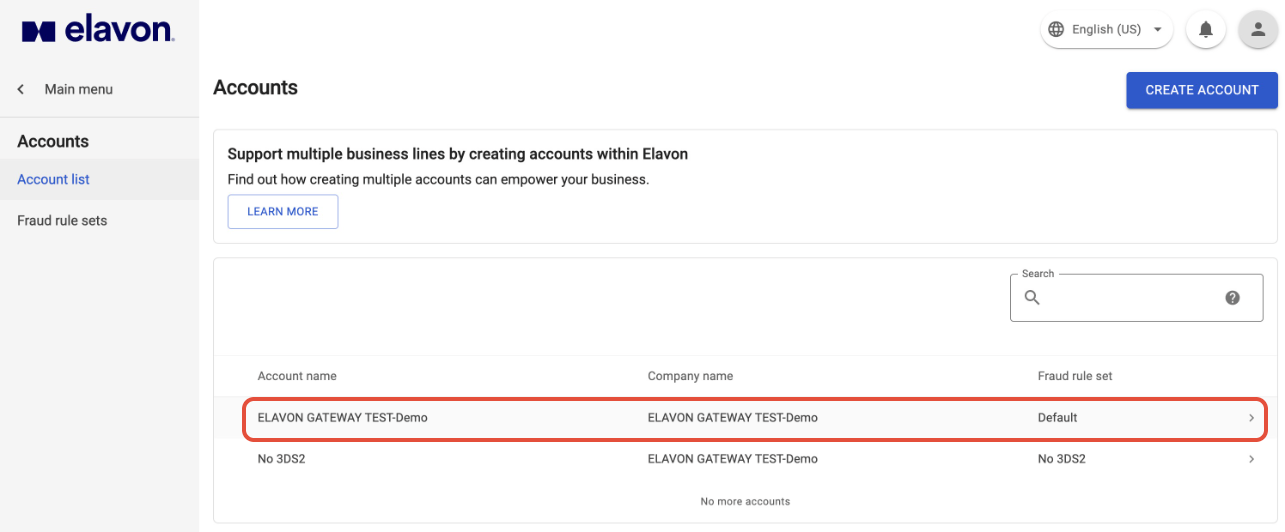
- Copy the Account ID.
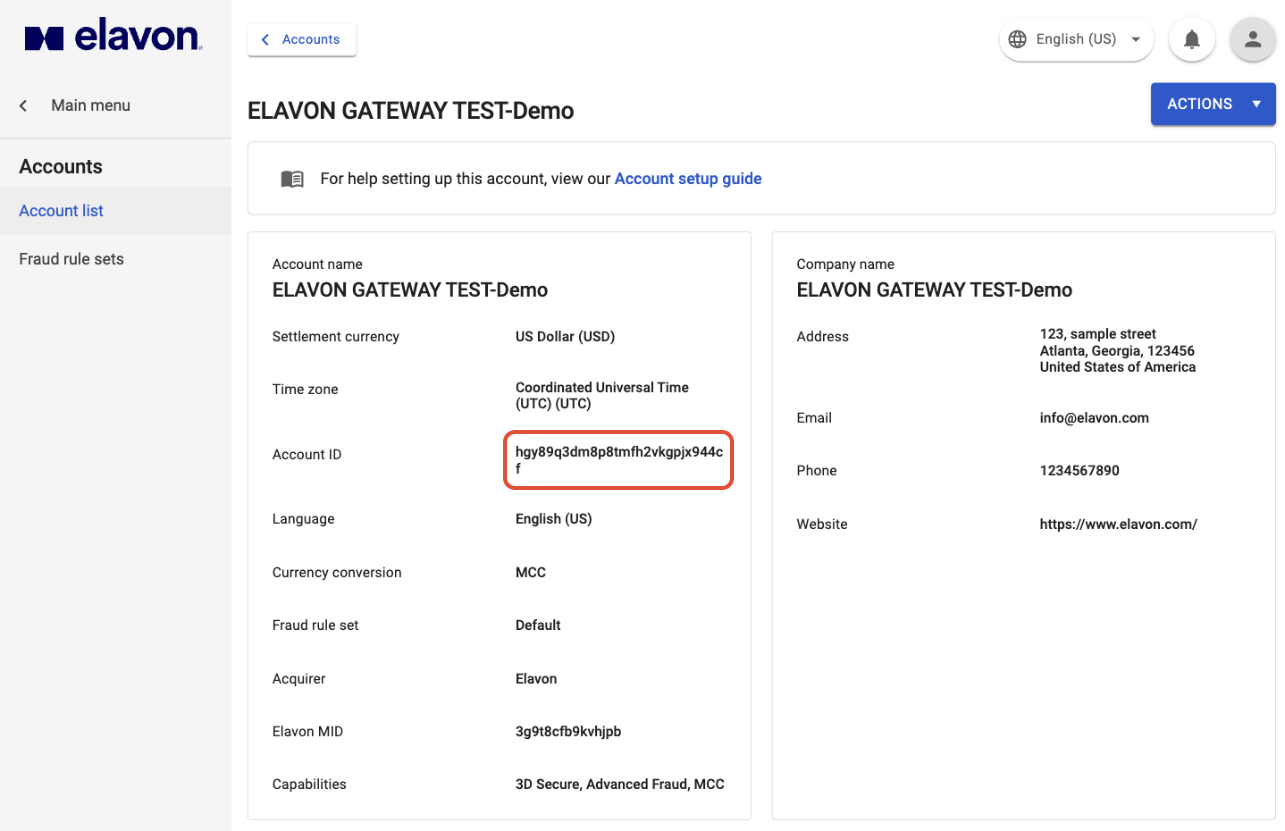
- Switch to your Benji Pays tab and paste the Account ID into the 3DS Account Key field.
4A.4: Copy the No 3DS2 (accout just created) Account ID into Benji Pays
- Back in the Elavon portal, click Account list on the left menu bar.
- Click on the account you created in step 4A.2.
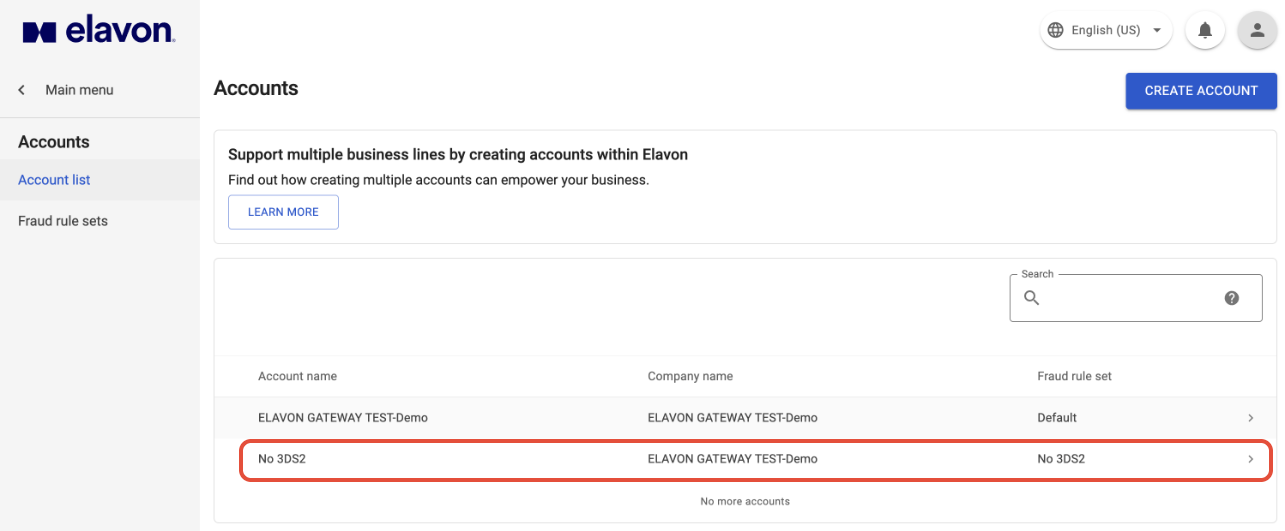
- Copy the Account ID.
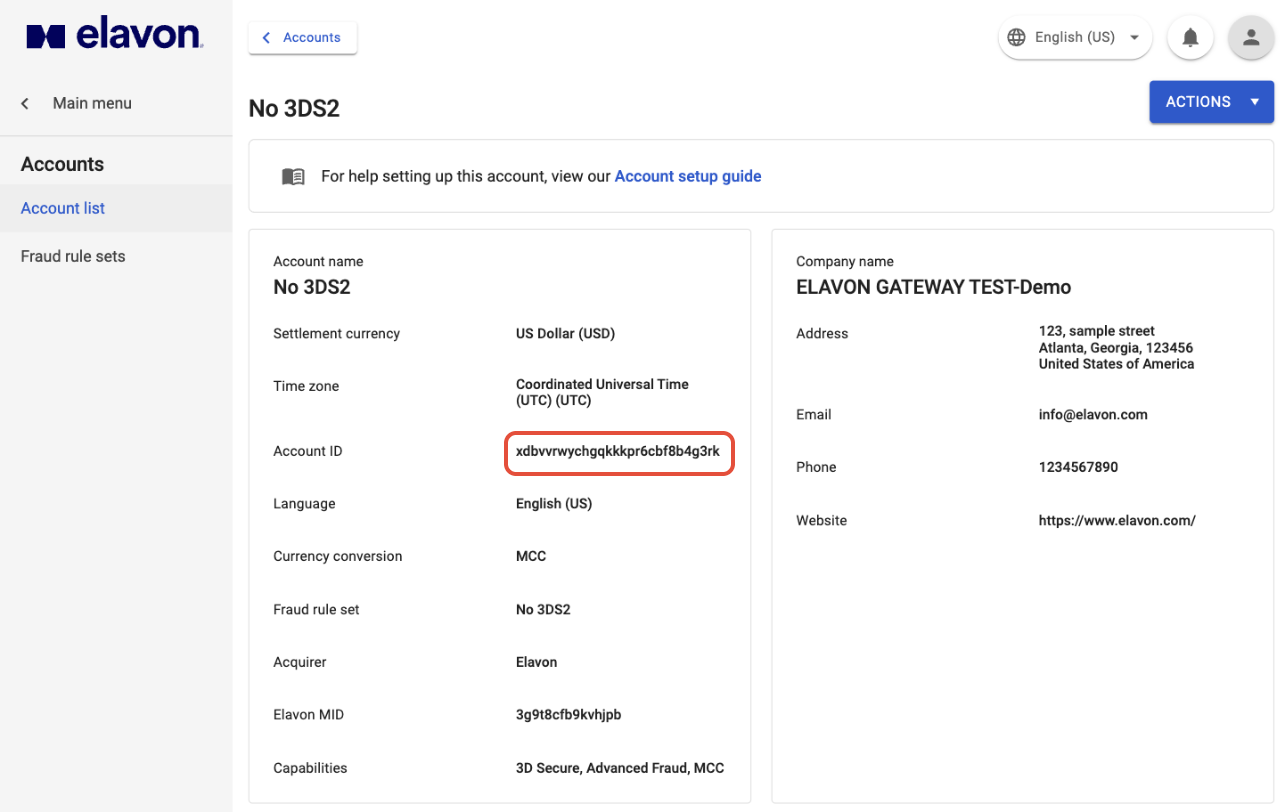
- Switch to your Benji Pays tab and paste the Account ID into the No 3DS Account Key field.
Continue to Section 5.
Section 4B: If your account is NOT set up for 3D Secure 2
You only need one Account ID.
4B.1: Copy the Account ID into Benji Pays
- In the Elavon portal, click Main Menu below the Elavon logo in the top left.
- Click Accounts.
- Click Account list.
- Click on the account you want to process on (there should only be one account).
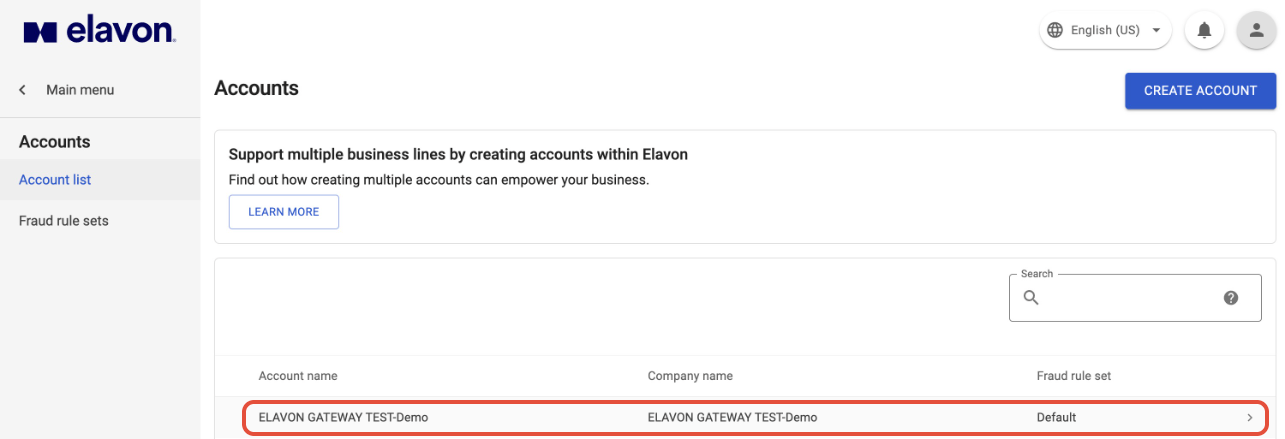
- Copy the Account ID.
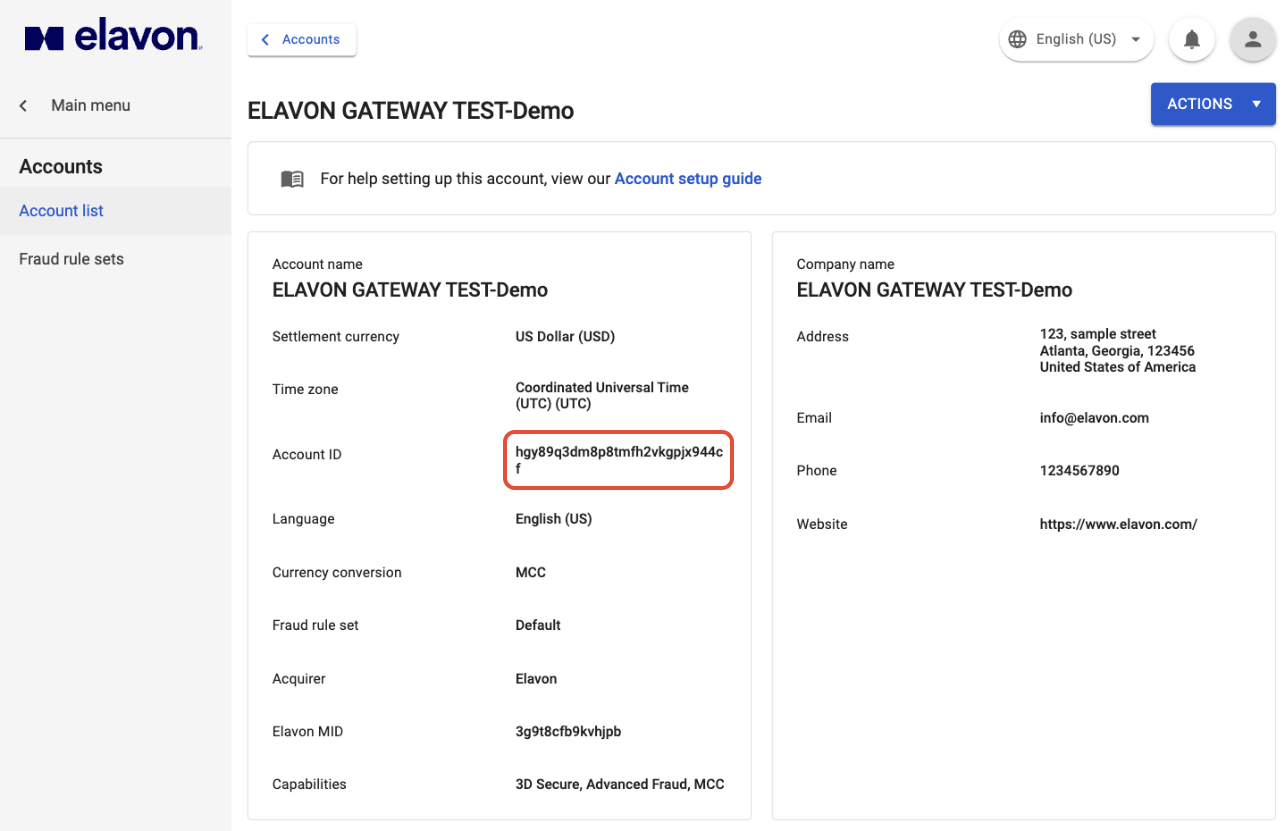
- Switch to your Benji Pays tab and paste the Account ID into the both the 3DS Account Key and No 3DS Account Key.
Continue to Section 5.
Section 5: Verify Credentials
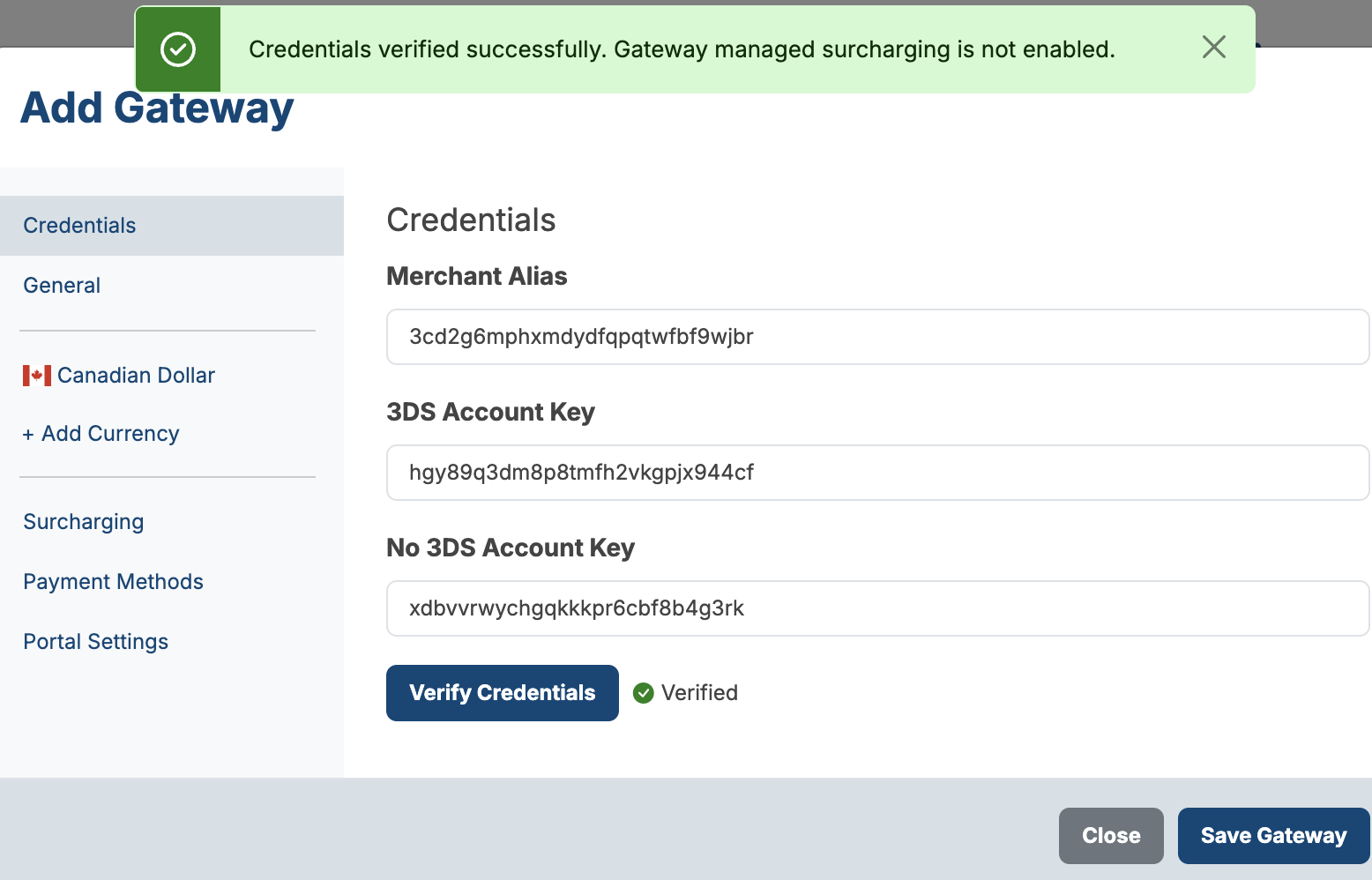
With all required fields filled in, click Verify Credentials in Benji Pays. Make sure you get a positive response before continuing.
If verification fails, double-check that the Merchant Alias and Account ID(s) were copied without extra spaces, and that you used the correct Account ID in each field.
Claude responded: ---
Section 6: Finish Setup in Benji Pays
After credentials are verified, complete the remaining tabs in the Add Gateway menu. Work through them in order, then click Save Gateway at the bottom when you are finished.
6.1: General
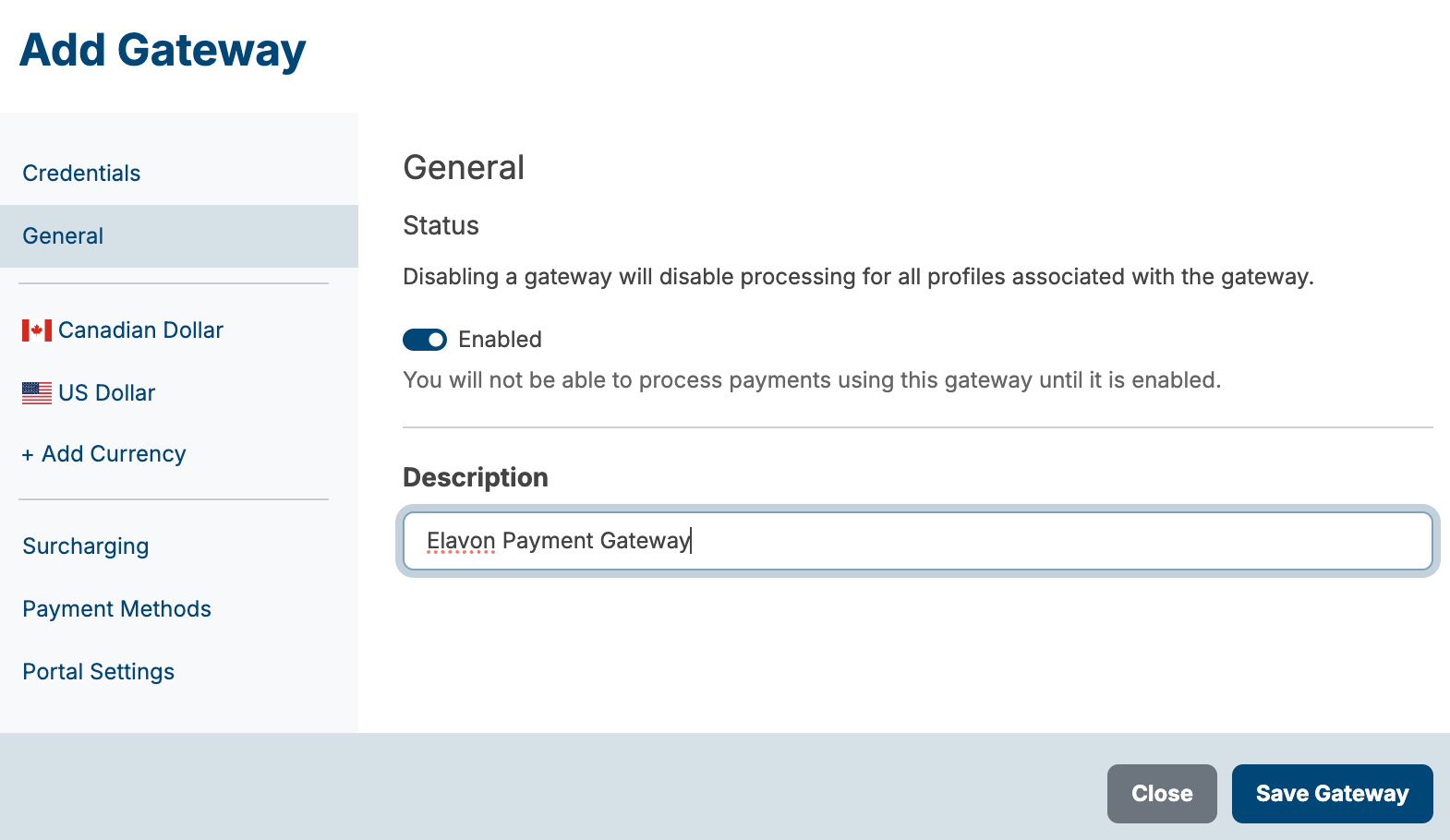
- Click the General tab in the left sidebar.
- Make sure the Status toggle is set to Enabled.
- Enter a Description. This is how the gateway will appear in Benji Pays. "Elavon Payment Gateway" or "EPG" both work.
6.2: Currency Configuration
A tab is created for each currency you process in. To add another currency, click + Add Currency in the left sidebar.
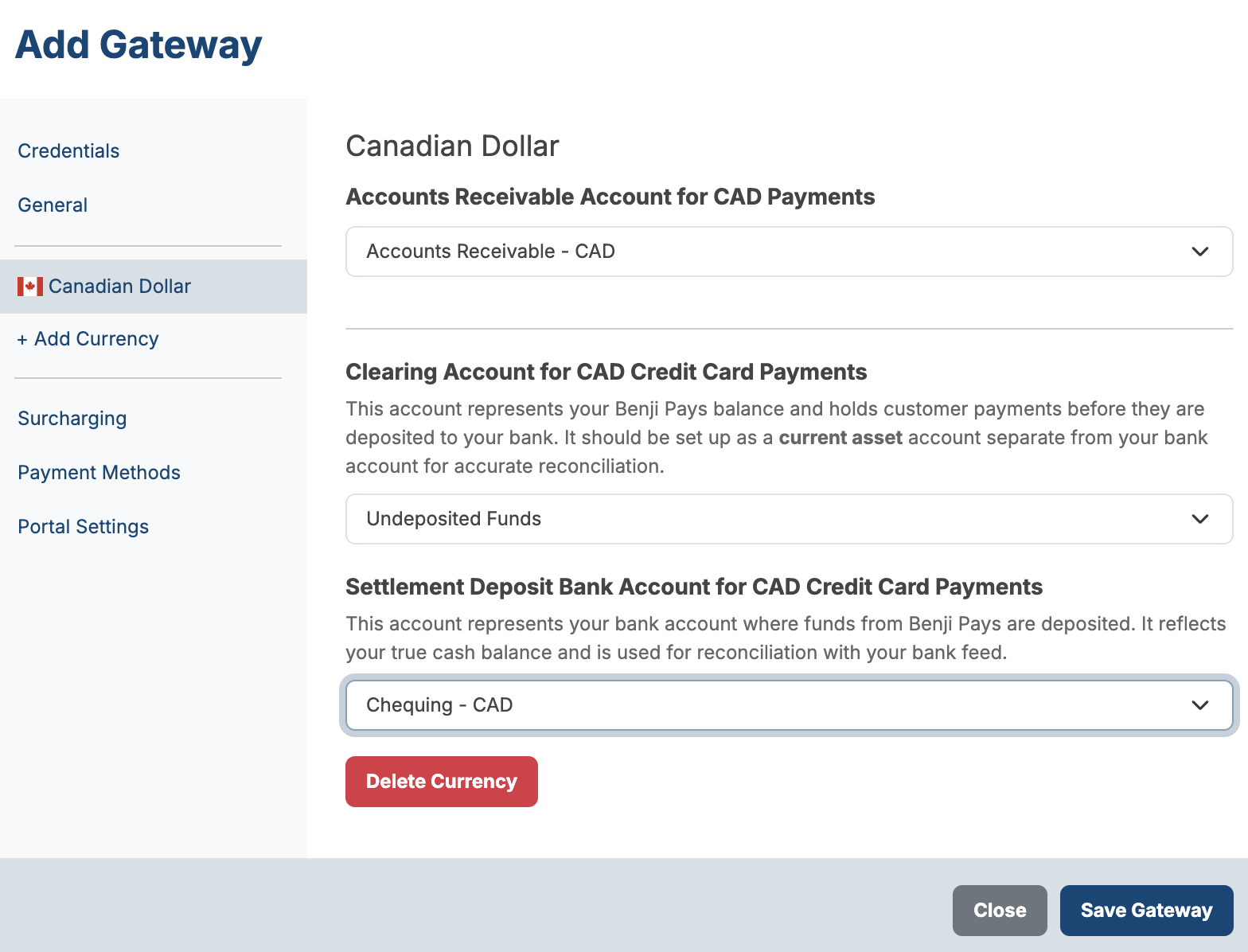
For each currency tab, set the following three accounts. The dropdown options come from your accounting system. If you do not see the account you need, add it in your accounting system and refresh the page.
- Accounts Receivable Account: select the Accounts Receivable account for this currency.
- Clearing Account: select the account that holds customer payments before they are deposited to your bank. This should be a current asset account, separate from your bank account.
- Settlement Deposit Bank Account: select the bank account where Elavon deposits your settled funds.
Repeat for each currency tab.
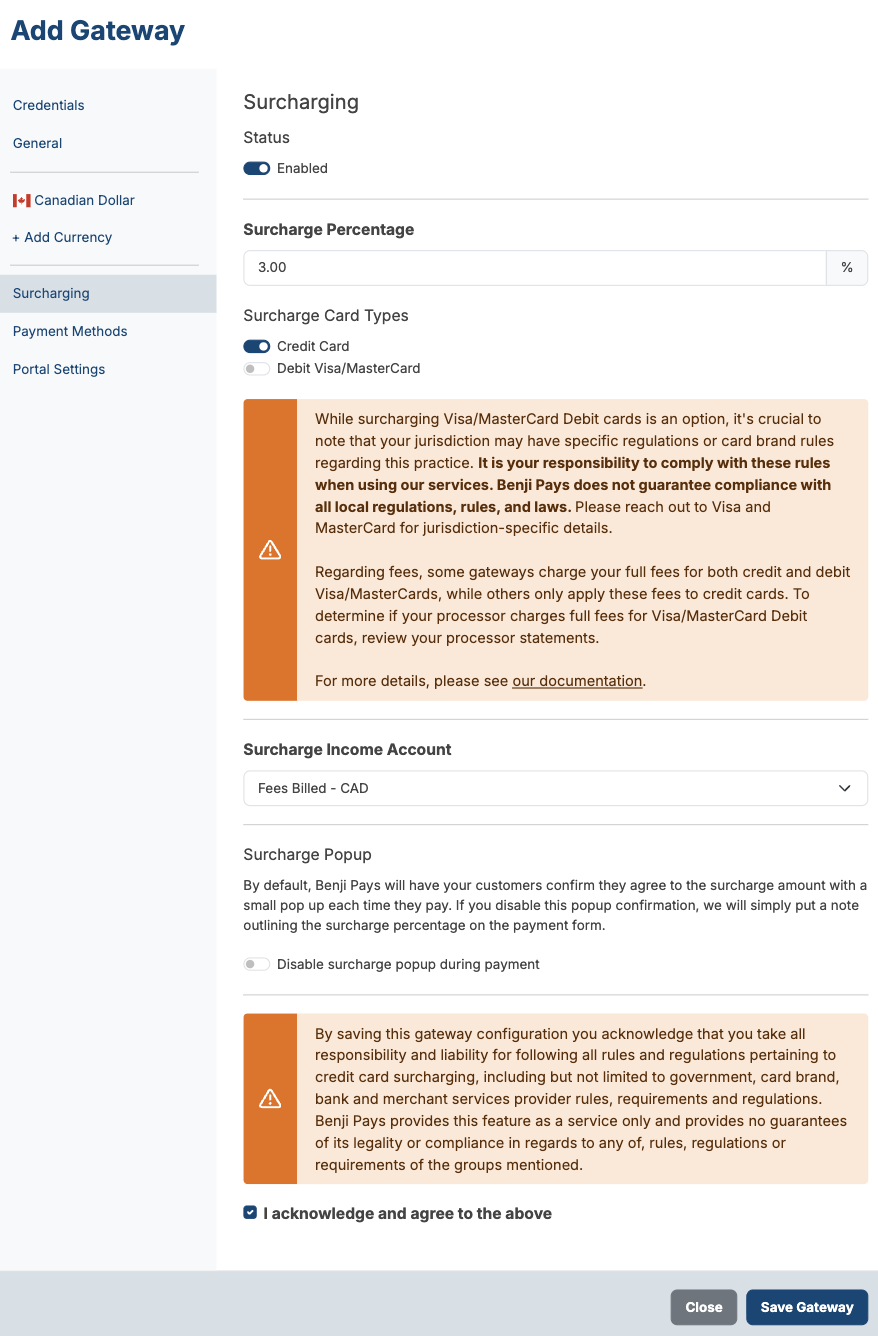
6.3: Surcharging
Skip this section if you do not plan to surcharge.
- Click the Surcharging tab in the left sidebar.
- Toggle Status to Enabled.
- Enter your Surcharge Percentage.
- Under Surcharge Card Types, enable the card types you want to surcharge:
- Credit Card
- Debit Visa/MasterCard
- Select a Surcharge Income Account. This is the account in your accounting system where surcharge revenue will be posted.
- Configure the Surcharge Popup:
- Leave the toggle off to have customers confirm the surcharge amount in a popup each time they pay.
- Enable Disable surcharge popup during payment to skip the popup. A note showing the surcharge percentage will appear on the payment form instead.
- Read the acknowledgement at the bottom of the page, then check I acknowledge and agree to the above.
6.4: Payment Methods
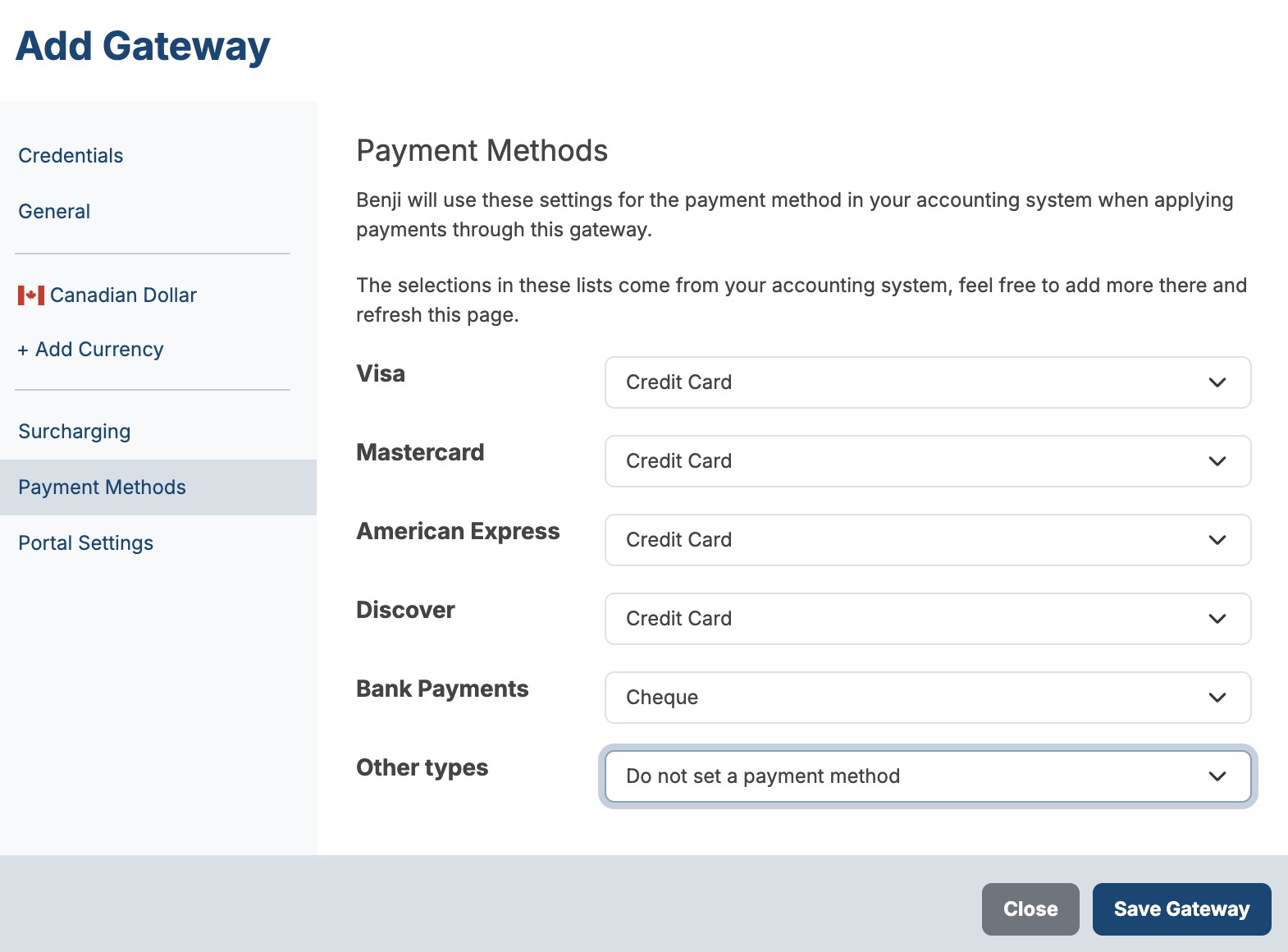
Benji Pays uses these settings to apply payments to the correct payment method in your accounting system.
- Click the Payment Methods tab in the left sidebar.
- For each card type, select the corresponding payment method from your accounting system:
- Visa
- Mastercard
- American Express
- Discover
- Bank Payments
- Other types
- Leave any row set to Do not set a payment method if you do not want Benji Pays to assign one for that type.
If you do not see the payment method you need in the dropdown, add it in your accounting system and refresh the page.
6.5: Portal Settings
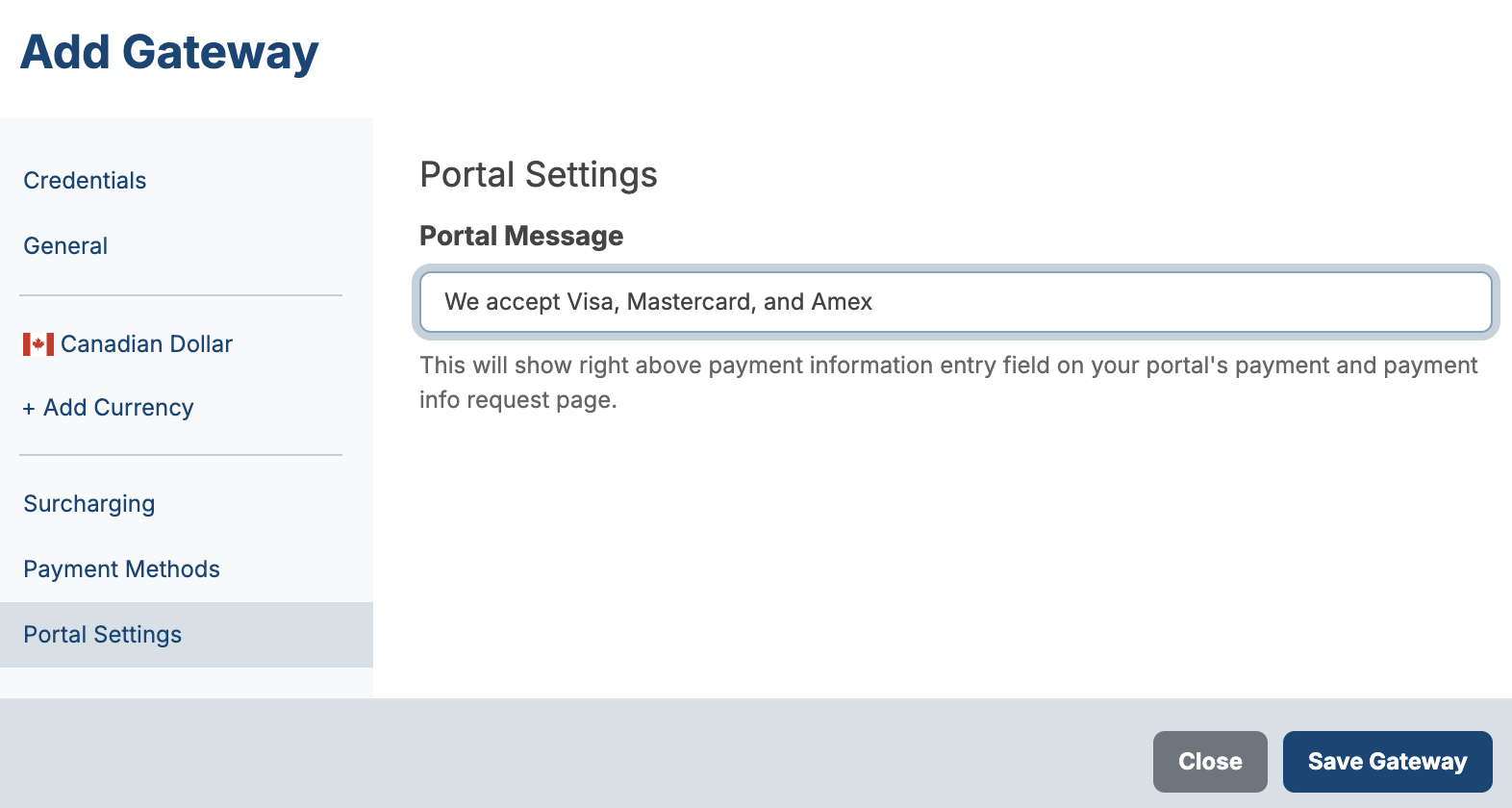
- Click the Portal Settings tab in the left sidebar.
- Enter a Portal Message. This message displays above the payment information entry field on your portal's payment and payment info request pages. For example, "We accept Visa and Mastercard."
6.6: Save the Gateway
Once all tabs are configured, click Save Gateway at the bottom right.
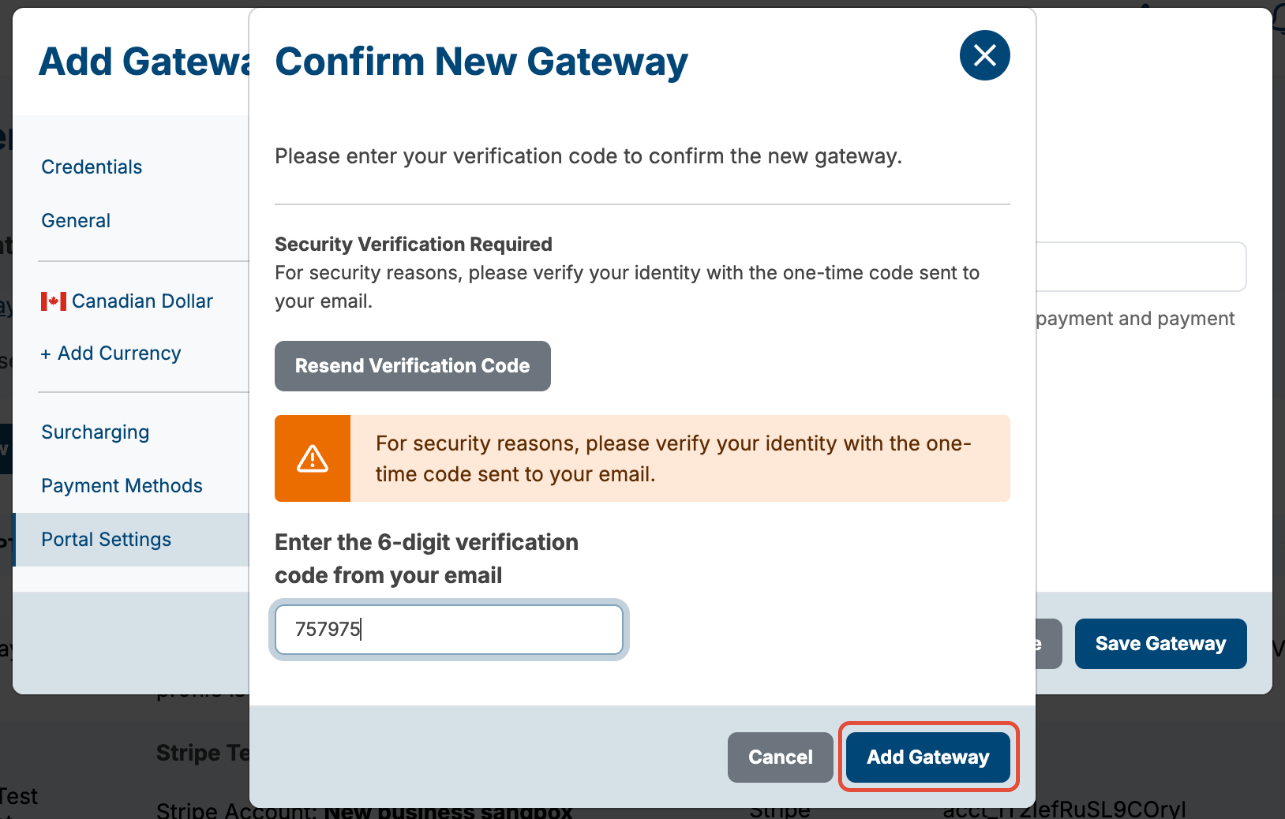
A popup menu will appear requesting you to enter the 6 digit security code. This is sent to the email you used to log into Benji Pays.
Press Add Gateway.
Your Elavon Payment Gateway is now ready to process!
Was this article helpful?
That’s Great!
Thank you for your feedback
Sorry! We couldn't be helpful
Thank you for your feedback
Feedback sent
We appreciate your effort and will try to fix the article