We are collecting and adding new questions to this page based on what customers are asking.
What does a Bambora payment look like on the customer's bank statement?
The value that shows up on the customer's bank statement is generated by Bambora. The information we have from Bambora is as follows:
By default, the Bambora merchant company name will show on your customer's bank statement; however, there may be times where the processing/receiving bank will include their own descriptor on the transaction as well. Unfortunately, we do not have control over any details that the processing/receiving banks may prefix or append the descriptor with.
In general, your company name set on your Bambora Account will show, you can see this value in Bambora as per below:
In Bambora go to "Administration > Company Info".
One thing you can do to confirm this is to look at your own bank statements from any test transactions you ran when first setting up your account to see what showed up on your own Bank Statements.
Why do I receive the following error "Bambora Declined EFT/ACH - Issue with bank account"?
If you receive a declined EFT/ACH transaction from Bambora, follow the steps below to troubleshoot the issue:
Step 1: Navigate to Transactions > Transaction Reporting in your Benji Pays account.
Step 2: Set the time period to this month and the status to declined.
This will display all the transactions that were not processed successfully. You can then click on the "Declined" result pill to see the message sent from Bambora.
The screenshot below shows the message "Issue with bank account, contact customer for new payment details".

If you log into your Bambora account and go to "Processing >Batch Processing" you will see all your batches.
If you click on a batch and you will see all the transactions in that batch, at the far right there is a column showing the status of each transaction, if you see any with red X's, hover over them and a message will come up with more details.
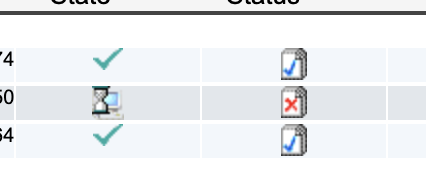

There are several reasons why a transaction might be declined, such as incorrect banking information or insufficient funds. I recommend contacting your customer and asking them to contact their bank to determine the specific reason for the decline. If you need more detailed assistance, please don't hesitate to contact Bambora directly at 1-833-226-2672.
Can I set up the same credit card for two different customer accounts for Bambora gateway?
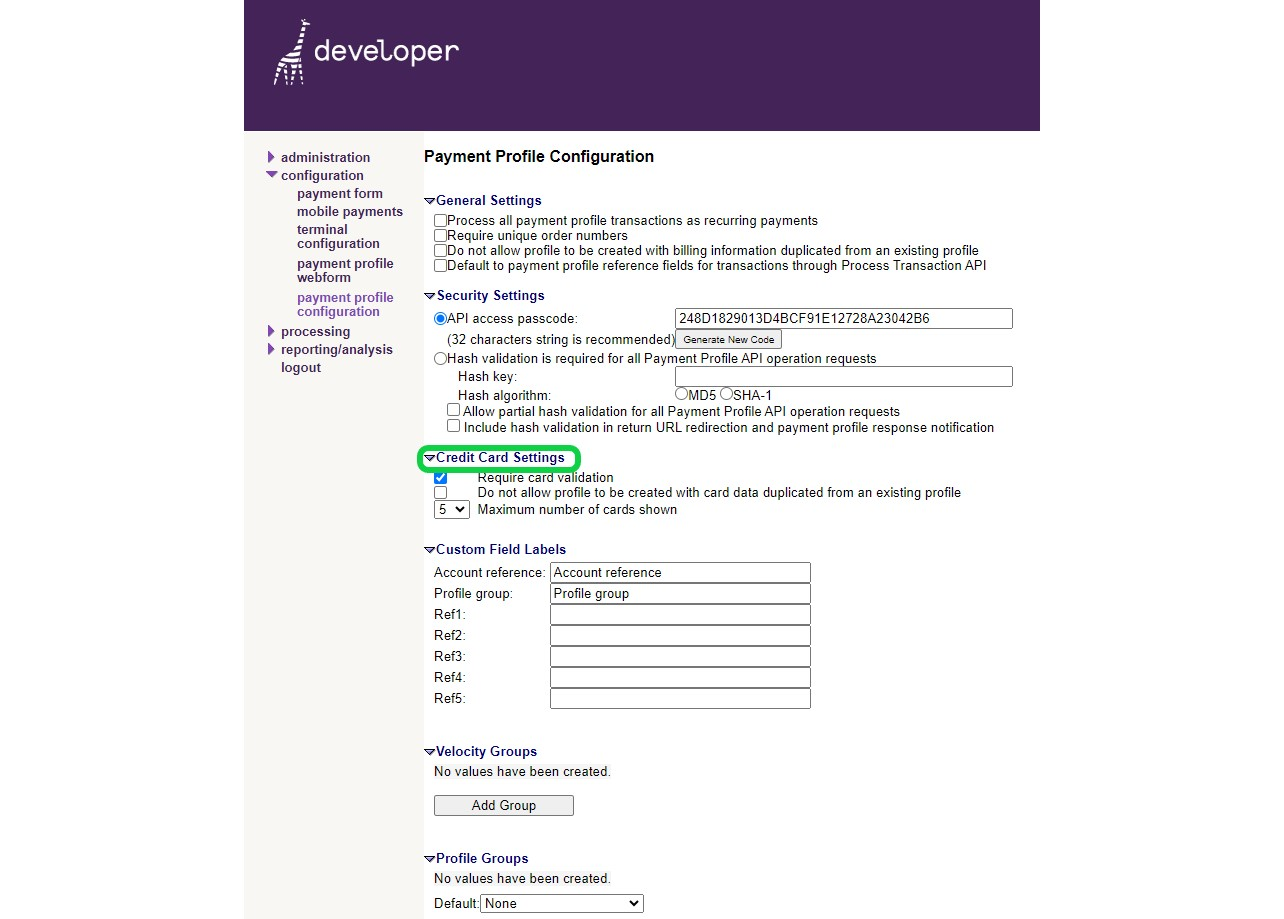
In Bambora, go to "Configuration >> Payment Profile Configuration".
- Uncheck "Require unique order numbers".
- Uncheck "Do not allow profile to be created with billing information duplicated from an existing profile".
- Uncheck "Do not allow profile to be created with card data duplicated from an existing profile".
- Change the "Maximum number of cards shown" to 5.
Click on the "Update" button when completed.
Why does it say Bambora Warnings?
The warning is likely because you have multiple EFT/ACH transactions for the same customer/bank account in the same batch. Bambora sends an automated warning in these circumstances.
I have a $20,000 invoice, which exceeds our $10,000 ACH batch limit. Should I split the invoice?
There’s no monthly limit on ACH/EFT, only a per-batch limit set by Bambora — the max you can process in a single transaction. You can still process multiple batches daily or monthly.
For your $20,000 invoice, the simplest solution is to split it into two $10,000 transactions. Just ensure the customer’s payment info is available (either on hand or saved in Benji Pays).
To proceed, go to Benji Pays, find the invoice, click “Pay”, and adjust the amount for a partial payment.
If high-value payments like this are frequent, refer back to Bambora’s initial approval email and request a limit increase. They may ask for additional info.
How do I reconcile or match deposits for Bambora ACH/ EFT and Credit cards?
1. Log in to Benji Pays
2. Click 'Transactions' on the left side menu
3. Select 'Settlement Report'
4. On the right side of the table, you will see 'Create Deposit' for each deposit.
For a more detailed explanation, please visit the following article. (UPATE LINK)
What happens if I get a returned transaction from Bambora?
Benji Pays will reverse this automatically for you, however it won't happen until about 11 AM PST. You will get a notification from Benji Pays once this is complete.
Benji Pays checks the status of all your batches daily around 11 AM PST. When that happens, if there is a returned transaction, the following will happen:
1. The customer payment profile will be disabled in Benji Pays.
2. The payment will be voided in QuickBooks/Xero, leaving the invoice open with the balance reflecting the amount that was voided.
3. You will receive an email notifying you of this issue.
Once this is done, you will be able to reprocess the now-open invoice with the new payment details.
Validation greater than maximum amount
The merchant has a per-transaction limit set on their Bambora gateway (could be on CC or Bank transaction). If you want to increase the limit ask Bambora by emailing them at support.na@worldline.com. Another option is to split the invoice into multiple payments.
What is the settlement time?
For EFT/ACH transactions, if you click on the result pill for the transaction (e.g. Pending), you will see an estimated settlement date. Transactions that are processed before 10am PST will be submitted to Bambora on the same day. The reason for this is because Bambora's batch closing time is 11am PST so if possible, please try to submit transactions before 10am to ensure the quickest settlement.
- Net Sales: The total value of all processed and approved sales on the specified date, net of returns and chargebacks if any.
- Total Fees: The total amount of transaction fees and percentage rates applied.
Note: This column shows only the total fees calculated based on your pricing setup; it does not provide a detailed fee breakdown. A more detailed summary of your fees and transactions can be found in your monthly invoice, available under Reporting/Analysis > Monthly Invoice once generated at the end of each month.
For example, in the case of a $3,729 transaction with $97.05 in total fees, the Settlement Summary would display $97.05, which includes a $0.10 per transaction fee + 2.60% of $3,729

- Daily Balance: Deposit amount net all fees
- State:
- APP – Approved (funds were deposited)
- PRO – In Process
- SCH – Scheduled
- UND – No sales or transactions (no deposits)
Was this article helpful?
That’s Great!
Thank you for your feedback
Sorry! We couldn't be helpful
Thank you for your feedback
Feedback sent
We appreciate your effort and will try to fix the article